

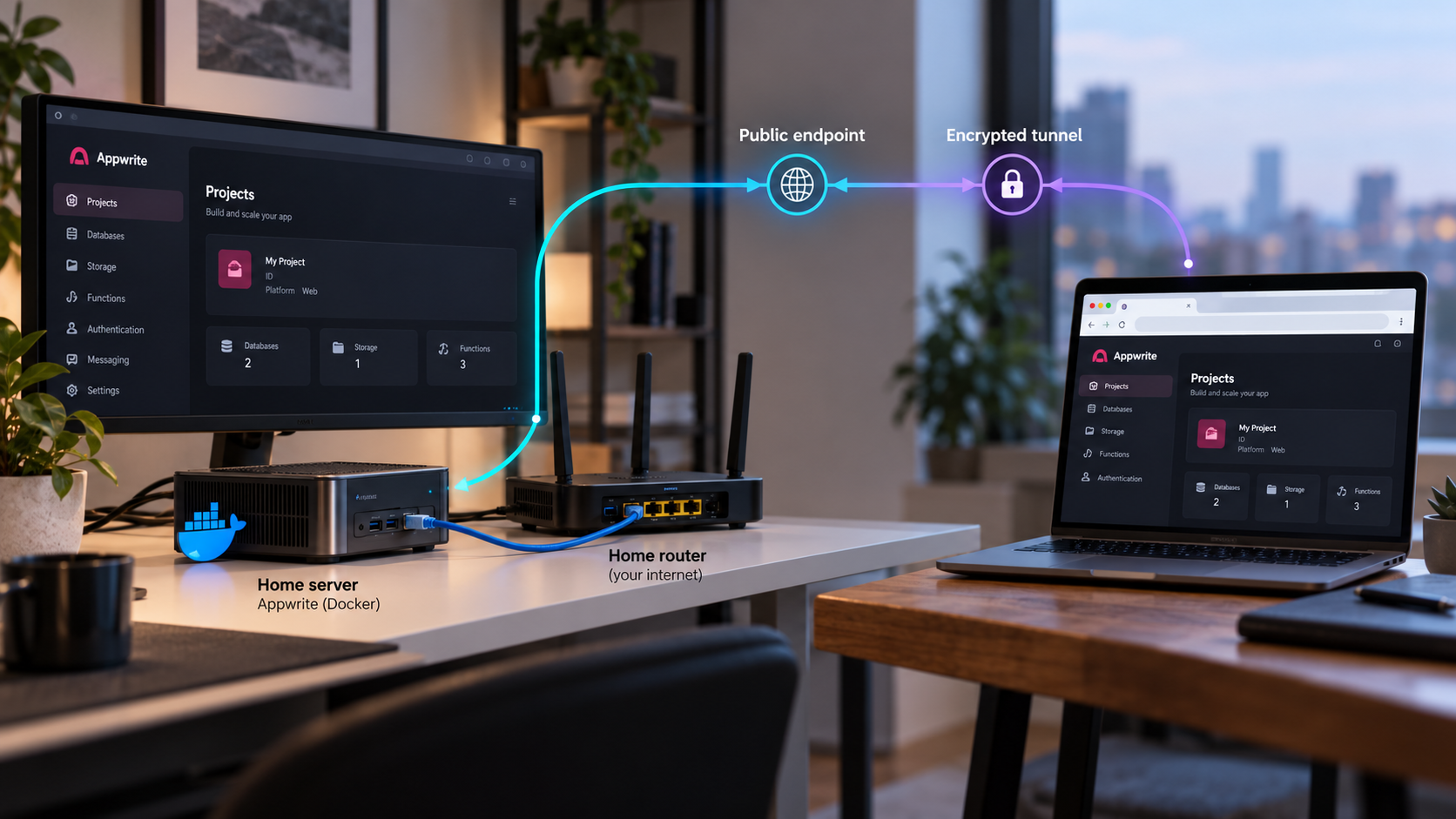
Run your own Appwrite backend at home, verify it locally, and make the console reachable through a controlled public HTTPS address
Appwrite can be self-hosted on a machine that supports Docker, making it practical for development labs, private projects, home servers, and controlled test environments. This guide installs Appwrite 2.5.0 with its official versioned Docker installer, explains how to complete the local setup wizard, and verifies the console before any remote access is introduced. Once the installation works on the server itself, we connect its HTTP endpoint to a Localtonet HTTP tunnel. The installer endpoint and the installed Appwrite console are treated separately so that the temporary setup wizard is not accidentally published.
📋 What's in this guide
How the Appwrite and Localtonet architecture works
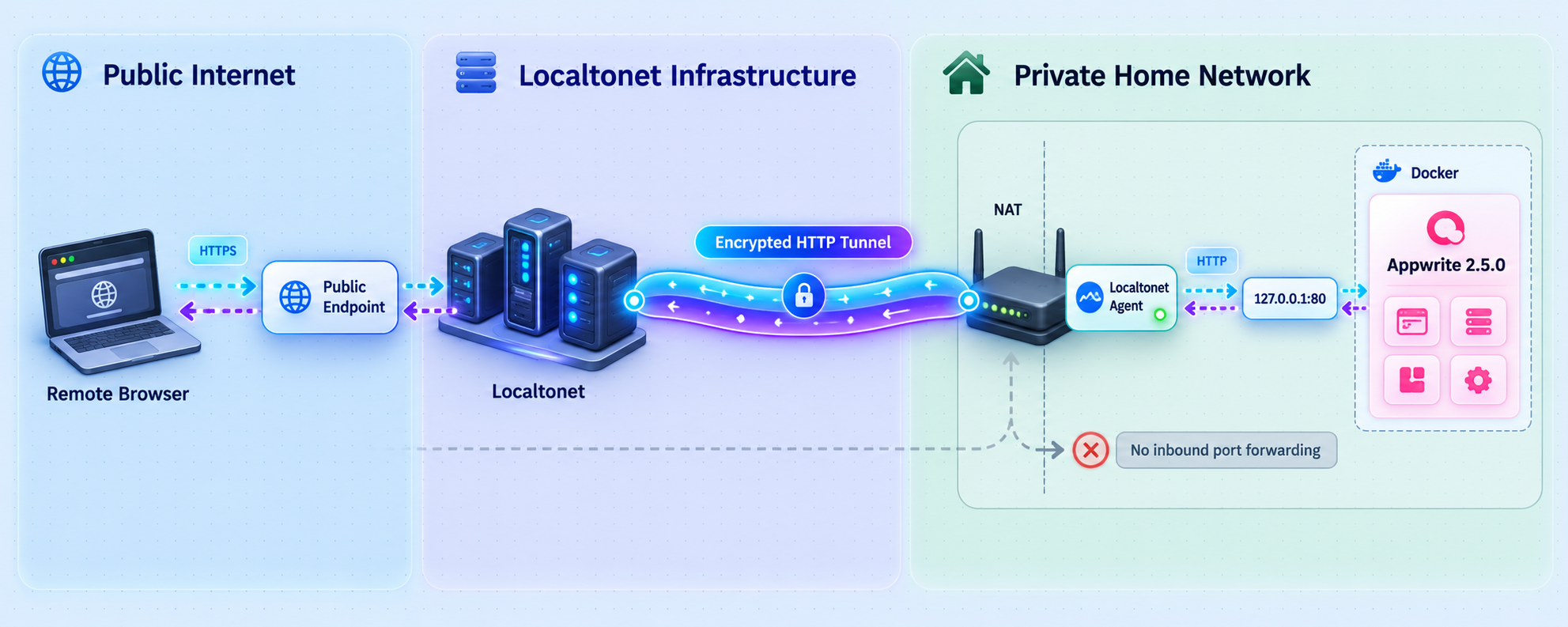
Appwrite is an open-source application development platform that combines services such as authentication, databases, storage, functions, messaging, hosting, realtime features, and project administration. A self-hosted deployment places those services on infrastructure that you control instead of requiring the managed Appwrite Cloud service.
For the workflow in this guide, Appwrite runs as a set of Docker services on a home server. The Appwrite installer connects to the host Docker Engine through the Docker socket, writes the deployment files into a persistent directory, and guides you through initial configuration using a temporary browser-based setup wizard.
Two HTTP endpoints are important, and they must not be confused:
127.0.0.1:20080. It prints a URL containing a one-time installer secret. This endpoint exists to complete installation and should remain restricted to localhost.
http://localhost. This is the working service to verify before configuring remote access.
With this arrangement, the router does not need an inbound port-forwarding rule, the home connection does not need a public IP address, and a VPN is not required for the standard HTTP tunnel. The Localtonet client initiates the connection outward, and the tunnel remains available only while the selected client is connected and the tunnel is running.
Port 20080 belongs to the temporary setup wizard, not the normal Appwrite console. Keep its binding at 127.0.0.1:20080, use the one-time installer URL only during setup, and publish the verified post-installation HTTP service instead.
Prepare the home server
Appwrite supports self-hosting on an operating system that can run the Docker CLI. The documented installation paths include Unix-like shells, Windows Command Prompt, and Windows PowerShell. Before running the Appwrite installer, prepare the host and confirm that Docker commands work for the account performing the installation.
Required components
- A home server or computer that can remain powered on while Appwrite is needed.
- A supported host operating system with a working Docker installation.
- Permission to run Docker containers and access the Docker socket.
- A terminal on the server, or an SSH connection to it.
- A writable working directory where the installer can create the
appwritedirectory. - A browser for completing the setup wizard and opening the installed console.
- A Localtonet account and client for the later remote-access stage.
Appwrite's supplied installation evidence does not establish one universal minimum for CPU cores, memory, disk capacity, or supported Docker versions for every workload. Requirements depend on the enabled services, stored data, function workloads, traffic, and operating system. We therefore do not invent a hardware minimum here. Check that the host has adequate free storage and memory for a multi-container platform, then monitor actual use after deployment.
Confirm that Docker is available
Install Docker Engine or Docker Desktop using the procedure appropriate to the server's operating system. Docker packaging and service management differ between Linux distributions, Windows, and macOS, so use the current Docker instructions for the exact host rather than copying an unrelated package command.
Once Docker is installed, verify that both the CLI and Engine respond:
docker version
docker info
The first command displays client and server version information. The second confirms that the CLI can communicate with the Docker Engine. If either command reports a permissions error, unavailable daemon, or connection failure, resolve that Docker problem before attempting the Appwrite installation.
Choose and enter a working directory
The installer command maps an appwrite directory below the current directory into the installer container. Start from the parent directory where you want that deployment directory to be created. The account running the command must be able to write there.
Avoid running the installer from a temporary directory that is routinely deleted. The generated deployment configuration is part of the installation and should be retained.
Plan local and remote administration
If a keyboard and browser are attached directly to the server, the setup URL printed by the installer can be opened on that machine. If the home server is headless and you administer it from another computer, keep port 20080 bound to localhost and use an SSH local-forwarding session.
A typical SSH forwarding command has this form:
ssh -L 20080:127.0.0.1:20080 user@home-server
Replace user and home-server with the actual SSH account and host address. While that SSH session remains open, a browser on the administrator's computer can reach the server's localhost-only setup wizard through http://127.0.0.1:20080. Use the complete URL printed by Appwrite because it includes the one-time secret.
The official Appwrite 2.5.0 command explicitly publishes the setup wizard as 127.0.0.1:20080:20080. Do not change that binding to every network interface merely to make remote setup convenient. SSH forwarding preserves the localhost restriction while still allowing an administrator to complete the wizard remotely.
Run the Appwrite 2.5.0 Docker installer
Select the command that matches the shell running on the home server. These commands use the versioned appwrite/appwrite:2.5.0 image, mount the Docker socket, persist generated files below the current working directory, and run the image's install entrypoint.
Open a terminal in the prepared parent directory
Move to the location where the Appwrite deployment directory should be created. Confirm that the current account can write to this location and run Docker commands.
Run the official command for your shell
Use the Unix, Windows Command Prompt, or PowerShell form below without mixing shell-specific line continuation characters.
Keep the installer terminal open
The installer prints status information and a URL containing a one-time installer secret. Do not share that URL or copy its secret into logs, tickets, screenshots, or public messages.
Unix shell
docker run -it --rm \
  --publish 127.0.0.1:20080:20080 \
  --volume /var/run/docker.sock:/var/run/docker.sock \
  --volume "$(pwd)"/appwrite:/usr/src/code/appwrite:rw \
  --entrypoint="install" \
  appwrite/appwrite:2.5.0
Windows Command Prompt
docker run -it --rm ^
  --publish 127.0.0.1:20080:20080 ^
  --volume //var/run/docker.sock:/var/run/docker.sock ^
  --volume "%cd%"/appwrite:/usr/src/code/appwrite:rw ^
  --entrypoint="install" ^
  appwrite/appwrite:2.5.0
Windows PowerShell
docker run -it --rm `
  --publish 127.0.0.1:20080:20080 `
  --volume /var/run/docker.sock:/var/run/docker.sock `
  --volume "${pwd}/appwrite:/usr/src/code/appwrite:rw" `
  --entrypoint="install" `
  appwrite/appwrite:2.5.0
The container used for installation is temporary because the command includes --rm. That does not mean the resulting deployment is disposable. The generated Appwrite files are stored through the bind mount under the current directory, while the installer uses the host Docker socket to create and manage the deployment's containers.
Mounting /var/run/docker.sock gives the installer the ability to communicate with the host Docker Engine. Run the documented image and version, limit administrative access to the server, and do not substitute an unknown image or expose the Docker socket over the network.
Complete the Appwrite setup wizard
After the installer starts, watch its terminal output. It provides the setup URL required to continue. The URL includes a one-time secret, so the exact value is unique to that installer session and must never be guessed or included in a reusable tutorial.
Copy the complete printed installer URL privately
Copy it directly from the terminal without publishing it. The one-time secret authorizes access to the installation workflow.
Open the URL from an allowed browser
On a local graphical server, open it directly. For a remote headless server, establish the SSH local forward described earlier and open the printed URL through the forwarded localhost port.
Finish the browser-based setup workflow
Provide the values requested by the Appwrite wizard. Use unique administrative credentials and record only the information needed for legitimate recovery and operations.
Allow the deployment to start
Wait for the installer to finish creating and starting the Appwrite services. On non-Linux native hosts, Appwrite notes that startup may take a few minutes after setup completes.
Do not close the terminal in the middle of setup unless the installer instructs you to do so. If the browser cannot reach the wizard, first check whether the installer is still running, whether the printed URL was copied completely, and whether an SSH forwarding session remains open.
What Appwrite 2.5.0 provides
Appwrite 2.5.0 includes the self-hosted Console version 1.2.74. Among the release's additions are project passkeys, interval-based function schedules, changes to function runtime handling, and reductions in bundled ClickHouse work under load. For this installation guide, the operationally important point is that self-hosted Console sign-in in this release uses email and password rather than displaying OAuth or passkey buttons on the console login screen.
Passkeys configured for an Appwrite project are distinct from the method used to sign in to the self-hosted administrative Console. Do not assume that enabling a project authentication feature changes the Console login flow.
Verify Appwrite locally before publishing it
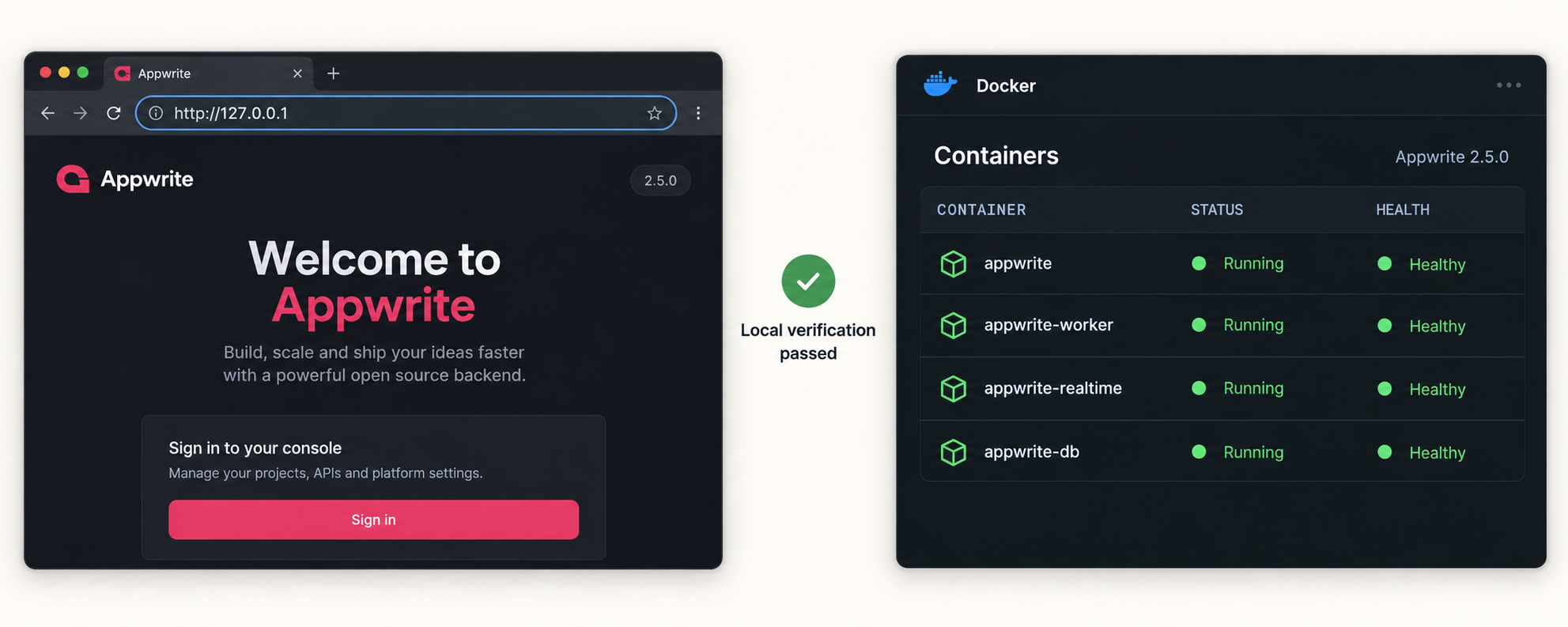
Remote access should be the final stage, not the first diagnostic step. Confirm that Appwrite works on the home server and, where appropriate, elsewhere on the trusted local network before adding a public tunnel.
The documented post-installation console URL is:
http://localhostOpen that address in a browser running on the Appwrite host. A successful result should present the Appwrite console rather than the temporary installer. Sign in using the console credentials created during setup.
Appwrite documents the installed console as http://localhost without an explicit numeric port in that URL. Plain HTTP without a port normally implies port 80, but the actual deployment can differ if custom ports were selected or retained. Verify the host's real binding instead of assuming that every installation uses port 80.
Check the HTTP response from the host
A command-line request can distinguish an HTTP service problem from a browser-specific problem:
curl -I http://localhostAn HTTP response confirms that something is listening at that address. Redirect responses can be normal for web applications, so do not interpret every non-200 status as a failed installation. If the connection itself is refused or times out, inspect the deployment before creating a tunnel.
Inspect the deployment state
Enter the generated deployment directory and ask Docker Compose for the service state:
cd appwrite
docker compose ps
If a service is repeatedly restarting, stopped, or unhealthy, inspect its logs. Start with recent aggregate output:
docker compose logs --tail=200
For an individual service, append the service name shown by docker compose ps:
docker compose logs --tail=200 SERVICE_NAME
Replace SERVICE_NAME with an actual Compose service name from the deployment. Do not paste complete logs into a public issue without checking for hostnames, email addresses, secrets, tokens, or other private values.
Record the verified local target
Before proceeding, record the exact local address that succeeds from the machine where the Localtonet client will run. If http://localhost works on that same machine with an unchanged standard binding, the practical target is usually loopback on the standard HTTP port. If the Localtonet client runs on another device, 127.0.0.1 would refer to that other device, not the Appwrite server, so use an address that the client device can actually reach.
| Endpoint | Purpose | Should it be tunneled? |
|---|---|---|
127.0.0.1:20080 |
Temporary Appwrite installation wizard with a one-time secret | No. Keep it local and use SSH forwarding when remote setup is necessary. |
http://localhost |
Documented post-installation Appwrite console | Yes, after local verification and after confirming the actual numeric port. |
| Localtonet public HTTPS URL | Remote entry point mapped to the verified local Appwrite service | This is the address authorized remote users open while the tunnel is running. |
Operate and maintain the self-hosted deployment
Self-hosting does not end when the console first opens. The home server remains responsible for storage availability, power, Docker health, Appwrite updates, backups, and access control. Establish a small operating routine before placing important projects on the deployment.
Start, stop, and inspect the Compose deployment
From the generated appwrite directory, standard Docker Compose operations can be used to inspect and control the deployment:
cd appwrite
docker compose ps
docker compose stop
docker compose start
Stopping the Appwrite services makes the local console unavailable. A Localtonet tunnel may still be marked as running while its local target is unavailable, so always check both layers when diagnosing remote access.
A server reboot can also interrupt availability while Docker and the application containers start. On non-Linux native hosts, allow the documented extra startup time before treating a temporary connection failure as a permanent fault.
Back up before upgrading
Appwrite's 2.5.0 release guidance explicitly says to back up data before an upgrade. A complete backup plan must account for the deployment configuration and the persistent data used by the installed services. The supplied evidence does not define one universal backup command for every Appwrite storage configuration, so this guide does not invent one.
Validate your backup and restoration procedure before an upgrade is urgent. Merely copying the visible Compose file may not protect data stored in Docker volumes or external services. Record any custom ports, environment settings, storage locations, and external dependencies that would be required during recovery.
Understand the 2.5.0 upgrade sequence
A fresh 2.5.0 installation does not need migration from an older release. If an existing deployment is being upgraded instead, the release instructions use the same installer image with the upgrade entrypoint, followed by the Appwrite migration command:
cd appwrite
docker compose exec appwrite migrate
The upgrade action itself should use the official command for the host shell with --entrypoint="upgrade" in place of --entrypoint="install". The migration step is not optional simply because the updated containers start.
Appwrite 2.5.0 preserves docker-compose.override.yml during installation and upgrade. Its upgrade process also preserves custom HTTP and HTTPS ports and the HTTPS setting. Even with those preservation behaviors, keep a backup and review the resulting configuration before reopening remote access.
First identify whether the fault is in Docker, Appwrite, the local HTTP binding, or the tunnel. An unplanned upgrade can add migration work to an otherwise simple connectivity problem.
Publish the verified Appwrite console with Localtonet
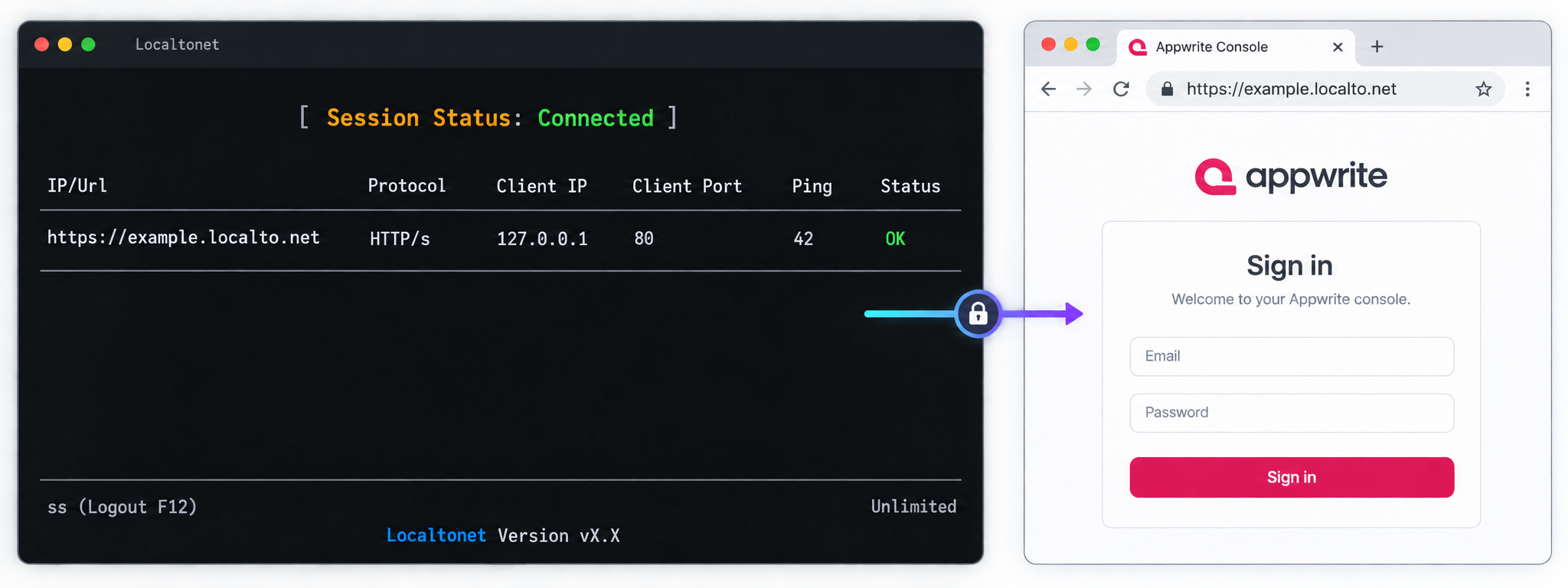
Once the Appwrite console works locally, the next step is to map that existing HTTP service to a Localtonet HTTP tunnel. Our client runs on a device that can reach Appwrite and establishes an outbound connection to a selected relay server. You receive a public address without adding an inbound router port-forwarding rule.
For the simplest deployment, run the Localtonet client on the Appwrite host itself. In that arrangement, a loopback target can reach the same service that responds at http://localhost. If the client runs on another machine, use the Appwrite server's reachable private address and ensure host firewall rules permit that local connection.
Install and run the Localtonet client
Install our client on the Appwrite server or another device that can reach the verified Appwrite HTTP endpoint. Keep the client running whenever remote access is required.
Authenticate or select the client device
Use the device-specific authentication token associated with the intended client. Treat the token as a secret and never place it in an article, script repository, screenshot, or shared command history.
Select an available relay server
Choose a currently available server or region from the Localtonet dashboard. Available values can vary, so obtain them from the current product rather than copying a hardcoded server code from a tutorial.
Create an HTTP tunnel to the verified local target
Enter the local IP address and numeric port that were proven to serve Appwrite. When the client runs on the Appwrite host and the default http://localhost binding is confirmed, this will commonly be loopback with the standard HTTP port. If the deployment uses a custom port, enter that verified port instead.
Choose the appropriate HTTP process type
HTTP tunnels can use Random Sub Domain, Custom Sub Domain, or Custom Domain. Each serves the local content at a public HTTPS address. Availability and custom-domain requirements can vary, so use the options currently shown for your account and follow current DNS instructions if selecting a custom domain.
Start and test the tunnel
Creating the tunnel does not start it. Press Start, wait for the selected client and tunnel to be connected, and open the assigned public URL in a private browser session or from a separate network.
The public test should show the installed Appwrite console. It should not show the setup wizard, a router page, an unrelated web server, or a generic connection error. If the wrong content appears, stop the tunnel and recheck the local IP and port.
For the current product workflow and fields, consult our Localtonet HTTP tunnel documentation. Exact relay choices, domain settings, and plan-dependent capabilities should always be confirmed in the current dashboard.
The Localtonet client must be connected and the tunnel must be started. The public address is available only while those conditions remain true and the local Appwrite service is responding.
Secure the remotely accessible console
A public URL changes the threat model. A service that was previously reachable only from the host or home LAN can now receive requests from the internet. Tunneling solves connectivity, but it does not remove the need for application authentication, careful credential handling, updates, monitoring, and least-privilege administration.
Keep the installer private
The most important separation in this workflow is between installation and operation. Never point the HTTP tunnel at 127.0.0.1:20080. The one-time installer secret should remain private, and the temporary installer should not become a persistent public management endpoint.
Use strong Console credentials
Appwrite 2.5.0's self-hosted Console sign-in uses email and password. Choose a unique password that is not shared with other home services. Store it in an appropriate password manager and restrict administrative accounts to people who need them.
Publish only the intended HTTP service
Use an HTTP tunnel for the Appwrite web endpoint. Do not expose the Docker socket, database ports, internal service ports, or the installer merely because they exist on the host. Internal components should remain internal unless their own documentation explicitly requires a controlled exposure.
Stop access when it is not required
Localtonet tunnels can be stopped and later started again. For temporary administration, stop the tunnel after the session. If the endpoint should no longer exist, delete the tunnel rather than leaving an unused configuration available.
Review application-level platform configuration
Remote browser clients and applications may require appropriate Appwrite project platform, hostname, or origin configuration. The exact values depend on what is being exposed and the public hostname assigned to the tunnel. The available evidence for this article does not establish a universal Appwrite setting that should be entered for every project, so verify the requirements for the specific SDK, browser application, OAuth flow, callback, or passkey configuration in use.
This is especially important for features tied to domains. For example, Appwrite 2.5.0 allows project passkeys to use a domain selected from configured web platforms. A tunnel hostname and a future custom domain are not automatically interchangeable for domain-bound authentication behavior.
Troubleshoot installation and remote-access problems
The installer reports a Docker API version mismatch
Appwrite documents a failure in which the Docker CLI inside the installer image is newer than the host Docker Engine. The message can look like this:
client version 1.52 is too new. Maximum supported API version is 1.42
The preferred long-term response is to consider updating the host Docker Engine. Appwrite also documents passing DOCKER_API_VERSION with the maximum API version reported by the error. Using the example value from that message, the Unix installation command becomes:
docker run -it --rm \
  --env DOCKER_API_VERSION=1.42 \
  --publish 127.0.0.1:20080:20080 \
  --volume /var/run/docker.sock:/var/run/docker.sock \
  --volume "$(pwd)"/appwrite:/usr/src/code/appwrite:rw \
  --entrypoint="install" \
  appwrite/appwrite:2.5.0
Do not always copy 1.42. Use the maximum supported API version stated by the actual error on your host. The same environment flag can be used with the upgrade entrypoint if an upgrade encounters this mismatch.
The setup wizard does not open
- Confirm that the installer container is still running and has printed the complete URL.
- Confirm that the browser is opening the URL containing the one-time secret.
- If working remotely, confirm that the SSH local-forwarding session is still connected.
- Check that another process is not already occupying local port
20080. - Do not replace the localhost binding with an all-interface binding as a shortcut.
The installation completes, but localhost does not respond
On non-Linux native hosts, wait a few minutes because Appwrite notes that startup can take longer. Then run:
cd appwrite
docker compose ps
docker compose logs --tail=200
Look for services that are stopped or repeatedly restarting. Also check whether a custom HTTP port was selected. If so, test that exact local port rather than assuming the default URL still applies unchanged.
The Localtonet URL returns a gateway or connection error
Test the same local IP and port from the machine running the Localtonet client. If the local request fails there, the tunnel cannot repair it. Common causes include targeting port 20080 instead of the installed console, using 127.0.0.1 when the client runs on a different device, stopping the Appwrite containers, or selecting the wrong custom port.
The local console works, but the tunnel is offline
- Confirm that the Localtonet client is running on the selected device.
- Confirm that the device is authenticated with the intended token.
- Confirm that the selected relay server is available in the current dashboard.
- Confirm that the tunnel has been started, not merely created.
- Restart the tunnel only after confirming that the local Appwrite target still responds.
The wrong website appears at the public URL
Stop the tunnel and verify the target port. Another web server, reverse proxy, router interface, or development service may be listening on the selected address. Use curl or a local browser against the exact target before restarting public access.
Console login works locally but behaves differently through the public hostname
Confirm that the same Appwrite deployment is being reached and that browser cookies or cached redirects are not causing confusion. Test in a private browser window. For project features that depend on origins, callback URLs, web platforms, or domains, configure the public hostname according to that specific Appwrite feature's requirements. Do not weaken authentication or publish additional internal ports to work around a hostname configuration issue.
Frequently asked questions
Can Appwrite run on any home server?
Appwrite documents self-hosting on operating systems that can run a Docker CLI. The host also needs enough resources for the deployed services and workload. The evidence used for this guide does not establish one universal CPU, memory, or disk minimum, so capacity should be evaluated for the projects, files, functions, databases, and traffic the server will handle.
Should I create a Localtonet tunnel to Appwrite port 20080?
No. Port 20080 is the temporary localhost-only setup wizard and uses a one-time installer secret. Complete setup locally or through SSH forwarding, then tunnel the verified post-installation Appwrite HTTP endpoint.
Which port should the Localtonet HTTP tunnel target?
Target the numeric port that actually serves the installed Appwrite console. Appwrite documents the default console URL as http://localhost, which normally implies standard HTTP port 80, but the documentation does not state that numeric port separately and custom deployments can differ. Verify the address and port locally before entering them in the tunnel configuration.
Does this require router port forwarding or a public IP address?
No. The Localtonet client establishes an outbound connection to our relay server. The HTTP tunnel provides a public URL without requiring an inbound router port-forwarding rule, firewall change, VPN setup, or public IP address.
Does creating the tunnel immediately make Appwrite public?
No. Creating a tunnel and running it are separate lifecycle states. The selected Localtonet client must be connected, and the tunnel must be started. The local Appwrite service must also remain available for the public endpoint to work.
Can the Localtonet client run on a different device?
Yes, provided that device can reach the Appwrite server's local IP address and HTTP port. In that design, do not enter 127.0.0.1 unless Appwrite also runs on the client device, because loopback always refers to the machine making the connection.
Is a Localtonet HTTP tunnel the same as a VPN?
No. This workflow publishes a specific local HTTP service through an HTTP tunnel. It does not place the remote browser on the home LAN. Localtonet VPN Manager is our separate private mesh VPN feature.
How should I disable remote Appwrite access temporarily?
Stop the Localtonet tunnel. The local Appwrite deployment can continue serving the home server or LAN while the public endpoint is unavailable. Delete the tunnel if the public configuration is no longer needed.
Do I need to run the Appwrite migration command after a fresh 2.5.0 installation?
The migration instruction applies when upgrading an older Appwrite deployment. A fresh installation directly from the versioned 2.5.0 image is not an upgrade from an older schema. If upgrading, back up first, run the documented upgrade process, and then execute docker compose exec appwrite migrate from the deployment directory.
Publish your verified Appwrite console with Localtonet
Install Appwrite locally first, confirm the real HTTP target, and then create a Localtonet HTTP tunnel for controlled remote access without configuring inbound router port forwarding.
Get Started Free →

