

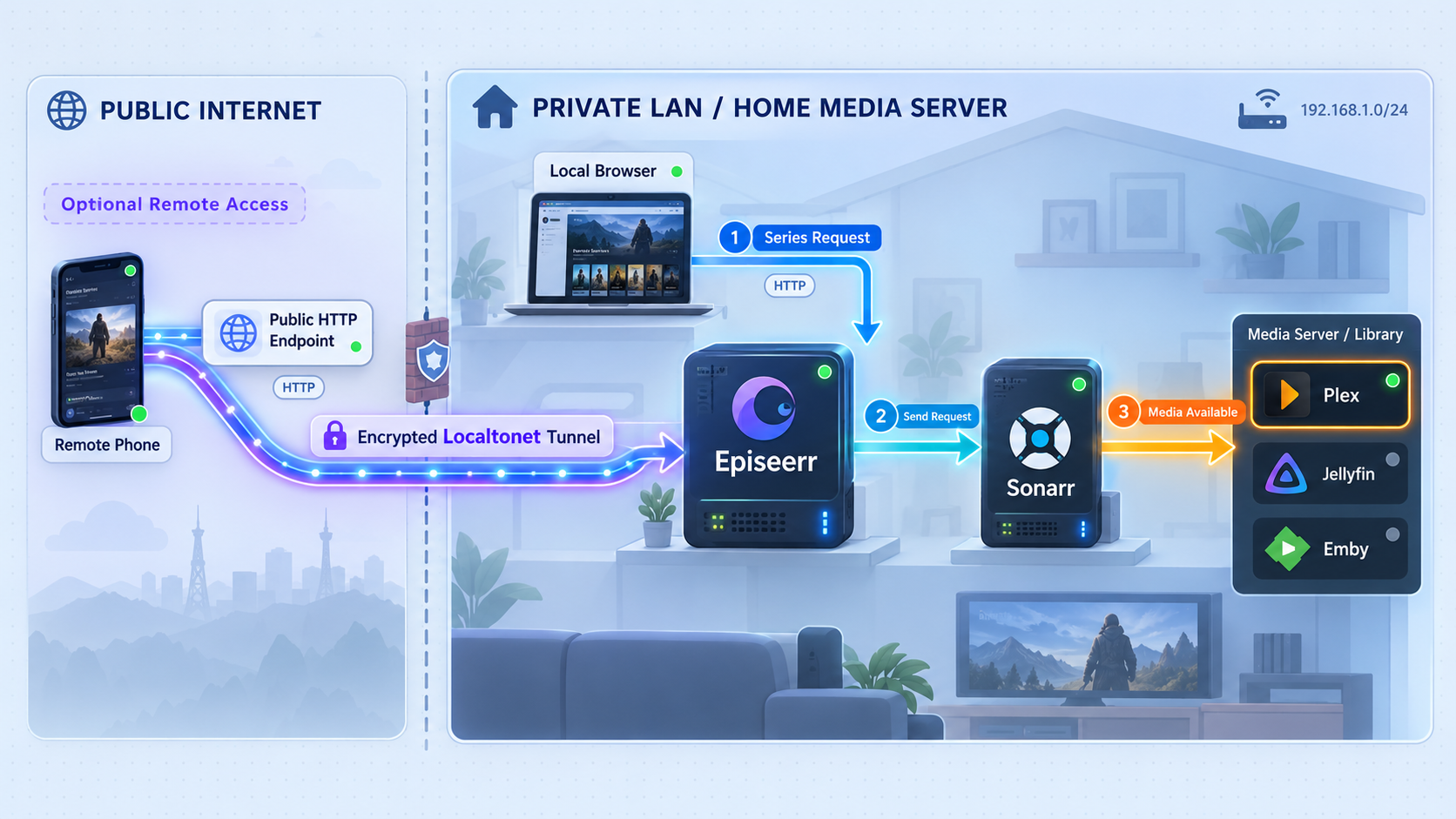
Build a working episode automation stack locally, verify every integration, then expose only the access you actually need
Episeerr adds selective episode downloading, viewing automation, storage management, Plex Watchlist synchronization, and baseline episode retention to a Sonarr-based media environment. This guide installs Episeerr with its recommended Docker Compose workflow, connects Sonarr and one supported media platform, verifies the deployment locally, and explains the available webhook routes. After the local service works, we add optional remote HTTP access with Localtonet without requiring inbound router port forwarding, firewall changes, a VPN, or a public IP address. Security guidance is included because publishing the Episeerr web interface can also make its setup and integration routes reachable.
📋 What's in this guide
How Episeerr fits into a Sonarr media stack
Episeerr is a self-hosted web service for smarter TV episode management around Sonarr. It does not replace Sonarr or a media server. Instead, it coordinates with those services to decide which episodes should be available, react to viewing activity, and apply the rules configured by the administrator.
Its documented capabilities are divided into independent features. Episode Selection lets you choose individual episodes instead of acquiring an entire series. Viewing Automation can prepare the next episode as viewing progresses. Storage Management can clean up content based on viewing and time-related rules. Plex Watchlist Sync can accept additions from a Plex watchlist. The Always Have feature maintains and protects a baseline set of episodes. You can use one feature without enabling every other feature.
A normal deployment therefore has at least three participants: Episeerr, Sonarr, and a media service. Sonarr is required for episode management. Episeerr also requires a TMDB read access token for metadata. Plex, Jellyfin, Emby, or Tautulli becomes relevant when you want viewing-aware automation.
All URLs entered into Episeerr must be reachable from the Episeerr container, not merely from your browser. This distinction matters in Docker environments. For example, localhost inside the Episeerr container refers to that container itself. It does not automatically refer to Sonarr, Plex, or the Docker host. Use a hostname or address that is valid from Episeerr's network context.
| Component | Role | What Episeerr needs |
|---|---|---|
| Sonarr | TV series and episode management | A reachable Sonarr URL and API key |
| TMDB | Metadata used by Episeerr | A TMDB read access token |
| Plex | Media playback and optional watchlist workflow | A reachable URL and token when the selected feature requires them; native Plex webhooks require Plex Pass |
| Tautulli | Alternative Plex viewing integration | A reachable Tautulli URL and API key; do not enable it alongside native Plex webhooks |
| Jellyfin | Media playback and watch-event delivery | A reachable URL, API key, user identifier, and the selected event-detection mode |
| Emby | Media playback and watch-event delivery | A reachable URL, API key, user identifier, and playback event configuration |
| Localtonet | Optional remote HTTP connectivity | A client device that can reach Episeerr on port 5002 or through a local protective proxy |
Episeerr, Sonarr, and the chosen media platform should communicate locally whenever possible. Localtonet is not required for those services when they already share a host or private network. Add a public tunnel only when a remote administrator or external webhook sender genuinely needs an internet-reachable endpoint.
Prerequisites and information to collect
This guide uses Docker Compose because Episeerr documents it as the recommended installation method. Before creating the container, prepare a host that can run Docker and Docker Compose, retain persistent files, and reach Sonarr and the selected media service.
Required components
- A Docker host with Docker Compose available.
- A working Sonarr instance reachable from the future Episeerr container.
- The Sonarr API key.
- A TMDB read access token.
- Storage for Episeerr configuration, logs, and application data.
- TCP port 5002 available on the Docker host, unless you deliberately change the host-side port mapping and consistently use that replacement.
Optional viewing integration
Choose one viewing-event path that matches your media environment. Native Plex webhooks are supported, but Plex webhook support requires Plex Pass. Tautulli can be used for Plex environments without native Plex webhooks or where its watch history is preferred. Episeerr explicitly warns not to configure Tautulli and native Plex webhooks together.
Jellyfin supports a real-time webhook approach using PlaybackProgress or a polling-oriented approach initiated by a Session Start notification. The appropriate mode is selected through Episeerr's setup interface. Emby uses playback.start and playback.stop events.
Plan the network addresses
Decide how Episeerr will reach each dependency before opening the setup page. Containers on the same user-defined Docker network can commonly address one another by service name. Services outside that network may need a private LAN address or another hostname resolvable from the container. The exact choice depends on your Docker and operating-system network design.
Test reachability from the Docker host and, where possible, from the relevant container network. A URL that works from a laptop browser can still fail from inside a container because the laptop and container have different routes and DNS environments.
Sonarr, TMDB, Plex, Jellyfin, Emby, and Tautulli credentials can grant meaningful access to your services. Use real values only in your private configuration. Do not paste them into public support requests, terminal recordings, compose files committed to a public repository, or Localtonet tunnel descriptions.
Install Episeerr with Docker Compose
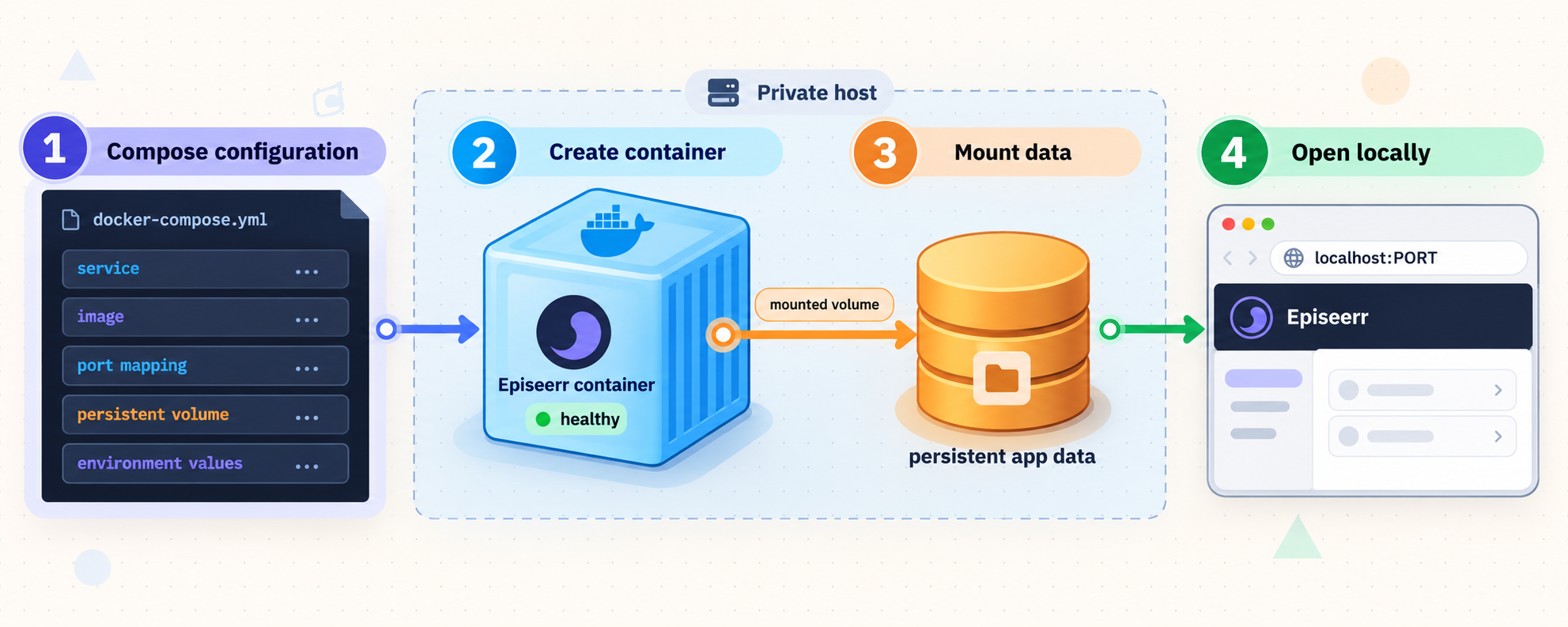
Episeerr's quick-start workflow uses the vansmak/episeerr:latest image, publishes port 5002, and persists three application directories. The minimal compose file intentionally omits credentials because the recommended approach is to complete configuration through the graphical setup interface.
Create the Docker Compose file
Create a deployment directory and place the documented minimal docker-compose.yml file in it. The relative directories keep configuration, logs, and application data outside the container.
Start the Episeerr container
From the directory containing the compose file, run the documented docker-compose up -d command. Docker creates the container, publishes port 5002, and starts the service in the background.
Open the setup interface
Visit http://your-server:5002/setup, replacing your-server with the Docker host's reachable hostname or address.
Configure Sonarr, TMDB, and optional services
Enter the required Sonarr and TMDB values, then configure only the Plex, Tautulli, Jellyfin, or Emby integration that matches your deployment.
Create a rule and add a series
After connectivity is working, create the first Episeerr rule, add a controlled test series, and observe the resulting behavior before applying automation broadly.
Use this minimal compose file:
services:
  episeerr:
    image: vansmak/episeerr:latest
    volumes:
      - ./config:/app/config
      - ./logs:/app/logs
      - ./data:/app/data
    ports:
      - "5002:5002"
    restart: unless-stopped
Start it from the same directory:
docker-compose up -d
The three bind mounts have different purposes. ./config retains configuration, ./logs retains logs that can help diagnose failures, and ./data retains application data. Because these are relative paths, they are created or resolved relative to the compose project directory. Keep that directory stable and include the persistent directories in an appropriate backup plan.
The mapping 5002:5002 publishes container port 5002 as host port 5002. On the Docker host, the interface is therefore expected at http://your-server:5002, with initial configuration at http://your-server:5002/setup.
Episeerr still supports environment-variable configuration, but its documented quick start does not require a .env file. Starting with the graphical setup page reduces the chance of combining settings from incompatible integration modes.
Environment-variable configuration
Administrators who manage configuration through deployment automation can use environment variables. The required documented variables are SONARR_URL, SONARR_API_KEY, and TMDB_API_KEY. Optional variables exist for supported media services.
environment:
  - SONARR_URL=http://your-sonarr:8989
  - SONARR_API_KEY=your_sonarr_api_key
  - TMDB_API_KEY=your_tmdb_read_access_token
The values above are placeholders, not credentials to use literally. Do not copy the example hostname unless it resolves from the Episeerr container. If secrets are placed directly in a compose file, protect that file with suitable filesystem permissions and do not commit it to a public repository.
Changes may require an Episeerr container restart before they take effect. The project documentation does not provide a universal update or migration command in the supplied installation evidence, so back up the persistent directories and review the release-specific instructions before changing image versions.
Configure Sonarr and the media integration
Connect Sonarr and TMDB first
Open http://your-server:5002/setup and begin with the required dependencies. Enter a Sonarr base URL that the Episeerr container can reach, the matching Sonarr API key, and the TMDB read access token. Do not move directly to public access while either required integration is failing.
A Sonarr URL should identify the Sonarr service itself. If Sonarr and Episeerr are containers on a shared Docker network, a Docker service hostname may be appropriate. If Sonarr runs on another machine, use a private address or DNS name routable from the Episeerr host and container network. Avoid assuming that localhost points to the correct service.
Choose one Plex viewing path
For Plex, Episeerr supports native Plex webhooks. Native webhook support requires Plex Pass. The documented webhook route is:
http://<episeerr>:5002/api/integration/plex/webhook
Replace <episeerr> with an address Plex can reach. When Plex and Episeerr share a private network, use a private URL instead of exposing the route publicly. Plex URL, Plex token, detection mode, and related settings can be configured through Episeerr's setup interface.
Tautulli is the alternative for Plex environments without Plex Pass webhook support or where Tautulli's watch history is desired. Do not configure native Plex webhooks and Tautulli together. The current Tautulli route is:
http://<episeerr>:5002/api/integration/tautulli/webhook
A legacy route at /webhook remains supported, but new configurations should use the integration-specific route so the purpose is explicit.
Configure Jellyfin
Jellyfin sends events to:
http://<episeerr>:5002/api/integration/jellyfin/webhook
Episeerr documents two Jellyfin modes. Real-time behavior uses the PlaybackProgress notification type. The alternative begins with a Session Start notification and uses polling. Choose the mode in the setup interface rather than mixing their settings arbitrarily.
The available Jellyfin configuration includes the server URL, API key, user identifier, trigger percentage or trigger range, and polling interval where applicable. The documentation examples show 50.0 as a polling trigger percentage, 900 as a polling interval, and a real-time trigger range from 50.0 to 55.0. Treat these as documented examples rather than values that are automatically optimal for every viewing pattern.
Configure Emby
Emby sends its supported events to:
http://<episeerr>:5002/api/integration/emby/webhook
Configure Emby to send playback.start and playback.stop events. Episeerr's available Emby configuration includes the server URL, API key, user identifier, trigger percentage, and polling interval. Documentation examples use a trigger percentage of 50.0 and polling interval of 900, but deployment-specific behavior should be tested before relying on automated actions.
| Integration | Webhook route | Important condition |
|---|---|---|
| Plex native | /api/integration/plex/webhook |
Requires Plex Pass for webhook support |
| Tautulli | /api/integration/tautulli/webhook |
Use instead of native Plex webhooks, not alongside them |
| Jellyfin | /api/integration/jellyfin/webhook |
Choose real-time PlaybackProgress or Session Start with polling |
| Emby | /api/integration/emby/webhook |
Configure playback.start and playback.stop events |
Decide whether webhook routes need public connectivity
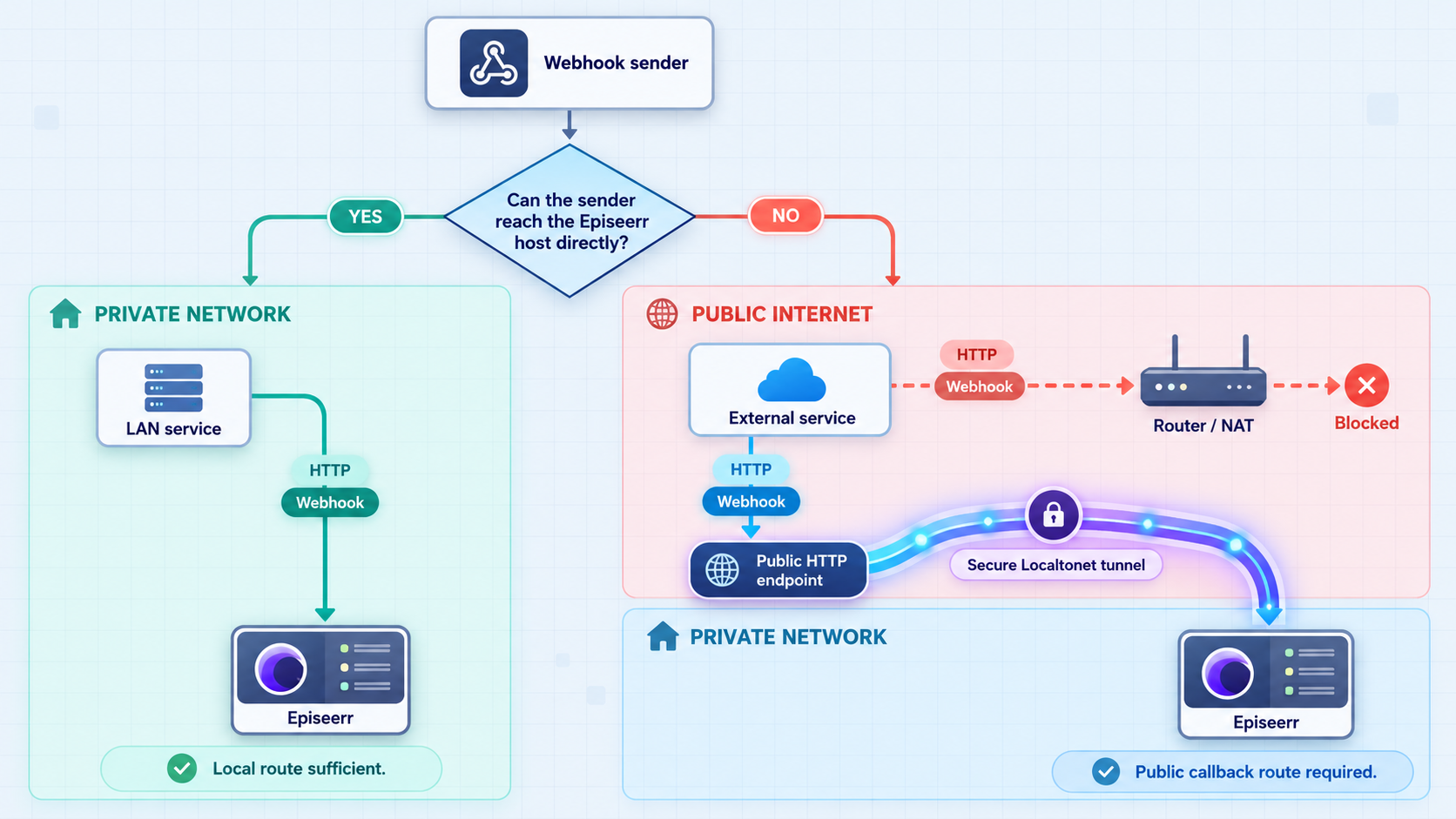
A webhook is an inbound HTTP request sent when an event occurs. The sender must be able to resolve and reach the URL configured for the webhook. Public exposure is not automatically necessary.
If Plex, Tautulli, Jellyfin, or Emby runs on the same Docker network or private LAN as Episeerr, configure a private Episeerr URL. This keeps event traffic inside your environment and avoids exposing the dashboard and setup surface merely to deliver a local playback event.
A Localtonet HTTP tunnel becomes useful when the sender is genuinely outside the private network and cannot route to Episeerr directly. In that case, use the public HTTPS base URL assigned to the tunnel and append the documented integration path. For example:
https://your-assigned-public-host/api/integration/plex/webhook
https://your-assigned-public-host/api/integration/tautulli/webhook
https://your-assigned-public-host/api/integration/jellyfin/webhook
https://your-assigned-public-host/api/integration/emby/webhook
These are structural examples only. your-assigned-public-host is not a real hostname. Copy the actual public address shown for your running Localtonet HTTP tunnel.
An HTTP tunnel targets a local HTTP service, not just a conceptual feature inside that service. Unless your local application or an intermediate reverse proxy restricts paths, the same public host may also reach the Episeerr dashboard, setup route, and other routes served on port 5002. Do not assume that appending a webhook path makes every other path inaccessible.
If you need path-specific publication, place a properly configured local reverse proxy in front of Episeerr and point the tunnel at that proxy. The reverse proxy should allow only the required route and HTTP behavior. Exact proxy configuration is outside this guide because it depends on the selected proxy and on the methods and payloads expected by the current Episeerr release.
Do not invent or add webhook signatures, query-string secrets, headers, or authentication parameters unless the current Episeerr and sender documentation explicitly supports them. The supplied project evidence establishes the routes and event types, but it does not establish a universal signing scheme for these integration endpoints.
Verify the complete local workflow
Verification should proceed in layers. This makes failures easier to isolate and prevents a tunnel from hiding a basic container, routing, or credential problem.
1. Confirm the container remains running
Use your Docker management interface to confirm that the Episeerr container starts and does not repeatedly exit. If it stops, inspect the logs retained under the mounted ./logs directory and the runtime output available through your Docker tooling.
2. Open the local web interface
From a device that can reach the Docker host, open:
http://your-server:5002For initial setup, open:
http://your-server:5002/setupA failure at this stage is local. Check the container status, port mapping, host address, and host firewall before considering Localtonet.
3. Verify Sonarr and TMDB configuration
Save the required settings and check the behavior reported by Episeerr. If Sonarr connectivity fails, verify that the URL is reachable from Episeerr's network context and that the API key belongs to the intended Sonarr instance. If metadata operations fail, recheck the TMDB read access token.
4. Create a limited test rule
Start with one rule and one noncritical series. Avoid applying broad cleanup or automated acquisition behavior to an established library until you understand how your selected options behave. A small test makes it easier to identify whether an unexpected result came from the rule, Sonarr, playback detection, or storage-management settings.
5. Trigger a real playback event
Play suitable test content through the configured media server and allow it to cross the relevant trigger conditions. Confirm that the media platform sends the expected webhook and that Episeerr records or responds to it. For Jellyfin, make sure the notification type matches the selected Episeerr mode. For Emby, confirm that the configured events are playback.start and playback.stop. For Plex, ensure that only one of native Plex webhooks or Tautulli is active.
6. Restart after configuration changes when needed
Episeerr's quick-start guidance states that the container should be restarted for changes to take effect. If a newly saved integration appears inactive, restart the container through your Docker management workflow and test again.
A webhook can reach Episeerr while still failing to produce the expected automation. First determine whether the HTTP request arrived. Then check whether the event matched the configured user, media item, trigger range, rule, and integration mode.
Add remote HTTP access with Localtonet
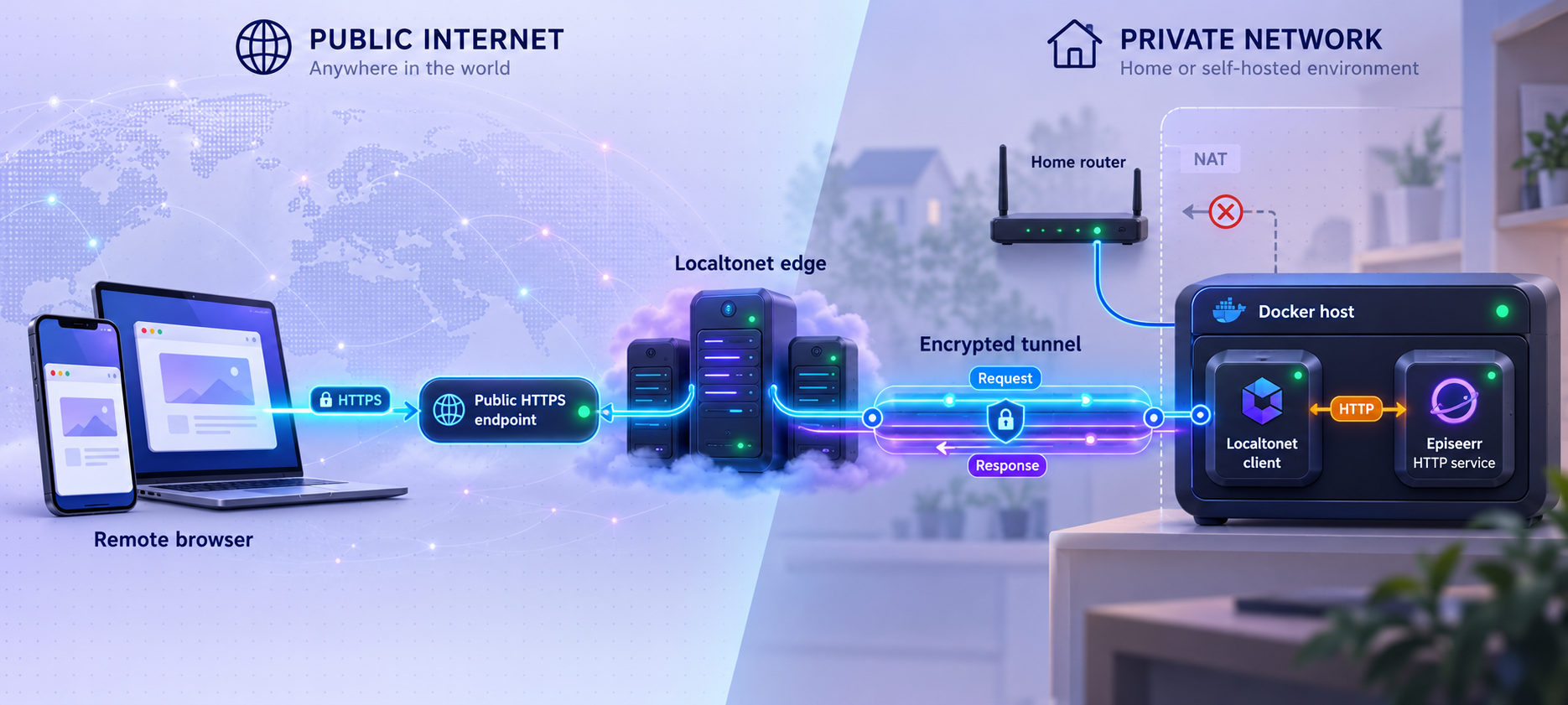
Once Episeerr works locally, we can publish its HTTP interface through Localtonet. Our client establishes an outbound connection to a Localtonet relay server, so this workflow does not require inbound router port forwarding, firewall changes, VPN setup, or a public IP address.
The Localtonet client must run on a device that can reach Episeerr. That may be the Docker host itself or another device on the private network. Test the Episeerr address from that device before creating the tunnel. If the Localtonet client cannot reach the selected local target, the public URL cannot make the service work.
Install and run the Localtonet client
Run our client on the Docker host or another device with network access to the Episeerr HTTP service. Current installation choices depend on the operating system and client version, so use the installation option presented by the current Localtonet dashboard or documentation.
Authenticate or select the client device
Use the device-specific authentication token supplied through your account and select that device for the tunnel. Never copy the token into an article, public issue, screenshot, or shared compose file.
Select an available relay server
Choose from the relay servers or regions currently available in your dashboard. Availability can vary, so this guide does not hardcode a server code or region.
Create an HTTP tunnel to Episeerr
Select an HTTP tunnel and set its local target to the IP address or hostname and port that the Localtonet client uses to reach Episeerr. The documented Episeerr port is 5002. Choose the appropriate Process Type for a generated subdomain, selected subdomain where supported, or custom domain.
Start the tunnel
Creating a tunnel does not start it. Use the Start button and wait for the selected client device and tunnel to show that they are connected.
Test the assigned public address
Open the assigned public HTTPS URL from a network outside the Episeerr host's LAN. For a remote webhook, append the exact integration path and configure the sender with that complete URL. Stop or delete the tunnel when public reachability is no longer required.
For the current dashboard workflow, consult our HTTP tunnel documentation. Exact domain and DNS instructions can change, so verify current requirements before configuring a custom domain.
| HTTP Process Type | Public result | Episeerr use |
|---|---|---|
| Random Sub Domain | A generated public HTTPS address | Fast testing and temporary remote access |
| Custom Sub Domain | A selected subdomain where currently supported | A more recognizable address for administration or webhook configuration |
| Custom Domain | A public HTTPS address using your domain | A stable branded endpoint after completing current DNS requirements |
All three Process Types serve the same local HTTP content. Choosing a different public naming option does not isolate the webhook route, add Episeerr authentication, or alter the application's permissions.
A Localtonet tunnel remains available only while the selected client device is connected and the tunnel is running. If the public URL stops responding, check both states before changing Episeerr.
Secure Episeerr before remote exposure
Treat the Episeerr interface as an administrative service. It can contain service addresses, integration configuration, automation rules, and access to workflows that influence Sonarr and the media library. Public availability should therefore be deliberate rather than automatic.
Complete setup privately
Perform initial setup from the local network. Confirm authentication options available in the installed Episeerr release and enable the appropriate protection before exposing the interface. The supplied evidence confirms that Episeerr documents authentication, but it does not establish one universal authentication mode or exact screen sequence for every release. Check the controls shown by the installed version rather than assuming a credential default.
Expose the smallest practical surface
If remote administration is unnecessary, do not leave the full dashboard publicly reachable just to support a webhook that can be delivered privately. If a remote sender requires public access, consider an intermediate local reverse proxy that permits only the required path. Test that disallowed routes are actually rejected before relying on the restriction.
Protect every credential
Rotate any credential that has been exposed in logs, compose files, screenshots, shell history, or support posts. Device auth tokens for Localtonet are device-specific and must remain private. The same care applies to Sonarr API keys, TMDB tokens, media-server tokens, and Tautulli credentials.
Use least privilege and controlled tests
Begin with one test series and conservative rules. Storage cleanup and episode-management automation can change library contents, so validate the rule's behavior before expanding its scope. Keep backups appropriate to your Sonarr and media-management environment.
Stop unused tunnels
A Localtonet tunnel can be stopped and later restarted. Stop or delete an endpoint that no longer has an operational purpose. Remember that deleting a tunnel and stopping one are different lifecycle actions.
An unlisted or hard-to-guess hostname is not a replacement for application authentication, path restrictions, least-privilege credentials, or other access controls. Localtonet provides connectivity to the selected local target. The application and any protective proxy remain responsible for authorizing requests.
Troubleshooting common Episeerr and tunnel problems
The setup page does not open locally
Confirm that the container is running and that the compose file contains "5002:5002". Use the Docker host's reachable address rather than a hostname that only resolves on another network. Check whether another process already occupies host port 5002. Review the mounted logs and Docker runtime output for startup errors.
Episeerr cannot connect to Sonarr
Test the Sonarr hostname from the same network context as Episeerr. Replace localhost if it unintentionally points back to the Episeerr container. Verify the port, URL scheme, and API key. If containers are intended to communicate by service name, confirm that they actually share a suitable Docker network.
The web interface works, but playback events do nothing
Confirm that the media server is posting to the exact integration route. Verify the selected media user and integration mode. For Plex, do not run native Plex webhook delivery and Tautulli delivery together. For Jellyfin, align the configured notification type with real-time or polling mode. For Emby, verify the required playback event names.
A webhook URL works on the LAN but not remotely
Private hostnames and private IP addresses are not normally reachable from an external sender. If public delivery is genuinely required, start the Localtonet HTTP tunnel and use its assigned public HTTPS address followed by the exact route. Confirm that both the Localtonet client device and tunnel are connected.
The Localtonet public URL returns an error
First test the local Episeerr target from the device running the Localtonet client. Confirm that the tunnel targets the same reachable address and port. Then check whether the tunnel has been started. Creating its configuration alone does not make it active.
The webhook is public, but the dashboard is public too
This is expected when both are routes on the same local HTTP service and no path restriction exists in front of it. Stop the tunnel while redesigning access. If only the webhook should be reachable, use a correctly configured local reverse proxy or another application-supported restriction and tunnel to that controlled target.
Changes appear to have no effect
Restart the Episeerr container after configuration changes, as directed by the project's quick-start guidance. Then repeat a controlled test. Avoid changing several integration modes and rule settings simultaneously because doing so makes the cause difficult to identify.
Data disappeared after recreating the container
Verify that the compose project still points to the original ./config, ./logs, and ./data directories. Relative paths depend on the compose directory. Starting an identical file from another directory can create a different set of empty relative folders.
An update introduces unexpected behavior
The quick start uses the moving latest image tag. Before updating, back up persistent data and review the target release's notes. The supplied installation evidence does not define a universal rollback or migration procedure, so do not assume that replacing an image is always reversible without release-specific preparation.
Frequently asked questions
Does Episeerr replace Sonarr?
No. Episeerr works with Sonarr to provide more granular episode selection, viewing automation, storage-management rules, watchlist workflows, and baseline episode retention. A reachable Sonarr instance and API key are required.
Is an environment file required?
No. Episeerr recommends configuration through the /setup interface, and the minimal Docker Compose deployment does not require a .env file. Environment variables remain available for administrators who manage configuration that way.
Which port does Episeerr use?
The documented Docker Compose configuration publishes Episeerr on port 5002. The local interface is available at http://your-server:5002, and initial configuration is available at http://your-server:5002/setup.
Can I use Tautulli and native Plex webhooks at the same time?
No. Episeerr's documentation says to use one or the other. Native Plex webhooks require Plex Pass. Tautulli is an alternative for Plex environments without that capability or where Tautulli's watch history is preferred.
Does Jellyfin use polling or real-time events?
Episeerr supports both documented approaches. Real-time mode uses PlaybackProgress. The alternative begins with a Session Start notification and uses polling. Select one mode in Episeerr's setup interface and configure Jellyfin accordingly.
Do local media-server webhooks need Localtonet?
Usually not. If the media server can reach Episeerr over a shared Docker network or private LAN, use that private route. Localtonet is appropriate when a legitimate remote sender or administrator cannot reach the private network directly.
Does a Localtonet HTTP tunnel expose only the webhook path?
Not automatically. The tunnel forwards HTTP traffic to the selected local service. If Episeerr serves the dashboard, setup interface, and webhook routes on the same target, those routes may share the public host. Use application authentication and, when path isolation is required, a properly configured local reverse proxy.
Will the public Episeerr URL remain available if the Localtonet client stops?
No. The tunnel is available only while the selected client device is connected and the tunnel is running. Creating a tunnel does not start it, so it must also be started from the current dashboard workflow.
Connect your verified Episeerr service with Localtonet
Finish the local Episeerr installation first, validate Sonarr and playback events, then use our HTTP tunnel when remote dashboard access or an external webhook endpoint is genuinely required.
Get Started Free →

