

Run Guardian next to your Plex server, then manage it from anywhere through an HTTP tunnel
Guardian is an access-control layer for Plex Media Server. It lets you approve or block devices, enforce per-user schedules and IP rules, cap concurrent streams, and stop sessions that break the rules. This guide covers installing it on Unraid with Docker Compose, confirming that the web UI answers on port 3000, and operating it day to day. Then, as a separate step, we show how to publish that web UI with a Localtonet HTTP tunnel. We also say plainly where the public project documentation leaves details open, so you do not have to guess.
📋 What's in this guide
What Guardian does and why you might run it on Unraid
Plex Media Server decides who can sign in, but many server owners want finer control over how a shared library is actually used. Guardian sits alongside Plex as an access-control layer. According to the project description, it can approve or block devices, enforce per-user schedules and IP rules, cap the number of concurrent streams, and stop sessions that break the rules. In practice that means a new device that signs in does not automatically get to stream until you have made a decision about it, and a user who exceeds a limit can have a session ended.
Unraid is a natural host for this kind of service. Plex often already lives on the same Unraid machine, Docker is built in, and the box is on all the time. Running Guardian there keeps the management plane close to the thing it manages. The project documents a Docker Compose installation, and it also describes creating an Unraid Compose stack, so the workflow in this guide follows that path.
Guardian uses the PolyForm Noncommercial license, so it is best described as self-hosted, source-available software rather than assumed to be OSI-approved open source. Read the license before using it in any commercial context. The v2.1.0 release adds automatic releases, database migrations and frontend linting, and fixes a loopback constant. The material we reviewed does not give us a reliable view of commit cadence, so we cannot make claims about how actively the project is maintained beyond that.
Prerequisites
The project documentation names two explicit requirements, and the Docker-based install implies a third. Check all of them before you start.
A reachable Plex Media Server
Guardian controls access to a Plex Media Server, so it needs one it can reach over the network. On Unraid this is commonly Plex running in another container on the same machine, but the requirement is simply that the server is reachable from the Guardian container. If Plex runs on a different host, make sure that host is reachable from your Unraid server on the relevant Plex port before you continue.
A Plex token
A Plex token is an explicit prerequisite. It is a credential that authorizes access to your Plex account and server, so treat it like a password. The documentation we worked from does not give us a verified step-by-step method for finding it, and we do not want to send you down an unverified path. Use Plex's own documentation to locate the token for your account, store it in a password manager, and never paste it into a public post, a screenshot or a shared chat.
Docker and Docker Compose on the Unraid host
Installation uses Docker Compose, so the Unraid host needs a working Docker service and a way to run Compose stacks. The project describes creating a Compose stack on Unraid. How that option appears in your interface depends on your Unraid version and on which Compose tooling you have installed, so we describe the generic flow here rather than naming menu items we cannot verify for every version. If you prefer, you can also run the same Compose commands from the Unraid terminal, as long as the Compose plugin for Docker is available there.
Free port 3000 on the host
The web UI is documented on port 3000. If another container on your Unraid server already publishes port 3000 on the host, you will have a conflict. Look at the Docker tab for existing port mappings before you start. If you must remap the port, remember the new host port, because that value becomes your Localtonet target later.
Install Guardian with Docker Compose on Unraid
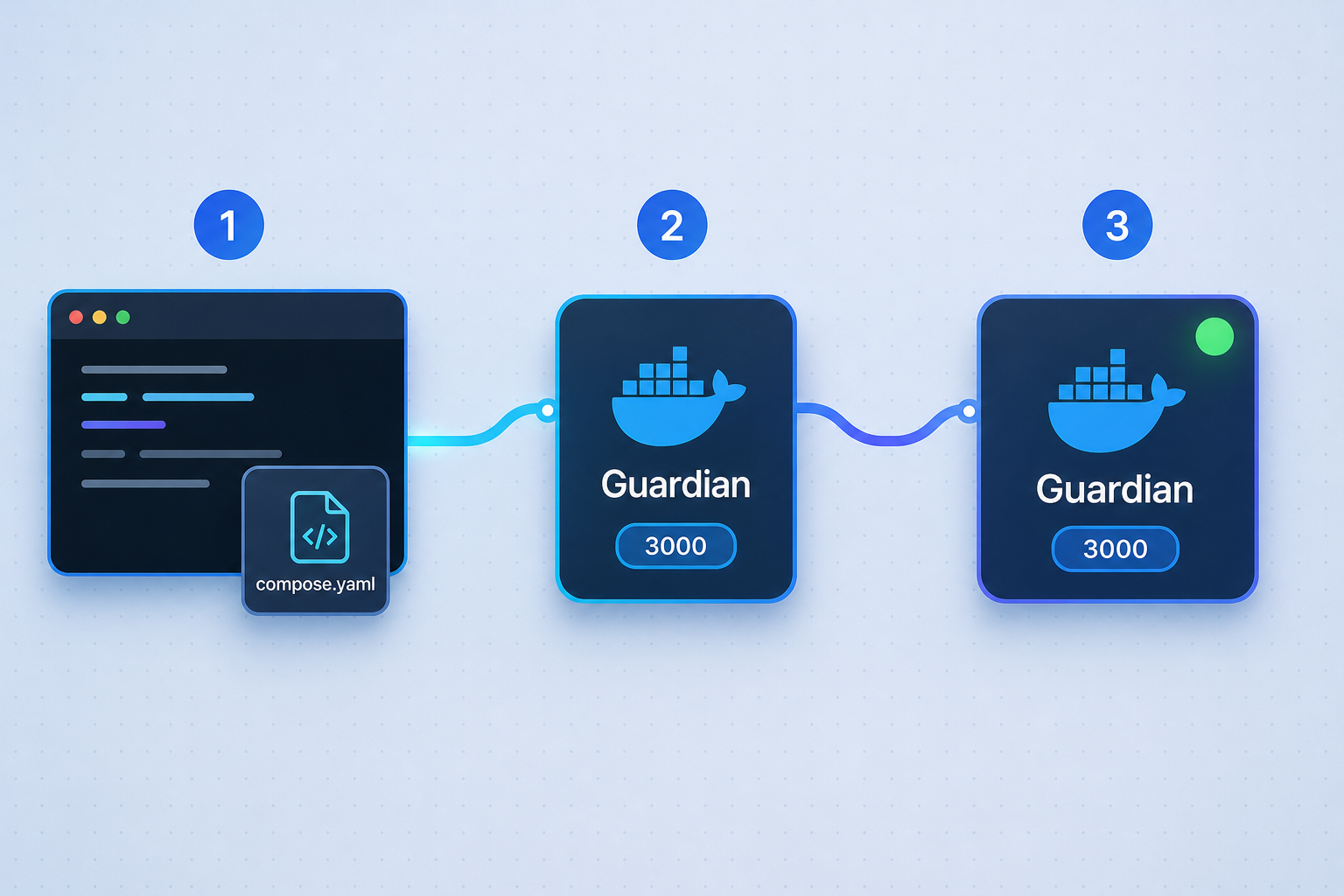
The documented installation is short. You take the example Compose file from the Guardian repository, save it as docker-compose.yml, and bring the stack up in the background. The example file is named docker-compose.example.yml in the repository.
Get the example Compose file
Download docker-compose.example.yml from the Guardian GitHub repository (HydroshieldMKII/Guardian). Do not copy a Compose file from a forum post or an unrelated tutorial, because image names and settings can change between versions.
Save it as docker-compose.yml
Put the file in a dedicated directory for Guardian on your Unraid server and name it docker-compose.yml. If you use an Unraid Compose stack instead, paste the contents of the example file into the stack's Compose editor.
Review the file before starting
Open the file and read the service definition, the published ports, and any volume paths. Confirm that port 3000 is published for the web UI and that any storage paths point to locations that make sense on your Unraid array or cache pool. We do not reproduce the file's contents here because we cannot guarantee that a copy would match the current version in the repository.
Start the stack
From the directory that contains the file, run the command below. If you created an Unraid Compose stack, use the stack's start or compose-up action instead, which performs the equivalent operation.
docker compose up -d
The -d flag runs the containers detached, so the stack keeps running after you close the terminal. The first start pulls images, which can take a little while depending on your connection.
The documentation we reviewed establishes the download-rename-start workflow and the port 3000 web UI. It does not give us verified details about specific environment variables, volume paths or the exact screen where the Plex address and token are entered. Rather than invent them, we recommend that you read the example Compose file and the application's first-run screens, and follow what they show. Where the example file expects a value, supply it from your own setup.
Connecting Guardian to Plex
Because a reachable Plex Media Server and a Plex token are prerequisites, Guardian needs both before it can do anything useful. Once the web UI is up, look for the place where it asks for your Plex server connection and token, and enter them there or wherever the example Compose file indicates. If you run Plex in a container on the same Unraid host, use an address that is reachable from inside the Guardian container. The address that works in your browser may not be the one that works from inside a container, so test reachability if the connection fails.
Verify the installation locally
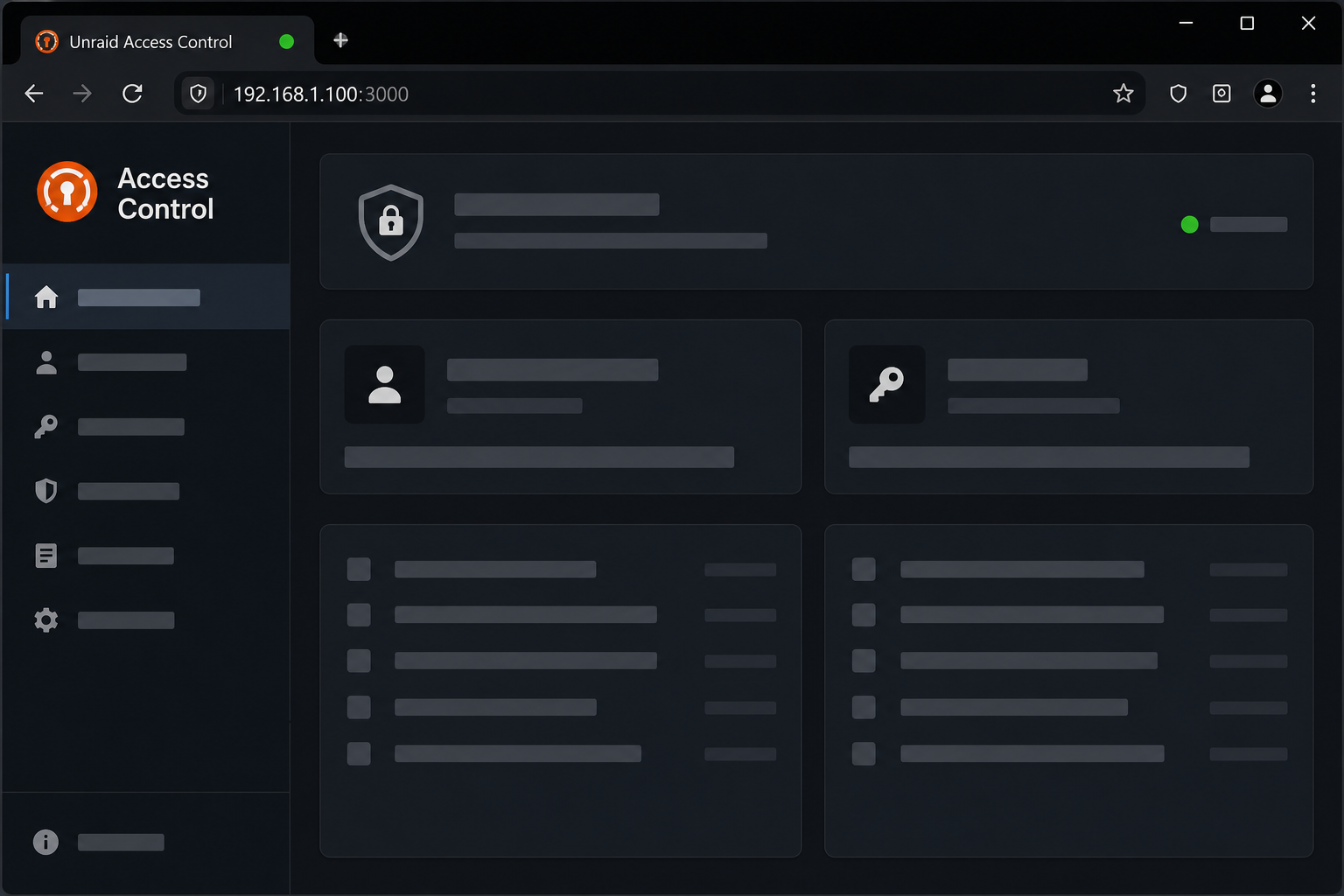
Always prove that the service works on your LAN before you add a tunnel. If it does not work locally, a tunnel will only expose a broken page. Run through these checks in order.
1. Confirm the container is running
docker compose psRun this in the directory containing your Compose file. Every Guardian service should show a running state. A service that is restarting repeatedly or has exited points to a configuration problem, and the logs will tell you more.
2. Read the logs
docker compose logs --tail=100Look for startup errors, failed connections to Plex, or messages about missing configuration. Redact tokens before sharing any log output with anyone.
3. Check that port 3000 answers
curl -I http://localhost:3000
Run this from the Unraid terminal. Any HTTP response line means something is listening. Then open http://YOUR-UNRAID-IP:3000 in a browser on another device in your network and confirm that the Guardian web UI loads. Replace the placeholder with your server's LAN address.
4. Confirm Guardian can see Plex
After you supply your Plex connection details, start a short playback from a test device and check whether Guardian notices the device or session. The exact behavior depends on your configured rules, so keep your first test simple: one account, one device, and no unusual restrictions. Once you see the expected device or session information, the basic integration works.
| Check | What a good result looks like | If it fails |
|---|---|---|
| Container state | All Guardian services running | Read the logs and re-check the Compose file |
| Port 3000 on the host | An HTTP response from curl and a loading web UI | Check for a port conflict or a changed port mapping |
| Plex connection | Guardian shows information from your Plex server | Verify the Plex address, reachability from the container, and the token |
| Rule behavior | A test session is allowed or blocked as configured | Simplify the rules and test with one user and one device |
Routine operation and updates
Once Guardian is running, most operations are ordinary Docker Compose housekeeping. These commands work for any Compose stack, run from the directory containing your docker-compose.yml.
docker compose stop
docker compose start
docker compose restart
docker compose down
stop and start pause and resume the containers, restart does both in one go, and down removes the containers and the default network while leaving any bind-mounted or named storage in place unless you add removal flags. Do not add volume-removal flags unless you intend to delete Guardian's data.
Updating
The project documents an update workflow, and the v2.1.0 release notes mention database migrations, which suggests that upgrades are expected to handle schema changes. The exact update steps in the documentation are not something we can quote with confidence, so follow the update section of the Guardian repository's README for the supported procedure. Before any update, copy Guardian's data directory somewhere safe. The location of that data depends on the volume paths in your Compose file, which is another reason to read it carefully during installation.
Versions
The release we reviewed is v2.1.0, which includes automatic releases, database migrations, frontend linting, a loopback constant fix and dependency updates. Check the repository's releases page for the current version, and read the release notes before you update, so you know whether a change affects your rules or data.
Reach Guardian remotely with a Localtonet HTTP tunnel
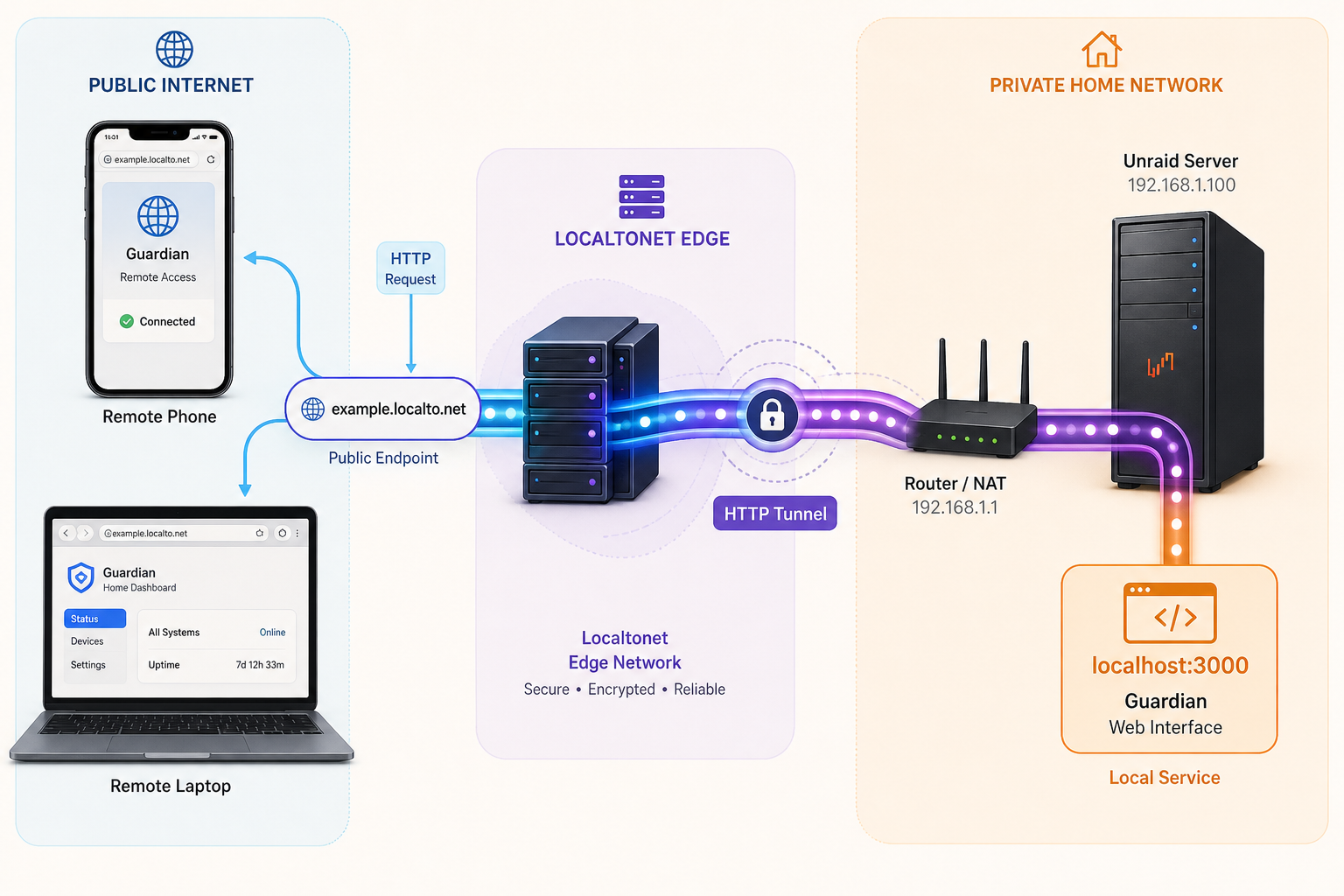
Up to this point everything runs on your LAN. That is enough if you only manage Guardian from home. If you want to approve a device while traveling, check on sessions from your phone, or give a trusted co-admin access, you need a way to reach the web UI from outside. Opening a port on your router is one approach, but it exposes your network edge and does not work behind carrier-grade NAT. With Localtonet, the client on your network makes an outbound connection to a Localtonet relay server, and the tunnel provides a public HTTPS address, with no inbound router port forwarding, firewall changes, VPN setup or public IP address.
Guardian's web UI is plain HTTP on port 3000, which is exactly the shape an HTTP tunnel is built for. The tunnel is available only while the selected client is connected and the tunnel is running, and creating a tunnel does not start it. You have to press Start.
A public URL means anyone who finds it can reach the page. Before you start the tunnel, read the next section on authentication and exposure. Do not publish an unprotected admin interface.
Choose where the Localtonet client runs
The Localtonet client needs to run on a device that can reach Guardian's port 3000. Two sensible options exist on an Unraid network. You can run the client on the Unraid server itself, in which case the local target is the loopback address or the server's LAN address with port 3000. Or you can run it on another always-on machine on the same network, in which case the local target is the Unraid server's LAN IP with port 3000. Pick the option that fits your setup, and keep in mind that the client must stay connected for the tunnel to work.
Create and start the tunnel
The steps below follow the general Localtonet workflow for an HTTP tunnel. For the full and current dashboard details, see the Localtonet HTTP tunnel documentation.
Install and run the Localtonet client
Install the Localtonet client on the device that can reach Guardian, following the instructions for your operating system in our documentation.
Authenticate the device with its token
Use the auth token for that device from your Localtonet dashboard. Tokens are device-specific, so keep yours private and never paste it into screenshots, tickets or public repositories.
Select a relay server
Choose one of the servers offered in the dashboard. Available values are shown there, so we do not list them here.
Create an HTTP tunnel to port 3000
Select the HTTP tunnel type, choose a process type (Random Sub Domain, Custom Sub Domain or Custom Domain), and set the local target to the IP address and port 3000 of your Guardian web UI, for example the Unraid server's LAN IP and port 3000. If you remapped the host port in your Compose file, use that port instead.
Press Start
The tunnel does not run until you start it. After it starts, the dashboard shows the public HTTPS address assigned to your tunnel.
Test from outside your network
Open the public address from a device that is not on your home network, such as a phone on mobile data, and confirm that the Guardian web UI loads. Stop or delete the tunnel when you no longer need remote access.
A random subdomain is the simplest choice for a first test. A custom subdomain or custom domain is more memorable, but custom-domain DNS requirements should be checked against the current Localtonet documentation before you configure them, because we do not want to give you outdated record instructions.
| Setting | Value for Guardian | Note |
|---|---|---|
| Tunnel type | HTTP | The web UI is served over HTTP on the local side, and Localtonet publishes it at a public HTTPS address |
| Local target | Unraid IP (or reachable host) and port 3000 | Use your remapped port if you changed the Compose port mapping |
| Process type | Random Sub Domain, Custom Sub Domain or Custom Domain | Start with a random subdomain while testing |
| Lifecycle | Create, then Start | The tunnel works only while the client is connected and the tunnel is running |
Do you need to tunnel Plex itself?
Not for this workflow. The tunnel here publishes Guardian's web UI on port 3000, and nothing else. Your Plex server's own remote access is a separate topic and a separate decision. We do not describe Plex remote streaming over Localtonet here, because that is outside what we verified for this guide. The project description also mentions a Plex user portal, but we cannot confirm from our material how it is served or on which port, so check the application itself before you assume anything about what a public address exposes.
Security before you expose the web UI
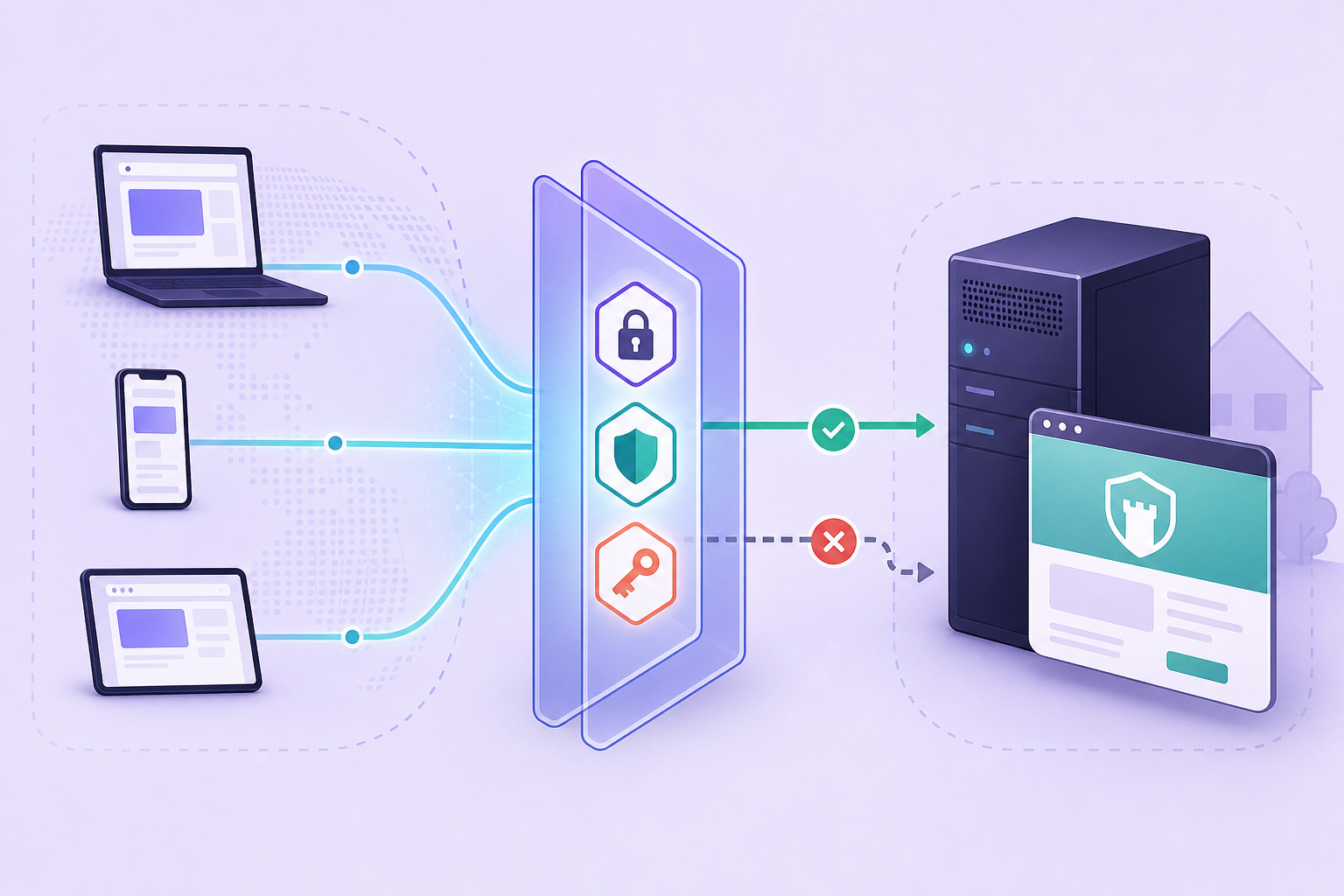
Guardian is a control surface. Whoever can use its web UI can potentially change who is allowed to watch your media. That makes the decision to publish it a security decision, not just a convenience.
The documentation we reviewed does not let us confirm how Guardian authenticates administrators, or whether authentication is enabled by default. Before you start a public tunnel, open the web UI in a private browser window and check what an unauthenticated visitor sees. If you can reach management screens without signing in, do not publish it. Fix that first, or keep access limited to your LAN.
IP rules and tunnels
Guardian can enforce IP-based rules for users. Those rules apply to the connections Guardian observes for Plex sessions, which is a different path from visits to Guardian's own web UI. Still, if you ever put a proxy or tunnel in front of a service that evaluates client addresses, the address it sees may be that of an intermediary rather than the real visitor. We have not verified how Guardian reads client addresses for its own UI, so do not rely on IP rules to restrict who can open the tunneled admin page. Treat the tunnel as publicly reachable and protect it with real authentication.
A tunnel does not bypass authorization or network policy. It makes a service you already run reachable, and everything that service does or fails to do about access control still applies. Combine it with whatever access controls the application offers, and use any additional restrictions that your Localtonet plan and dashboard provide.
Troubleshooting
Most problems fall into three groups: the container does not run, the container runs but cannot talk to Plex, or the local service works but the tunnel does not. Diagnose them in that order, and always test the layer below before blaming the layer above.
| Symptom | Likely cause | What to do |
|---|---|---|
| Stack will not start or keeps restarting | A configuration or port problem | Run docker compose logs --tail=100, check for a port 3000 conflict, and re-read the Compose file |
| Web UI does not load on the LAN | Wrong IP, wrong port, or container not running | Confirm with docker compose ps and curl -I http://localhost:3000 on the Unraid terminal |
| Guardian cannot see Plex | Unreachable Plex address or invalid token | Test reachability from the container's network, re-check the token, and make sure the Plex server is running |
| Tunnel created but the public address fails | Tunnel not started, client disconnected, or wrong local target | Press Start, confirm the client is connected, and verify that the target IP and port 3000 work from the client device |
| Tunnel worked, then stopped | The client device went offline or the tunnel was stopped | Reconnect the client and start the tunnel again |
| Local target works from Unraid but not from the client | The client runs on another machine that cannot reach the Unraid server | Run curl against the Unraid IP and port from the client machine to confirm network reachability |
A note on first-run data
If you delete the container and later recreate it, whether you keep your configuration depends on whether the Compose file stores data in persistent storage. This is another reason to read the file before the first start. Check where Guardian keeps its data, and include that location in your Unraid backup routine.
Frequently asked questions
How do I install Guardian on Unraid?
Download docker-compose.example.yml from the Guardian repository, save it as docker-compose.yml, review it, and run docker compose up -d. The project also describes creating an Unraid Compose stack, which achieves the same result through Unraid's Compose interface. You need a reachable Plex Media Server and a Plex token.
Which port does the Guardian web UI use?
The project identifies port 3000 for the web UI. That is the port to use as the local target of a Localtonet HTTP tunnel. If you changed the published host port in your Compose file, use your own value instead.
Do I need to open a port on my router to reach Guardian remotely?
Not with a Localtonet tunnel. The Localtonet client makes an outbound connection to a relay server, so you do not need inbound router port forwarding, firewall changes, a VPN or a public IP address for the tunnel. The tunnel works only while the client is connected and the tunnel is started.
Is it safe to publish the Guardian admin interface?
It depends on how Guardian authenticates users, which we could not confirm from the material we reviewed. Check the UI in a private browser window before you publish it, keep the tunnel stopped when you do not need it, and protect your Plex token. If the interface is reachable without signing in, keep it on your LAN until you have fixed that.
Is Guardian open source?
Guardian uses the PolyForm Noncommercial license. That makes it self-hosted and source-available, but it should not be assumed to be OSI-approved open source. Read the license text before using it for anything commercial.
Does this tunnel also give remote access to Plex streaming?
No. The tunnel described here publishes only the Guardian web UI on port 3000. Remote streaming from Plex is a separate matter that this guide does not cover.
Start with Localtonet
Get Guardian running on your Unraid server first, confirm it works on port 3000, and then create an HTTP tunnel so you can manage it from anywhere. Create a free account to try it.
Get Started Free →

