

Build and verify a local Docs contributor stack before considering temporary remote testing
This guide creates the official La Suite Docs development and testing environment with Docker Compose and GNU Make. It is a contributor workflow, not a production deployment recipe. You will prepare the host, bootstrap the repository, verify Docs at its documented local HTTPS endpoint, operate the stack safely, and evaluate whether it is appropriate to add Localtonet. Because the default impress/impress credentials are publicly documented, the unmodified development instance must remain local and must not be exposed to the internet.
📋 What's in this guide
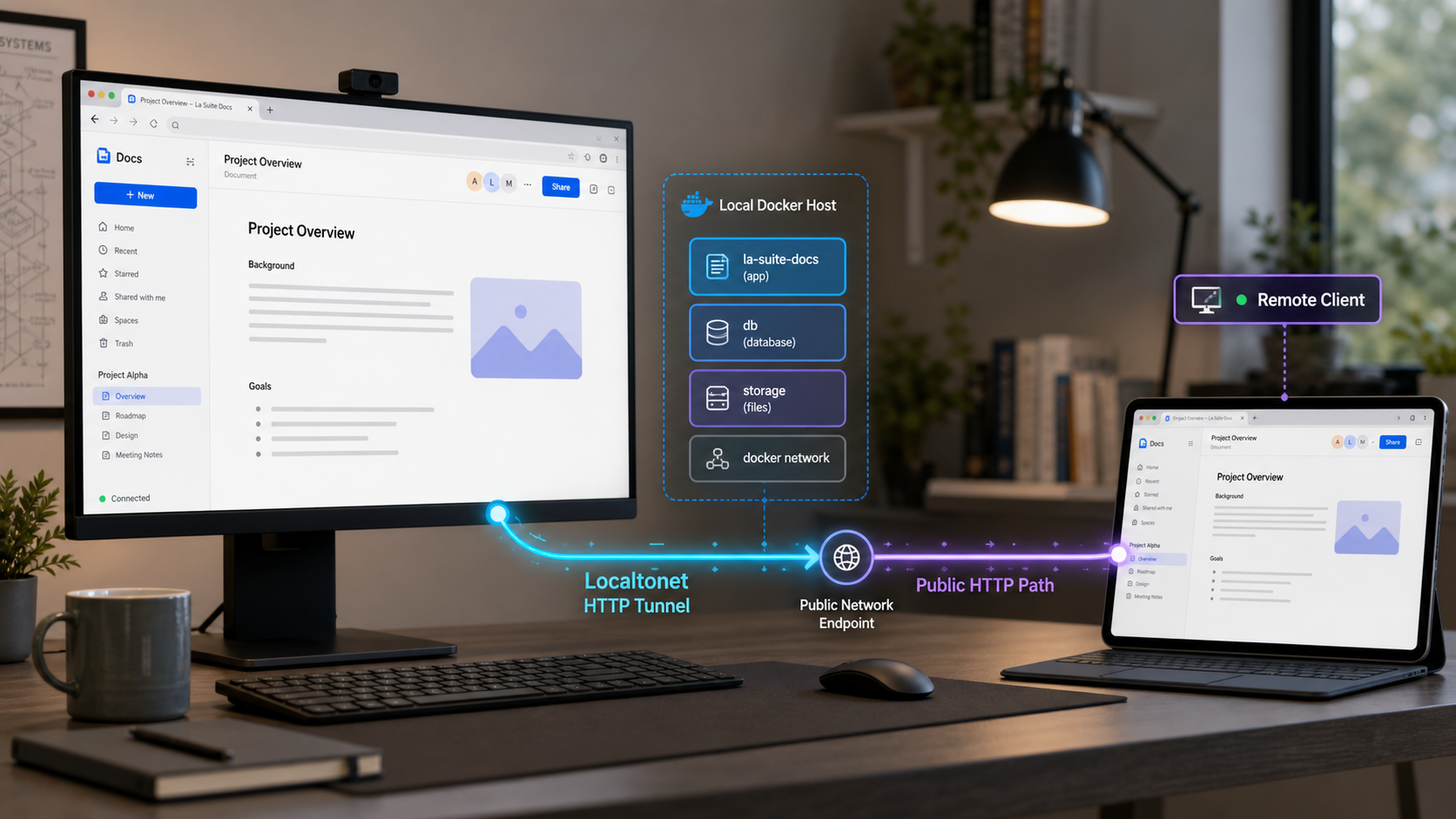
What this contributor environment provides
La Suite Docs is an open-source, web-native editor for collaborative writing and knowledge organization. Its documented capabilities include rich-text and Markdown editing, block-based content, comments, sharing, live cursors and presence, structured documents and subdocuments, search, granular document access, import and export, and real-time collaboration. The project is built on open-source components including Django REST Framework, Next.js, ProseMirror, BlockNote.js, HocusPocus, and Yjs.
Docs supports self-hosting through Docker Compose and Kubernetes. Community-maintained Nix and YunoHost methods are also identified by the project. Those broader deployment choices should not be confused with the commands in this article. The repository labels this particular workflow as local development for contributors and says it is intended for development and testing only.
The development environment uses MinIO as an S3-compatible storage backend. The bootstrap process builds the development application and frontend containers, installs dependencies, runs database migrations, and compiles translations. That makes it convenient for contribution, evaluation, demonstrations, and disposable testing, but convenience does not establish production readiness.
A production deployment requires separate decisions about identity, secrets, persistent storage, backups, domains, email delivery, monitoring, scaling, upgrades, and incident response. This guide does not convert the contributor stack into a supported production architecture, even if the containers run reliably on a particular workstation.
https://localhost:3000 after starting the stack.
impress/impress credentials are suitable only for local development and provide no meaningful internet-facing protection.
How Localtonet would fit after verification
Localtonet can expose a service reachable from the client device without inbound router port forwarding, firewall changes, VPN setup, or a public IP address. Our client establishes an outbound connection to a Localtonet relay server, and a running tunnel provides a public URL or public host and port.
That connectivity does not install Docs, secure its default account, or turn a development stack into a production service. Docs must already work locally, the Localtonet client must be connected, and the tunnel must be started. If Docs stops, the selected client disconnects, or the tunnel is stopped, the remote route will no longer provide a working application.
Verify https://localhost:3000 entirely on the host before evaluating remote access. The unmodified instance must stay local because its default credentials are publicly known.
Prerequisites and supported preparation paths
The Docs repository requires Docker, Docker Compose, and GNU Make for this workflow. Git is also needed to use the documented clone operation. Install each tool from its primary project or operating-system-supported distribution channel rather than copying an unreviewed package command.
Docker on Windows and macOS
Docker Desktop is Docker's supported desktop installation path for Windows and macOS. Follow the current Docker Desktop installation documentation for your operating system. Docker Desktop includes the Docker runtime and integrates Docker Compose.
Start Docker Desktop after installation and wait until its engine is available. On Windows, the La Suite Docs evidence supplied for this guide does not identify a required shell, Windows container mode, WSL configuration, processor architecture, memory allocation, or filesystem location. Use an environment in which Docker, the Compose plugin, Git, and GNU Make all operate against the same checkout, then confirm every prerequisite with the commands below.
Docker Engine and Compose on Linux
Linux users can install Docker Engine through Docker's distribution-specific instructions in the Docker Engine installation documentation. Avoid treating a command written for one distribution as universal.
The repository uses the modern docker compose command. If the Compose plugin is not already included with your Docker installation, follow Docker's
Compose plugin instructions for Linux.
The older standalone docker-compose spelling is not the command verified by the Docs repository.
Git and GNU Make
Obtain Git through the official Git downloads page or your operating system's maintained package channel. Git is used to clone the source and manage later updates.
Install GNU Make through your operating system's maintained development-tools package or consult the
GNU Make project page.
A command named make must be available in the same terminal environment used for the repository. The supplied Docs evidence does not establish a specific native Windows GNU Make distribution, so verify your selected environment before beginning the bootstrap process.
| Requirement | Purpose | Validation |
|---|---|---|
| Docker | Builds and runs the application containers and supporting services. | docker -v |
| Docker Compose plugin | Coordinates the repository's multi-container development stack. | docker compose version |
| GNU Make | Runs the repository's bootstrap, startup, testing, and maintenance targets. | make --version |
| Git | Clones the repository and manages source updates. | git --version |
| Local port 3000 | Serves the documented contributor-facing application. | Confirm that another process is not using the port. |
| Local port 8071 | Hosts the documented Django administration endpoint. | Keep this endpoint local by default. |
Validate the tools
Open a terminal in the environment you intend to use and run:
docker -v
docker compose version
make --version
git --version
Each command should print version information. A successful docker -v check confirms that the client command exists, but it does not necessarily prove that the Docker engine is running. If later operations report a daemon connection error, start Docker Desktop or the Docker service and retry.
The Docs project notes that Linux users encountering permission errors may need elevated privileges or membership in the Docker group. Docker access can provide extensive control over the host. Follow Docker's current operating-system guidance and your organization's security policy instead of making an unreviewed permission change.
The repository publishes the development username impress and password impress. Anyone can know and try them. Do not place sensitive content in this instance, and do not create a public tunnel to it in its default state.
Install and start La Suite Docs
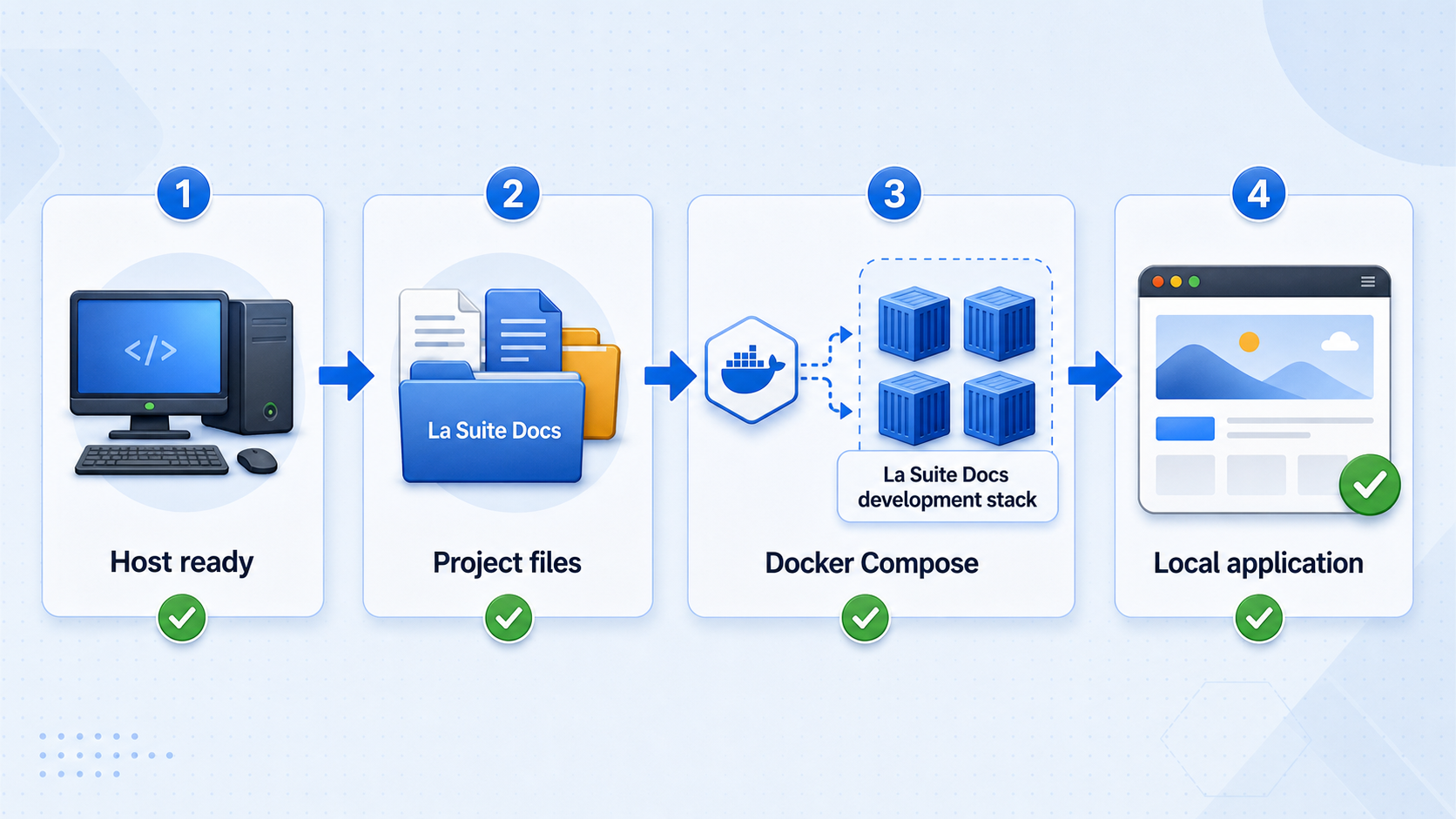
Run the following workflow from a location where your account can create the repository directory. The first bootstrap may need to download images, build project containers, and install dependencies. Completion time and resource use depend on the host, so this guide does not promise a fixed build duration.
Clone the official repository
Obtain the source and enter the repository root.
git clone https://github.com/suitenumerique/docs.git
cd docsBootstrap the contributor environment
Run the documented bootstrap target and preserve the quoting around the argument.
make bootstrap FLUSH_ARGS='--no-input'
The repository states that this builds the app-dev and frontend-dev containers, installs dependencies, runs database migrations, and compiles translations.
Start the services
Start the development stack from the repository root.
make runKeep the terminal open if the command remains attached and displays service output. Wait for the services to initialize before testing the browser endpoint.
Open the local application
On the same host, open https://localhost:3000. For this local test only, sign in with username impress and password impress.
Understand the development certificate
Use the exact hostname documented by the project: localhost. A certificate presented by a local HTTPS service can be valid for one hostname but not another. In particular, changing the browser address from https://localhost:3000 to https://127.0.0.1:3000 can produce a hostname mismatch if the certificate covers only localhost.
This distinction also matters to any reverse proxy or tunnel that connects to the HTTPS origin. Do not assume that localhost and 127.0.0.1 are interchangeable for certificate validation merely because they reach the same machine.
Licensing consideration for optional features
The project warns that some advanced functionality, including PDF export, relies on BlockNote XL packages licensed under the GPL and not compatible with an MIT-only build. It documents PUBLISH_AS_MIT=true as a build setting that removes the non-MIT features.
Do not add that setting casually to the commands above because it changes the resulting feature set. Review the current project licensing information before modifying, redistributing, or standardizing a build.
Verify Docs locally before any remote-access work
A completed startup command is not enough. Verification should cover the browser application, authentication flow, editor, and intended collaboration behavior while everything is still local.
https://localhost:3000Sign in using the development account:
Username: impress
Password: impress
Create or open a disposable document and enter non-sensitive text. Confirm that the editor responds without a persistent frontend or backend error. Keep the terminal visible and check for repeated failures involving migrations, storage, frontend requests, or supporting containers.
If real-time collaboration is part of your test plan, open separate local browser profiles or authorized sessions and edit the same disposable document. Confirm live presence and synchronized edits locally. This establishes a baseline before any proxy or tunnel is introduced.
https://localhost:3000 returns the Docs interface rather than a connection failure.
Keep Django administration separate
The repository documents the Django administration interface at http://localhost:8071/admin and provides this superuser command:
make superuserPort 8071 is not the normal collaborative editor endpoint. Keep it local unless a separately reviewed administrative-access design requires otherwise. Do not include it in a tunnel intended for the user-facing application.
Run, stop, update, and reset the development stack safely
Run repository targets from the cloned docs directory. The checked-out Makefile is the authority for the targets available in that revision. Inspect it through the project's documented help target:
make helpStop foreground execution
If make run remains attached to the terminal, use the ordinary terminal interrupt for that foreground operation. Then check container state rather than assuming every supporting service has stopped:
docker compose psStop containers without deleting development data
The supplied repository evidence does not identify a project-specific Make target for shutdown. Docker Compose itself provides a non-destructive stop operation for services in the current Compose project:
docker compose stop
This stops the project containers without requesting volume removal. Confirm the result with docker compose ps. To resume the repository's documented workflow, use:
make run
docker compose stop is the conservative operational choice when you want to preserve the current containers and stored development state. If the checked-out repository later provides a dedicated shutdown target in make help, review that target and its implementation before substituting it.
Update a checkout deliberately
Before updating, check for local source changes and record the revision used by any shared test. Review the project's current release and upgrade notes. After pulling new code, the repository recommends running the bootstrap target again:
make bootstrap FLUSH_ARGS='--no-input'Re-bootstrap aligns dependencies, images, migrations, and compiled translations with the updated checkout. Preserve any data that matters before an upgrade. This development workflow does not provide a backup policy.
Reset only when data loss is acceptable
The available repository evidence does not identify a canonical reset or volume-destruction target for this exact checkout. Consequently, this guide does not prescribe one. Use make help and inspect the checked-out Makefile and Compose configuration before invoking any target described as flush, clean, reset, destroy, or teardown.
Do not append volume-removal options to Docker Compose commands as routine cleanup. Removing volumes can erase the development database and stored files. Treat a reset as a separate destructive operation, confirm exactly which resources it removes, and preserve anything you need first.
Use the other documented contributor targets
Create basic demonstration content with:
make demoFor frontend work outside Docker, the project documents:
make frontend-development-install
make run-frontend-development
Start the backend services without the frontend container with:
make run-backendRun the documented frontend tests and lint checks with:
make frontend-test
make frontend-lint
The project also notes that backend tests can run outside Docker. That requires overriding URLs and ports that differ between containerized and host execution. Relevant variables are maintained under env.d/development/common, with test-specific overrides under env.d/development/common.test. Use the values from your checked-out revision rather than copying guessed replacements.
Security gate before Localtonet exposure
Do not expose the default contributor environment to the internet. The username and password are published in the repository, so an internet user does not need to discover or guess them. Keeping the public URL obscure or sharing it with only intended testers is not authentication and does not create controlled authorization.
Do not start a Localtonet tunnel to this stack while it accepts the documented impress/impress credentials. Proceed only after replacing the development credentials through a method supported by the checked-out Docs version or applying a separately verified authentication or access-restriction layer in front of Docs. The supplied evidence does not document such a procedure, so this article cannot claim that the default stack is safe to publish.
A proposed control must be tested before exposure. Confirm that an unauthenticated user cannot reach the Docs login or application, that invalid credentials are rejected, that authorized sessions still support required application requests, and that the control covers every route used by real-time collaboration. A control protecting only the initial HTML page is insufficient if APIs or collaboration connections remain reachable.
Docs states that documents are not currently end-to-end encrypted and warns that the application is not suitable for classified or highly restricted content. HTTPS transport and end-to-end document encryption address different risks. Even after an access-control gate is verified, use disposable, non-sensitive test data in this contributor environment.
Minimum approval checklist
- The publicly documented default credentials are no longer accepted, or a separately verified access-control layer blocks access before requests reach Docs.
- The selected control protects pages, APIs, assets that require authorization, and real-time collaboration connections.
- The test uses disposable, non-sensitive documents.
- The Django admin endpoint on port 8071 remains private.
- Database, MinIO, Docker management, and backend-only ports remain private.
- The Localtonet device token is kept out of source control, shell examples, screenshots, logs, and shared messages.
- The tunnel will be stopped immediately after the approved test window.
Evaluate the current Localtonet HTTP/s workflow
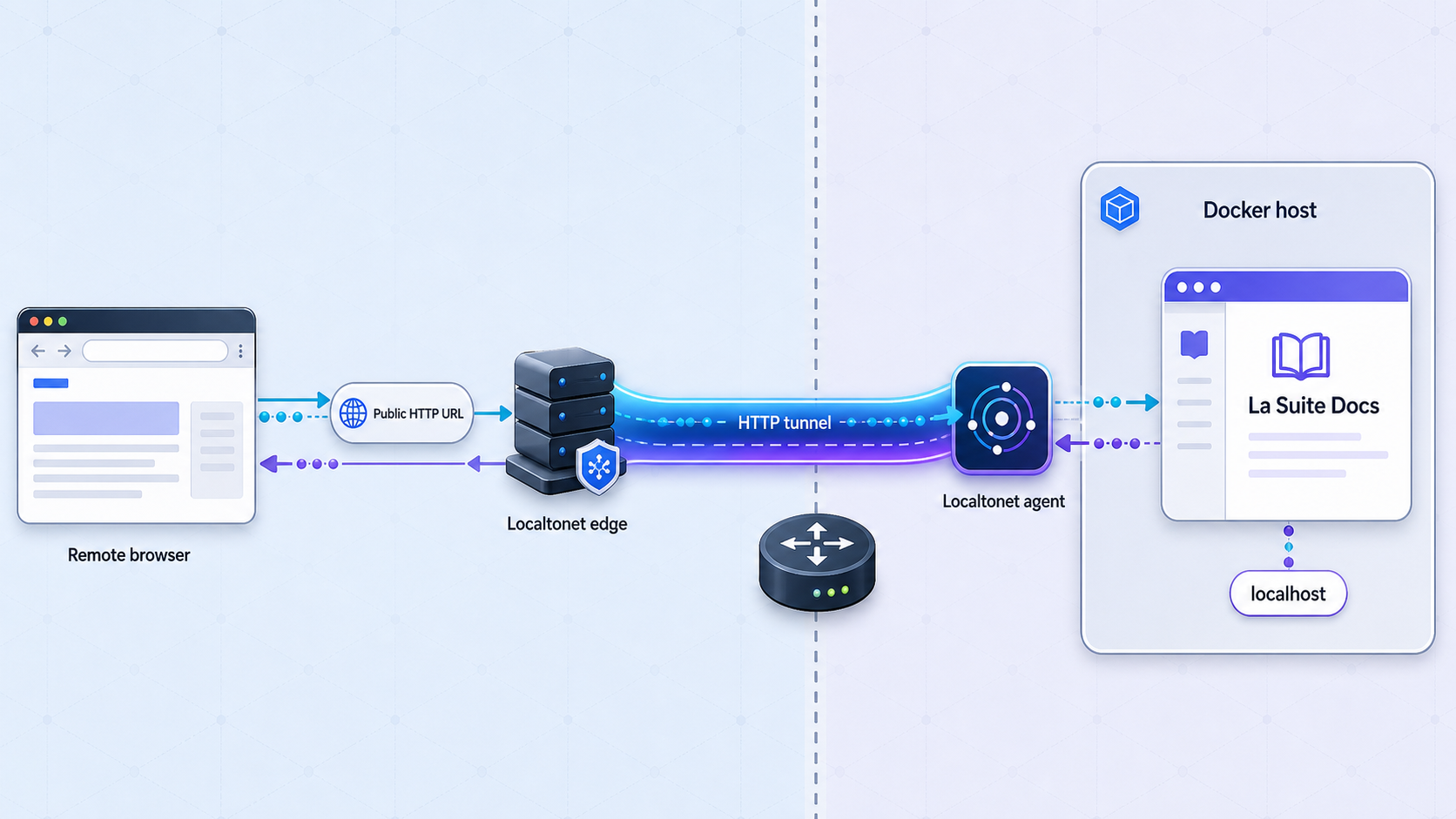
Once the security gate has been passed, the next issue is origin compatibility. Docs documents its local service as https://localhost:3000. The evidence available for this revision does not establish how the current Localtonet HTTP/s tunnel validates a local HTTPS certificate, whether its origin target accepts the hostname localhost, or whether it requires an IP address.
For that reason, this article does not instruct you to enter 127.0.0.1:3000. A certificate issued only for localhost can fail hostname validation when the origin is addressed as 127.0.0.1. It would also be unsafe to tell readers to disable certificate verification without a documented, reviewed product workflow.
Before creating a public route, compare the current dashboard and client behavior with our Localtonet HTTP tunnel documentation. Verify all of the following for the exact client and tunnel configuration you intend to use:
- The tunnel supports an HTTPS local origin rather than silently sending plain HTTP to port 3000.
- The local target can preserve or validate the hostname
localhostas required by the certificate. - Any certificate-validation behavior is explicitly documented and acceptable for the test environment.
- Long-lived or upgraded connections used by Docs collaboration are supported by the current HTTP/s tunnel.
- The applied access-control layer covers those collaboration connections as well as ordinary requests.
If the current Localtonet documentation or dashboard does not establish a working, validated HTTPS-origin configuration for https://localhost:3000, do not expose this contributor stack. Keep it local until the origin protocol, hostname validation, and real-time connection path can be confirmed.
Conditional Localtonet lifecycle
The following sequence applies only after the security and compatibility checks above have succeeded. It describes the verified Localtonet lifecycle without inventing an origin hostname, certificate override, or unsupported dashboard field.
Install and run the Localtonet client
Install our client on the same device as Docs, or on a device that can reach the verified origin. Keep the client running for the approved remote test window.
Authenticate or select the device
Use the device-specific authentication token from your Localtonet account or select the corresponding connected device. Never publish or guess a token.
Select an available relay server
Choose an available server or region from the current dashboard. Do not hardcode a server code from an old example because availability can vary.
Create the verified HTTP/s configuration
Use only the exact local HTTPS-origin configuration that you have confirmed against the current client and documentation. Do not substitute 127.0.0.1 for localhost unless certificate validation has been tested and documented for that target.
Start the tunnel
Creating a tunnel does not start it. Use the Start control and confirm that the selected client and tunnel report a connected or running state.
Test access and collaboration
From a separate authorized test device, verify the access-control gate, login, document loading, editing, synchronized changes, live presence, and reconnection behavior. Stop the test if any route bypasses the intended control.
Stop the public route
Stop or delete the tunnel when the approved test ends. Then stop the Docs containers if local development is also complete.
| Component | Treatment | Reason |
|---|---|---|
| Docs frontend on port 3000 | Remain local until security and HTTPS-origin checks pass. | It is the user-facing service, but the default credentials are publicly known. |
| Django admin on port 8071 | Keep local. | It is an administrative interface and is not required for ordinary collaboration. |
| Database and object storage | Never create public tunnels for this workflow. | Supporting infrastructure should remain private. |
| Localtonet device token | Store privately and replace it if exposed. | The token identifies the device that can run tunnels. |
| Public tunnel URL | Do not treat it as a credential. | URL secrecy is not authentication or authorization. |
Troubleshooting the local stack and conditional tunnel
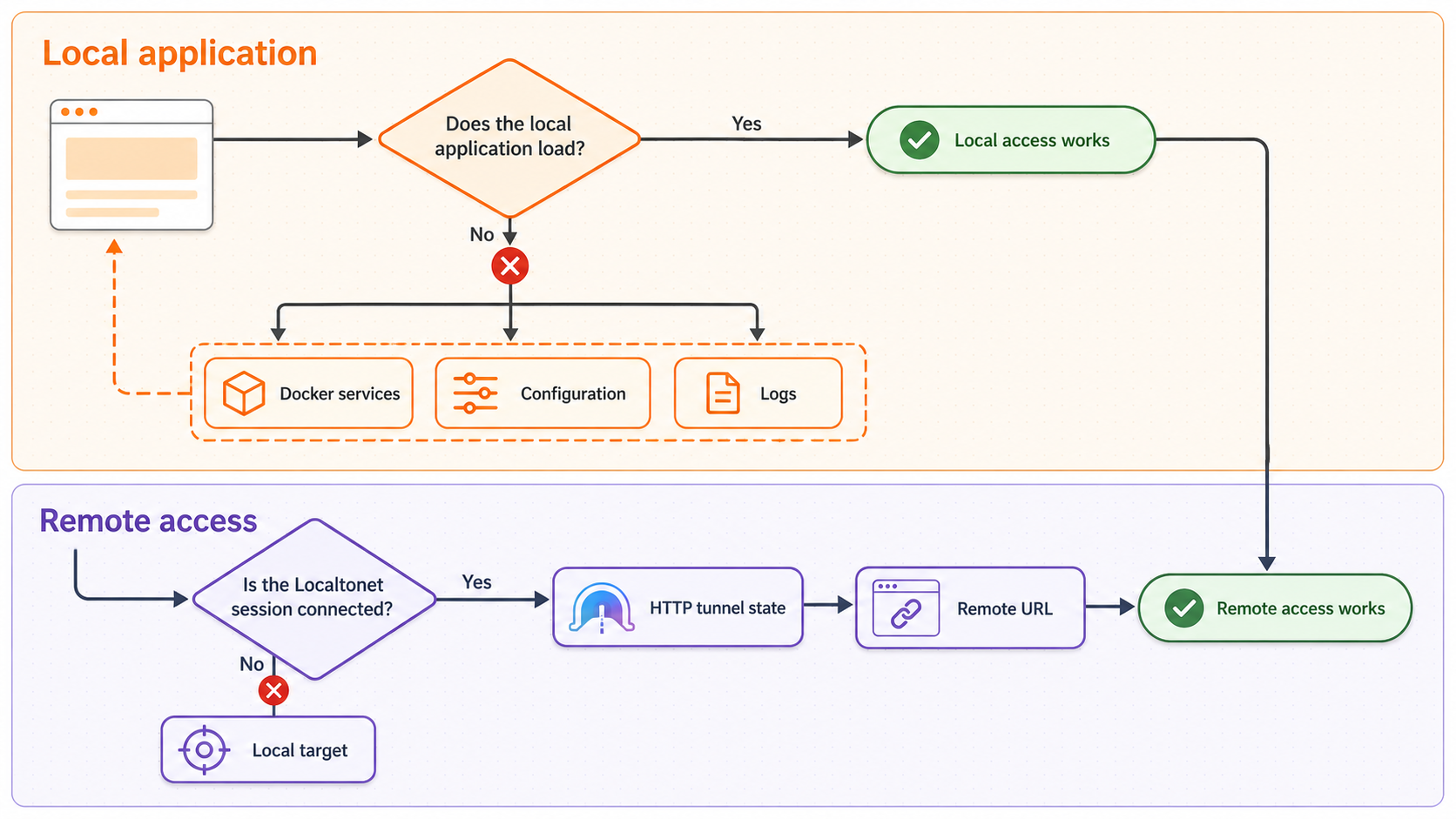
Docker or Compose is unavailable
If docker is not found, install Docker through the supported path for your operating system and reopen the terminal if necessary. If docker compose is unavailable, confirm that the modern Compose plugin is installed. The repository verifies docker compose version, not the legacy standalone command.
Docker reports a daemon or permission error
Start Docker Desktop or the Docker service and retry the version checks. On Linux, follow Docker's documented permission model. Do not add a user to a privileged group without understanding and approving the host-security consequences.
The bootstrap target fails
Find the first meaningful error in the output rather than relying only on the final Make error. Failures may involve image downloads, host resources, dependency installation, migrations, or Docker access. After correcting the underlying issue, rerun:
make bootstrap FLUSH_ARGS='--no-input'Confirm that you are in the repository root. If the failure began after a source update, make sure you performed the recommended re-bootstrap.
Port 3000 is occupied
Stop the unrelated process or change the development configuration according to the checked-out project's documented variables. This guide does not invent an alternate port mapping because frontend URLs, backend expectations, certificates, callbacks, and any later tunnel target may all need coordinated changes.
The browser cannot open the local endpoint
Confirm that the stack remains active and inspect its output. Use the exact documented address:
https://localhost:3000
Do not replace localhost with 127.0.0.1 while diagnosing a certificate error. The names can resolve to the same host while remaining different certificate identities.
Local editing works but local collaboration does not
Test with separate browser profiles and disposable content. Check container output for collaboration-service or frontend errors. Resolve this locally before evaluating Localtonet because a tunnel cannot repair an unhealthy collaboration backend.
The tunnel cannot reach the HTTPS origin
Stop the tunnel and return to local-only testing. Confirm that the chosen Localtonet workflow supports the exact origin protocol and hostname required by https://localhost:3000. Do not work around an unexplained certificate failure by changing the target to 127.0.0.1 or disabling validation unless that behavior is explicitly supported, reviewed, and documented for the current client.
The public page loads but collaboration fails
A successful page load proves only that an ordinary request reached the application. Compare the behavior with your local multi-session baseline. Confirm through current Localtonet documentation and observed testing that the HTTP/s tunnel supports the connection behavior used by the checked-out Docs version. Also verify that the external authentication or access-control layer supports and protects the same connections.
The Django administration page is unavailable remotely
That is expected and intentional. The administration endpoint is separate at http://localhost:8071/admin. Keep it local.
Containers remain after interrupting make run
Inspect their state:
docker compose psIf you are finished, stop the Compose services without requesting volume deletion:
docker compose stopAn update causes unexpected behavior
Review the release and upgrade information for the selected revision and rerun the documented bootstrap command. A named release should not be assumed to behave exactly like the current main branch. Record the commit or release used for repeatable team testing.
Frequently asked questions
Is this a production La Suite Docs deployment?
No. These commands create the repository's contributor development and testing environment. Production self-hosting requires separate deployment guidance and decisions about identity, storage, backups, domains, secrets, monitoring, upgrades, and security.
Which address should I use for local testing?
Use https://localhost:3000 on the host running the development stack. This is the endpoint documented by the project.
Can I use 127.0.0.1 instead of localhost?
Do not assume they are interchangeable for HTTPS. A certificate valid for localhost may fail hostname validation when the connection uses 127.0.0.1. Use the documented local hostname and verify any proxy or tunnel origin behavior explicitly.
Can I expose the default impress account through Localtonet?
No. The impress/impress credentials are publicly documented. Keep the default instance local. Internet exposure requires supported replacement credentials or a separately verified authentication or access-restriction layer that protects all application and collaboration routes.
Is sharing the public URL only with testers an access control?
No. A URL can be copied, logged, forwarded, or discovered. URL secrecy is not authentication or authorization and cannot compensate for publicly known application credentials.
How do I stop the development stack without deleting its volumes?
Interrupt an attached foreground run if necessary, inspect state with docker compose ps, and use docker compose stop from the repository root. Do not add volume-removal options. Check make help for any shutdown target supplied by your exact checkout.
How do I reset the stack completely?
The supplied repository evidence does not establish a canonical reset target. Inspect make help, the Makefile, and the Compose configuration for your checkout. Assume reset and volume-removal operations can destroy the development database and stored files.
Does Localtonet require router port forwarding or a public IP?
No. Our client establishes an outbound connection to a Localtonet relay server, so a tunnel can provide a public address without inbound router port forwarding, firewall changes, VPN setup, or a public IP address.
Does creating a Localtonet tunnel immediately expose Docs?
No. Creating and starting a tunnel are separate actions. The selected Localtonet client must be connected and the tunnel must be started. Do not start it for this stack until the security and HTTPS-origin gates have passed.
Should the Django admin endpoint use the same tunnel?
No. The Django admin endpoint is documented separately at http://localhost:8071/admin. Keep it local unless a separately reviewed administrative-access design requires remote availability.
Can I store confidential or classified documents in this environment?
No. This is a development environment with publicly documented default credentials. Docs also states that documents are not currently end-to-end encrypted and that the application is not suited for classified or highly restricted content. Use disposable, non-sensitive data.
Prepare Localtonet for an approved Docs test
First build and verify the contributor environment entirely on https://localhost:3000. Keep the default instance private. After you have implemented real access control and confirmed the current HTTPS-origin and collaboration behavior, you can use our documented HTTP/s tunnel lifecycle for a temporary, reviewed test.


