

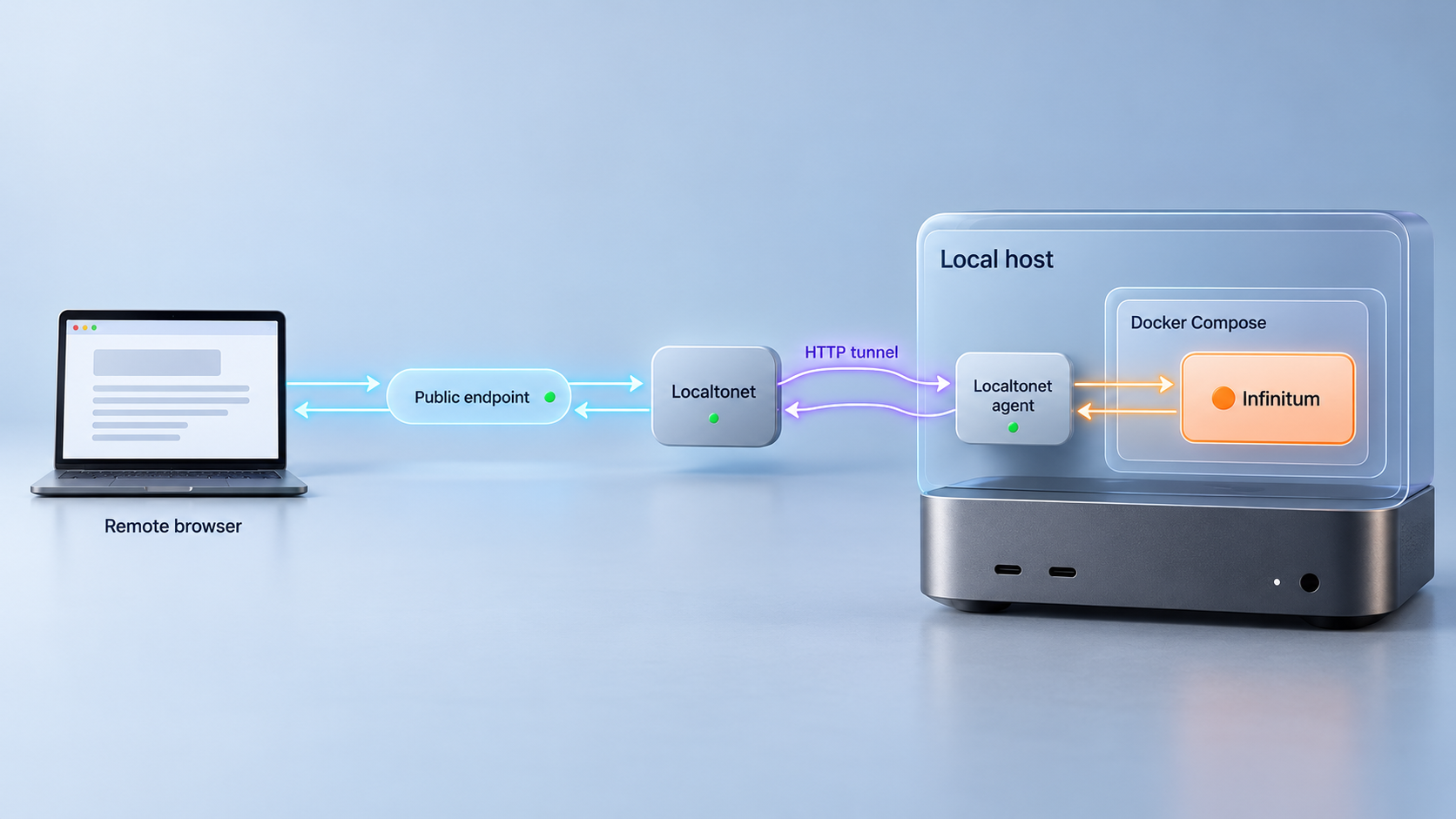
Build a private RSS and AI reporting workspace, verify it locally, then make it available through a controlled HTTP tunnel
Infinitum is a self-hosted RSS aggregation workspace that can organize information sources and produce AI-assisted daily reports. In this guide, we install its documented Docker Compose deployment, configure the required environment values, start the application, and verify the mapped local endpoint at http://localhost:3001. We then cover a careful workflow for adding RSS sources and AI report settings without inventing options that may differ between releases. Finally, we connect the verified service to an HTTP tunnel with Localtonet so it can be reached remotely without inbound router port forwarding, firewall changes, a VPN, or a public IP address.
📋 What's in this guide
How the Infinitum and Localtonet deployment fits together
The installation has two distinct layers. Infinitum is the application layer: it gathers RSS-based information, presents it through a web interface, and supports AI daily report functionality. Docker Compose runs the application on the self-hosted machine. In the documented Docker deployment, the host listens at http://localhost:3001 and maps that endpoint to port 3000 inside the container.
Localtonet is added only after the application works locally. Our client runs on the Infinitum host, or on another device that can reach it, and establishes an outbound connection to a Localtonet relay server. An HTTP tunnel then points to the local Infinitum address and port. The tunnel provides a public HTTPS address while it is running and while the selected Localtonet device remains connected.
This separation is important for diagnosis. If Infinitum does not answer locally, changing a tunnel will not repair the application. If Infinitum works locally but the public address does not, the investigation moves to the Localtonet client, tunnel state, selected device, relay connection, or local target. Always complete local verification before adding remote access.
docker-compose.yml.example, pulls the configured images, and starts the stack in detached mode.
Docker port mapping versus application port
Two ports appear in this deployment, and confusing them is a common source of errors. Port 3000 is the container-side application port. Port 3001 is the host-side port documented for the Docker deployment. A browser running on the Docker host therefore uses http://localhost:3001. The Localtonet HTTP tunnel should also target the reachable host-side endpoint, not an isolated container-only address.
The project separately documents an npm-based local development setup at http://localhost:3000. That is not the same workflow as the Docker Compose installation in this article. Do not switch between ports simply because one appears in development documentation. Confirm which installation method is running, then use its corresponding endpoint.
| Endpoint or port | Role | When to use it |
|---|---|---|
localhost:3001 |
Docker host endpoint | Use for local verification of the documented Docker Compose deployment. |
Container port 3000 |
Application port inside the container | Used by the Compose port mapping. It is not normally the browser address on the host. |
localhost:3000 |
npm development endpoint | Relevant to the separate development setup, not the Docker workflow covered here. |
| Assigned Localtonet URL | Remote HTTPS entry point | Use after local verification and after the HTTP tunnel has been created and started. |
Prerequisites and deployment decisions
Prepare the host before editing the Compose configuration. You need a system with Docker Engine and the current Docker Compose plugin installed, permission to run Docker commands, enough storage for the application images and generated data, and a web browser for verification. You also need a copy of the Infinitum repository because the documented workflow starts from its example Compose file.
Docker installation steps differ by operating system and distribution. Verify the installation instead of assuming it succeeded:
docker --version
docker compose version
Both commands should return version information. If the second command is unavailable, install or enable the Docker Compose plugin appropriate to the host. This guide uses the modern docker compose form shown by the Infinitum instructions, not the older standalone docker-compose command.
Values to prepare
- An administrator password: Infinitum documents
ADMIN_PASSWORDas a required configuration value. Choose a unique password that is not reused on another service. - An administrator session secret: Infinitum documents
ADMIN_SESSION_SECRET. Use a strong, unpredictable value and keep it out of screenshots, tickets, shell history, and published configuration examples. - A site URL: Infinitum documents
SITE_URL. For the first local test, the Docker endpoint ishttp://localhost:3001. If the deployed version uses this setting as its canonical external address, update it after Localtonet assigns the public URL. - RSS feed URLs: Gather the actual feed endpoints rather than ordinary website home pages. An RSS or Atom URL should return a machine-readable feed document.
- AI configuration required by your build: Provider names, model identifiers, credentials, endpoints, and optional report controls are not established by the evidence available for this draft. Do not guess them. Follow the fields displayed by the installed release and the project documentation shipped with that release.
Replace example values directly on the deployment host. Do not commit ADMIN_PASSWORD, ADMIN_SESSION_SECRET, AI provider credentials, tokens, or private endpoints to a public repository. If a secret has already been exposed, revoke or rotate it before continuing.
Choose the machine that will run the tunnel
The simplest design runs the Localtonet client on the same machine as Docker. In that case, an HTTP tunnel can target the host endpoint on port 3001. A different device can also run the client if it can reach the Infinitum host over the local network, but its target must use the Infinitum host's reachable LAN address instead of 127.0.0.1 or localhost.
Remember that localhost always refers to the machine making the connection. If our client runs on another computer, localhost:3001 points back to that other computer, not to the Infinitum server.
Install Infinitum with Docker Compose
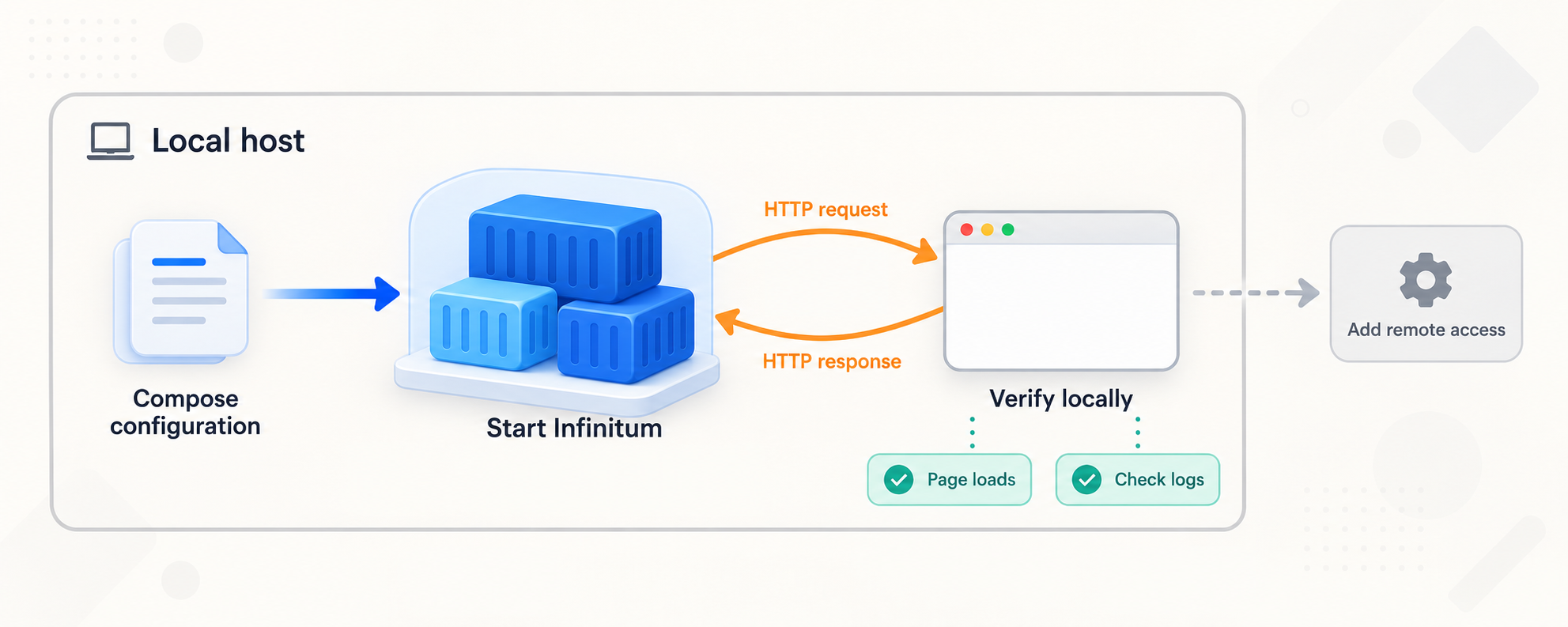
Work from the root of the Infinitum repository, where docker-compose.yml.example is located. The documented installation path is to copy the example, configure the required values, pull the images, and start the application. Review the example before running it so that you understand its volume, image, network, and port declarations.
Copy the example Compose file
From the repository root, create the working Compose file from the supplied example:
cp docker-compose.yml.example docker-compose.yml
On a platform without the cp command, copy the file using the operating system's file manager or equivalent command. Preserve the filename docker-compose.yml.
Configure the documented environment values
Open docker-compose.yml and replace the placeholder values for ADMIN_PASSWORD, ADMIN_SESSION_SECRET, and SITE_URL. For initial local verification, use the documented Docker address http://localhost:3001 where the example expects the site URL. Do not change unrelated image, volume, port, or service declarations unless you understand the effect.
Pull the configured container images
Download the images referenced by the Compose configuration:
docker compose pull
A published v0.2.1 release and matching image tag are documented, but the available evidence does not establish release recency or require pinning that tag. Review the current project guidance before selecting a version strategy.
Start Infinitum in detached mode
Create and start the configured services:
docker compose up -dDetached mode returns control to the terminal while the containers continue running. Startup does not prove that the application is healthy, so continue to the local verification section.
Keep the example file from the same Infinitum version as the application image whenever possible. An example copied from one revision may not describe every setting expected by another revision. Review configuration changes before updating.
Inspect the resulting container state
Docker Compose provides standard commands for checking the project after startup:
docker compose ps
docker compose logs
The first command shows the service state and published ports. The second displays available logs from the Compose project. If the logs are lengthy, focus on the earliest startup error and any repeated failure. Common categories include malformed configuration, unavailable image downloads, a port conflict, inaccessible storage, or an invalid required value.
Configure RSS sources and AI daily reports
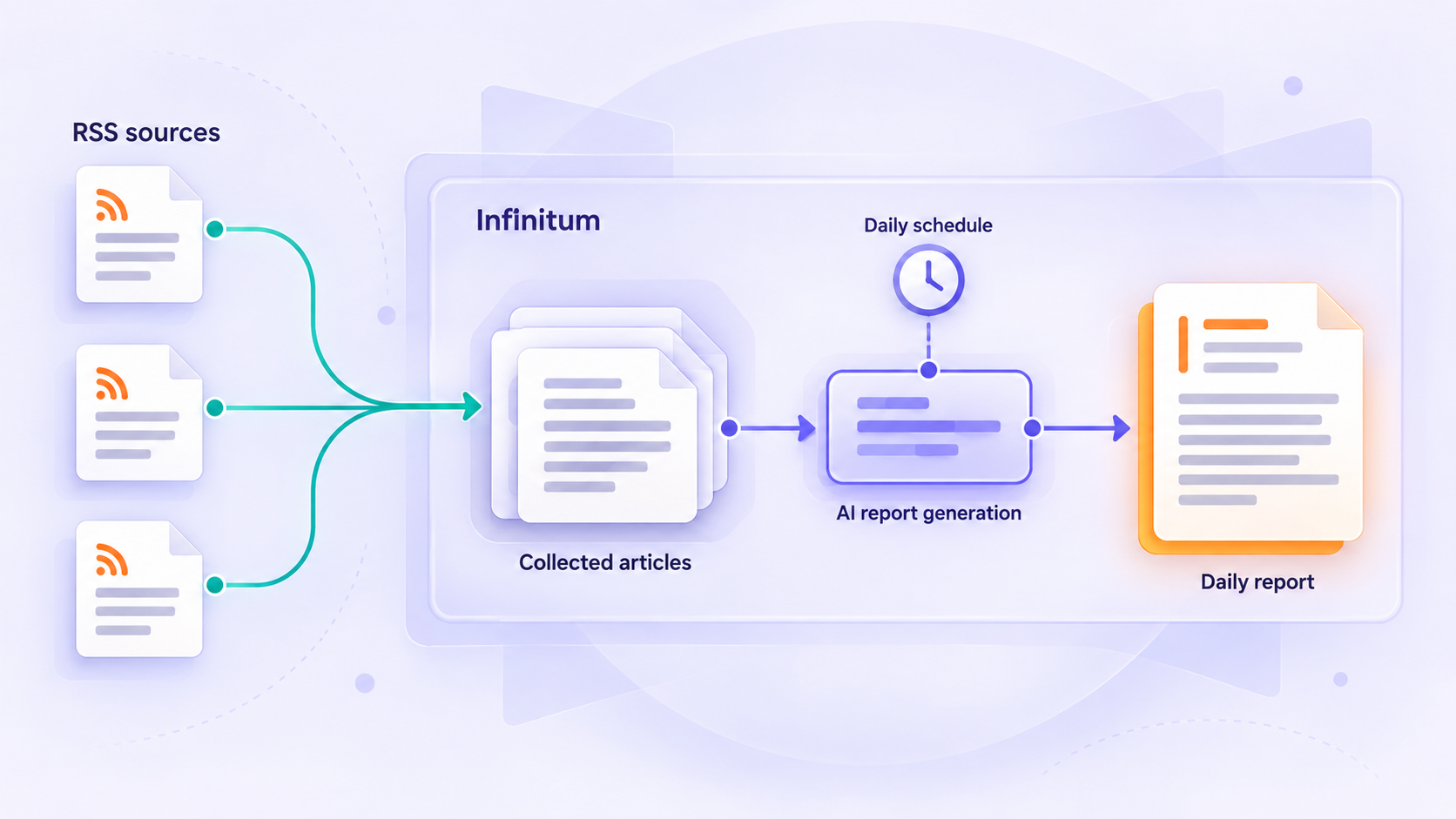
Complete this work only after the web interface loads. Feed ingestion and AI report generation add dependencies beyond basic page startup, so test them in layers. Begin with one known feed, confirm that Infinitum can retrieve and display its entries, and only then add more sources or enable AI processing.
Add and validate RSS feeds
The project includes dedicated RSS usage documentation, but the supplied evidence does not expose the current screen labels, accepted request fields, refresh controls, or scheduling defaults. Those details may change between releases. In the deployed interface, locate the feed or source management area and use the current controls to add an RSS or Atom endpoint.
A reliable feed setup workflow is:
- Open the intended publisher's actual RSS or Atom endpoint in a browser or feed-aware tool.
- Confirm that the URL returns a feed document rather than a marketing page, sign-in screen, bot challenge, or generic HTML error.
- Add one source using the fields exposed by the installed Infinitum build.
- Trigger or wait for the retrieval behavior documented by that build.
- Verify that entry titles, source identity, publication times, and article links appear as expected.
- Add further sources gradually so that a failing feed can be identified without searching through a large batch.
A normal web page and an RSS feed are not interchangeable. A feed is a structured document designed for syndication. If a publisher has moved or removed its feed, Infinitum cannot correct the remote endpoint. Find the publisher's current feed URL or remove the stale source.
Prepare AI daily report generation
Infinitum includes daily-report administration routes and project documentation for report templates and AI refinement. However, the supplied evidence does not establish the exact AI providers, environment variable names, model defaults, credential fields, scheduling behavior, prompt schema, or buttons in the current release. We therefore cannot safely provide a copied configuration block or claim that a particular provider works without additional verified documentation.
Use the following release-aware process instead:
- Open the daily report settings provided by the installed build.
- Read the accompanying template usage documentation from the same project revision.
- Supply only the provider, model, endpoint, credential, template, and generation values explicitly requested by that version.
- Keep provider credentials private and apply the minimum permissions available from that provider.
- Generate a test report from a small set of successfully ingested RSS entries.
- Inspect the report for missing source material, unsupported claims, broken formatting, and unexpected language or time ranges.
- Only after manual generation works should you rely on any scheduling feature documented by your release.
An AI-generated summary can omit context, combine unrelated statements, or produce claims not supported by the underlying articles. Keep links or other traceable source context available, review important reports before sharing them, and do not use generated output as an unquestioned operational, medical, legal, financial, or security decision.
Use a controlled first report
A small test set makes problems easier to classify. If the source entries are already incorrect, repair RSS ingestion first. If the entries are correct but report generation fails, inspect the AI configuration and application logs. If generation completes but the report quality is poor, review the selected input range and the supported report template controls. This layered approach avoids treating every issue as an AI provider failure.
Do not call an undocumented administrative API endpoint directly merely because its source directory exists. A directory path in the codebase does not establish the supported HTTP method, authentication requirements, request schema, response schema, or compatibility guarantees. Use the documented interface unless the project publishes an API contract for the exact installed version.
Verify Infinitum locally before remote exposure
Open the documented Docker endpoint on the machine running Docker:
http://localhost:3001A complete verification should test more than the initial page. Authenticate with the configured administrator password, confirm that the interface remains usable after navigation, add or inspect an RSS source, and generate a small daily report if the AI settings have been completed. Refresh the page or open a new browser session to confirm that the service is not depending on a stale frontend state.
Test from the Docker host
- Confirm that
http://localhost:3001opens without a connection error. - Verify that the expected Infinitum interface appears, not another service using the same port.
- Sign in with the configured administrator credentials.
- Confirm that at least one valid feed can be retrieved and displayed.
- Test report generation only after the selected source entries exist.
- Review
docker compose logsfor repeated errors even if the page appears to load.
Test from another LAN device when needed
If the Localtonet client will run on another machine, test Infinitum from that machine before creating the tunnel. Replace localhost with the Docker host's LAN address and keep port 3001. The exact LAN address depends on the network and must not be guessed.
A failure from another device while local access works usually points to host binding, host firewall policy, network segmentation, or an incorrect LAN address. Do not weaken firewall rules broadly. Permit only the necessary trusted path, or run the Localtonet client directly on the Infinitum host so it can use the local endpoint.
Do not create the public tunnel until Infinitum loads and its essential workflow succeeds locally. Record which IP address and port worked from the device that will run our client. Those values become the HTTP tunnel's local target.
Expose the working Infinitum service with Localtonet
Once Infinitum works locally, use an HTTP tunnel for browser access. Our client makes an outbound connection to a selected Localtonet relay, so this workflow does not require inbound router port forwarding, a public IP address, firewall changes, or a VPN. The public address is available only while the selected device is connected and the tunnel is running.
Install and run the Localtonet client on the Docker host when possible. If it runs elsewhere, that device must be able to reach the Infinitum host at the LAN address and port already tested. Device authentication tokens are device-specific. Never paste a real token into public documentation, source control, screenshots, or support messages.
Install and run our client
Install the Localtonet application for the operating system on the device that can reach Infinitum. Start the client and confirm that the device connects successfully before creating the tunnel.
Authenticate or select the device
Use the device-specific authentication token through the supported Localtonet workflow, then select that connected device for the tunnel. Treat the token as a secret and never substitute a guessed value.
Select an available relay server
Choose a server or region that is currently available in the dashboard. Availability can vary, so this guide does not hardcode a server code or claim that every option is included in every plan.
Create an HTTP tunnel to Infinitum
Create an HTTP tunnel and set its local target to the address that passed verification. When our client runs on the Infinitum host, target the local host on port 3001. When it runs on another device, use the tested LAN address of the Infinitum host and port 3001.
Start the tunnel
Creating a tunnel does not start it. Press the Start button and wait for the tunnel to enter its running state. Copy the assigned public URL only after the selected Localtonet device is connected and the tunnel is active.
Test the public URL and control its lifecycle
Open the assigned URL from a separate network or browser session, authenticate to Infinitum, and test normal navigation. Stop the tunnel when remote access is not needed, or delete it when the configuration is no longer required.
For the current dashboard workflow and fields, consult our HTTP tunnel documentation. Exact custom-domain DNS instructions are intentionally not included because they must be checked against the current Localtonet documentation before use.
Update SITE_URL carefully
After the tunnel assigns a public URL, review how the installed Infinitum version uses SITE_URL. If its documentation requires the external canonical URL there, replace the local value with the exact assigned HTTPS address and apply the Compose configuration again:
docker compose up -dThis qualification matters because the available evidence confirms the setting's name but does not establish every place it affects URL generation, session behavior, redirects, or report links. If changing it causes a redirect loop or login problem, restore the last working value, review the application logs, and check the version-matched Infinitum documentation.
Remote accessibility means internet users can reach the login surface. Use a unique administrator password and strong session secret, keep Infinitum and its images updated, protect AI credentials, and stop the tunnel when it is not required. A tunnel provides connectivity, not a replacement for application authentication or secure administration.
Routine operation, updates, and backups
Self-hosting continues after installation. Keep a record of the Infinitum version, Compose configuration, chosen image policy, local endpoint, Localtonet target, and any external AI dependency. This makes future upgrades and incident response more predictable.
| Task | Command or action | Operational note |
|---|---|---|
| Check services | docker compose ps |
Confirm containers are running and inspect published port information. |
| Read logs | docker compose logs |
Look for startup failures, repeated retrieval errors, or report-generation errors. |
| Apply configuration | docker compose up -d |
Reconcile the running deployment after a reviewed Compose change. |
| Pull configured images | docker compose pull |
Review release notes and configuration changes before replacing a working version. |
| Stop the application | docker compose down |
Stops and removes Compose containers and networks. Review volume behavior before destructive cleanup. |
| Stop remote access | Use the tunnel Stop control | The configuration can remain available for a later restart. |
Update in a controlled sequence
- Record the currently deployed version and confirm that the existing service works.
- Back up persistent application data and the working configuration using a method appropriate to the storage declared by the current Compose file.
- Read the target release notes for configuration, migration, image, and data changes.
- Pull the intended images with
docker compose pull. - Apply the deployment with
docker compose up -d. - Inspect status and logs.
- Repeat local RSS and report tests before testing the public URL.
The supplied evidence does not identify Infinitum's exact persistent volume names or backup and restore commands. Inspect the version-matched Compose file before designing a backup procedure. Do not assume that copying the Compose file alone preserves feeds, reports, settings, or other application state.
Stop unused access paths
If remote access is temporary, stop the Localtonet tunnel after the task is complete. The public address will not remain available through that tunnel while it is stopped. If the tunnel will never be used again, delete it. If the Localtonet client device disconnects, the tunnel also becomes unavailable even if its dashboard configuration still exists.
Troubleshooting Infinitum and the HTTP tunnel
The Compose command cannot find a configuration file
Confirm that the terminal is in the repository directory containing docker-compose.yml. If only docker-compose.yml.example exists, complete the documented copy step. Also verify that the copied filename has not acquired an extra extension.
Port 3001 is already in use
Another process may already be bound to the host port. Identify that process using tools appropriate to the operating system. The safest resolution is normally to stop the unintended service or deliberately revise the Compose port mapping. If you change the host port, use that new host port consistently for local verification and the Localtonet target. Do not change the container port merely to resolve a host-side conflict unless the application documentation explicitly supports it.
The containers start and then stop
Run docker compose ps and docker compose logs. Check the earliest relevant error rather than only the final shutdown message. Revisit the three documented configuration values and verify the Compose syntax. If an image cannot be downloaded, check the host's DNS resolution, outbound connectivity, registry access, and available storage.
The browser cannot open localhost:3001
Verify that the Docker installation, Compose project, and port mapping belong to the same host where the browser is running. Confirm that the deployment is the Docker workflow rather than the npm development workflow. Then inspect the published ports in docker compose ps and review the logs.
RSS entries do not appear
Open the feed URL independently. If it returns HTML, redirects to authentication, presents a bot challenge, or produces an error, the source itself may not be retrievable as a feed. If it returns structured RSS or Atom content, check Infinitum's logs and the current version's feed controls. Also confirm that date filters or grouping selections are not hiding successfully retrieved entries.
AI report generation fails
First confirm that Infinitum has source entries available for the intended report period. Then verify the exact provider settings requested by the installed release, without posting the credential in logs or support messages. Check for provider-side authorization, model access, endpoint, rate, quota, or payload errors. Because the available evidence does not establish supported providers or variable names, use only the configuration contract documented by that Infinitum version.
Infinitum works locally but not through Localtonet
- Confirm that the selected Localtonet device is connected.
- Confirm that the HTTP tunnel has been started, not merely created.
- Test the exact local target from the device running our client.
- If the client is remote from Docker, replace
localhostwith the tested LAN address. - Confirm that the target uses the Docker host port
3001. - Check whether Infinitum redirects to a stale
SITE_URL.
The public URL opens but login or redirects fail
Compare the current SITE_URL with the address used in the browser and consult the deployed version's documentation for canonical URL handling. Clear only the relevant test session or use a private browser window after correcting configuration. Do not disable authentication to work around a login or redirect problem.
Security checklist for remote Infinitum access
Treat the deployment as an internet-reachable application once the HTTP tunnel starts. Router isolation alone no longer limits who can reach the login page. The goal is not to weaken controls for convenience, but to expose only the intended service while retaining strong application authentication and disciplined secret management.
- Do not embed Localtonet device tokens or AI credentials in public examples.
- Do not expose Infinitum before changing placeholder administrator values.
- Do not disable application authentication merely because the public URL is difficult to discover.
- Do not publish administrative API routes without understanding their authentication and supported contract.
- Back up persistent data before upgrades or storage changes.
- Review application and container logs, but redact secrets before sharing diagnostic excerpts.
- Use least-privilege AI credentials where the selected provider supports them.
- Review generated reports before distributing or relying on them.
Our HTTP tunnel provides connectivity to the configured local target. It does not make weak application passwords safe, validate generated reports, secure exposed secrets, or authorize users on Infinitum's behalf. Keep the application authentication layer enabled and maintain the host, containers, configuration, and connected AI services.
Frequently asked questions
Which port should I use for Infinitum with Docker Compose?
The documented Docker deployment is available on the host at http://localhost:3001, mapped to port 3000 inside the container. Use host port 3001 for local browser testing and as the Localtonet target unless you deliberately changed the Compose mapping.
Why does the npm development setup use port 3000?
The npm workflow is a separate local development setup documented at http://localhost:3000. The Docker workflow publishes the container's port 3000 through host port 3001. Use the endpoint associated with the installation method you actually started.
Do I need router port forwarding to access Infinitum remotely?
No. With Localtonet, our client establishes an outbound connection to a relay server. You do not need inbound router port forwarding, a public IP address, firewall changes, or VPN setup for the HTTP tunnel workflow described here.
Does creating a Localtonet tunnel make it immediately available?
No. Creating the tunnel saves its configuration, but you must start it. The public address remains available only while the selected client device is connected and the tunnel is running.
Should the Localtonet client run on the same machine as Infinitum?
That is usually the simplest arrangement because our client can target the local service on port 3001. It can run on another device, but that device must be able to reach the Infinitum host over the LAN, and the tunnel target must use the Infinitum host's reachable address rather than localhost.
What should I set for ADMIN_PASSWORD and ADMIN_SESSION_SECRET?
Use unique, strong values. The administrator password should not be reused, and the session secret should be unpredictable. The project evidence supplied for this guide does not define a required generation command or exact length, so this article does not invent one. Keep both values private and rotate them if exposed.
Which AI provider and model should I configure?
The available evidence confirms AI daily report and template functionality but does not establish a complete current list of supported providers, models, environment variables, or defaults. Use only the fields and providers documented by the installed Infinitum version. Do not copy unverified credential names or model identifiers from another release.
Can I call Infinitum's daily report API directly?
Only if the project documentation for your exact version defines the supported method, authentication, request body, response, and compatibility expectations. The presence of an administrative route in the source tree is not enough to infer a safe public API contract.
Does a Localtonet HTTP tunnel replace Infinitum authentication?
No. The tunnel makes the configured HTTP service reachable. Infinitum must still enforce its own administrator authentication, and you must continue protecting application secrets, AI credentials, host access, container configuration, and persistent data.
Connect your verified Infinitum deployment with Localtonet
Finish the local Docker and RSS checks first, then create an HTTP tunnel to the working host endpoint. Keep the administrator login enabled and stop the tunnel whenever remote access is no longer needed.
Get Started Free →

