

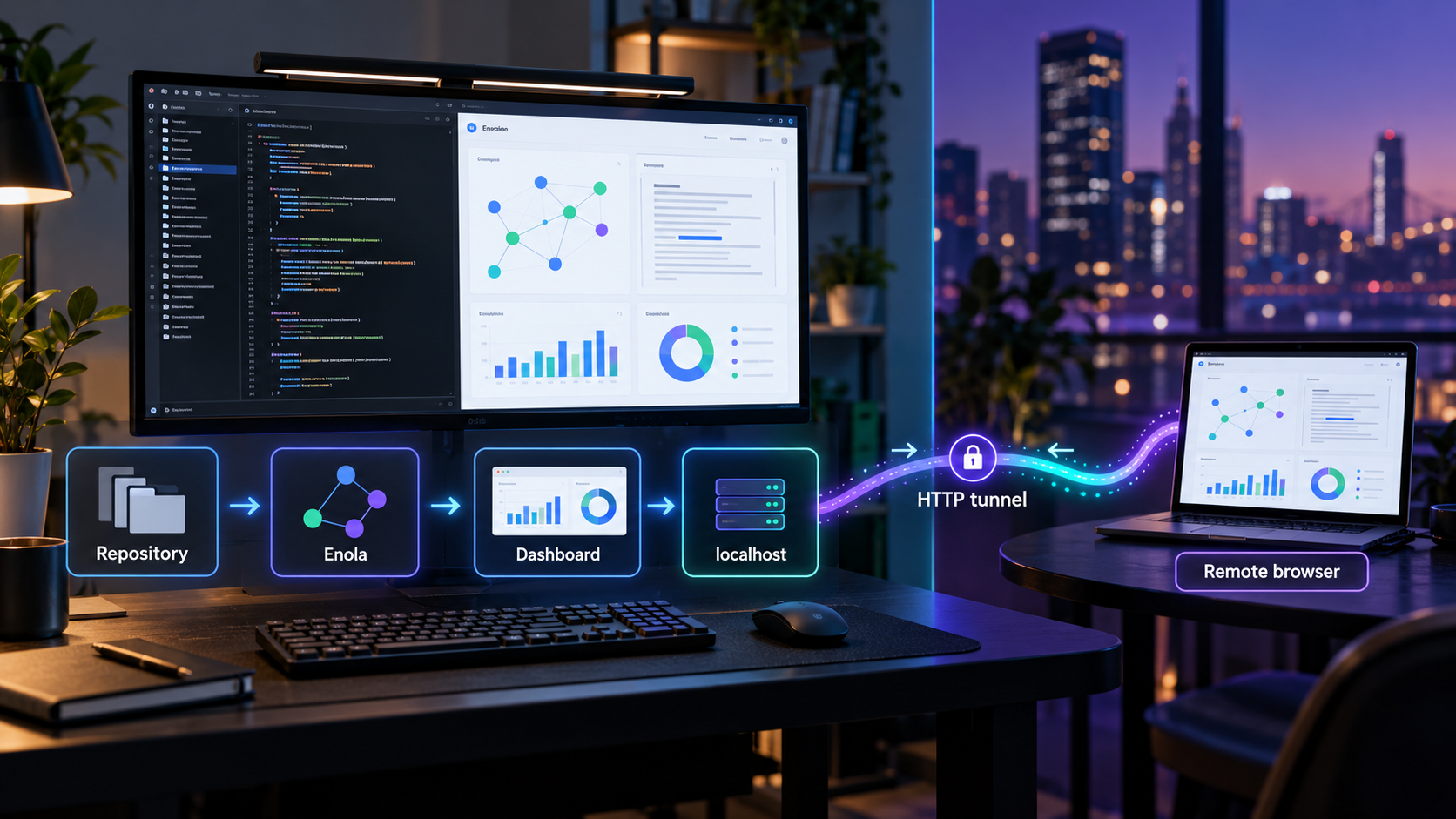
Build a local code graph, verify the Enola dashboard, and make it available for controlled remote access
Enola analyzes source code locally and records modules, functions, routes, dependencies, and other software structure in a graph. In this guide, we install the Enola Labs CLI, analyze an existing repository, generate a persistent snapshot, start its read-only local dashboard, and verify the entire workflow before adding remote access. Once the local HTTP service works, we connect it to an HTTP tunnel with Localtonet without opening an inbound router port or requiring a public IP address. We also address an important limitation: Enola's documented quickstart does not publish a fixed dashboard port or a separate headless launch command, so the local endpoint must be observed rather than guessed.
📋 What's in this guide
What Enola does and how this workflow fits together
Enola is an open-source command-line tool and MCP server for understanding software systems. It reads source code, extracts typed facts, links those facts into a graph, and runs architectural checks over the result. A fact can represent something such as a function, module, API route, database interaction, or message topic. Links describe how those pieces relate within one repository or across multiple repositories.
The Enola Labs implementation covered here runs locally as one binary. Its documented analysis workflow does not require an account, an AI model, embeddings, or a language server. The project states that source code is not uploaded as part of this local workflow. This makes it useful when a developer wants deterministic structural information about a repository without first sending the repository to a hosted analysis service.
There are two useful analysis modes in this tutorial. The first is --explain, which reads the repository and prints a report without writing a snapshot. The second is --generate, which saves the graph beneath the repository's .enola/ directory. The dashboard displays that saved graph, so generating a snapshot is a necessary step before expecting useful dashboard content.
enola --explain . detects repository structure and prints findings without writing snapshot files.
enola --generate . builds the graph and writes its snapshot beneath .enola/ in the repository.
enola dashboard --open serves the latest snapshot as a local web page on a loopback address.
The order matters. Localtonet does not install Enola, create its graph, or start its web server. Our tunnel forwards traffic to an HTTP service that must already be running and reachable from the Localtonet client device. If the dashboard fails locally, adding a tunnel will not repair it. We therefore treat installation, graph generation, dashboard startup, and local browser verification as separate gates before remote access.
Several projects use the Enola name. The commands and installation routes in this article apply to the Enola Labs code-analysis project whose repository is enola-labs/enola. Instructions for another project with the same or a similar name are not interchangeable.
Prerequisites and decisions to make first
Prepare the machine and repository before installing anything. Enola publishes prebuilt binaries for Linux, macOS on AMD64 and ARM64, and Windows on AMD64. The official shell installer is documented for macOS and Linux. Alternative official distribution routes include PyPI, RubyGems, and downloadable release archives.
You do not need a Go toolchain or C compiler when using a prebuilt binary. You do need a repository checked out on the machine where Enola will run, permission to read that repository, and write permission within it if you intend to generate the .enola/ snapshot. To use the official shell installer, the environment must also be able to run a POSIX-style shell command and retrieve the installer over HTTPS.
For the remote-access portion, install and run the Localtonet client on the machine that can reach the Enola dashboard. In the simplest arrangement, Enola and our client run on the same computer. If they run on different devices, the client device must be able to reach the dashboard over the local network. Enola's documented dashboard defaults to a loopback address, however, so a different-device arrangement may not be reachable without an officially supported Enola bind-address option. The supplied Enola evidence does not establish such an option, and this guide does not invent one.
| Requirement | Why it is needed | Verification |
|---|---|---|
| Supported Enola platform | Enola publishes binaries for documented operating-system and architecture combinations. | Confirm the machine is Linux, macOS AMD64 or ARM64, or Windows AMD64 before selecting an installation route. |
| Checked-out repository | Enola reads source files from a local repository path. | Open a terminal in the repository root and confirm the expected source files are present. |
| Writable repository for snapshots | The generate operation writes the graph under .enola/. |
Confirm the current user can create files in the repository when using --generate. |
| Local browser or HTTP client | The dashboard should be tested locally before tunneling it. | Be ready to open the loopback URL reported by Enola. |
| Localtonet client and device token | Our client establishes the outbound connection to a relay server. | Confirm the intended device appears connected in the current Localtonet dashboard. |
The official shell command downloads a script and pipes it directly to the shell. This is convenient, and the documented installer verifies the release checksum before writing the binary, but it still executes remotely retrieved code. If your security policy requires prior review or version pinning, inspect the script or use a verified archive from a specific release instead.
Install Enola and verify the command
The primary documented route for macOS and Linux installs a prebuilt binary into ~/.local/bin. It does not install a configuration file. Enola uses built-in defaults when no configuration is present, which is sufficient for the initial repository analysis and dashboard workflow.
Run the official installer
On macOS or Linux, run the documented installer command. It downloads the appropriate prebuilt release, verifies its checksum, and places enola in ~/.local/bin.
curl -fsSL https://raw.githubusercontent.com/enola-labs/enola/main/install.sh | shMake sure the installation directory is on PATH
If the shell reports that enola cannot be found, add ~/.local/bin to the current shell's PATH. Add the equivalent export to the appropriate shell startup file if you want it to persist in later sessions.
export PATH="$HOME/.local/bin:$PATH"Verify the installed binary
Ask Enola to print its version. A version response confirms that the executable can be found and launched by the current shell.
enola --versionAlternative installation routes
If the shell installer is not appropriate for the environment, the same Enola command is distributed through other official routes. PyPI uses the package name enola-cli because the shorter project name was already taken. Installing that package still provides the enola command:
pip install enola-cliEnola is also distributed as a RubyGem. A Bundler-based project can add the gem and invoke it through Bundler:
bundle add enola
bundle exec enola --version
Verified release archives are another supported route and are particularly useful when an organization needs to review or pin a specific binary. Windows users should select a published Windows AMD64 archive rather than assuming the macOS and Linux shell installer applies. The exact archive filename varies by release and platform, so obtain it from the current release assets instead of copying a guessed filename.
This Enola implementation is the Go-based Enola Labs project distributed as a prebuilt binary, enola-cli Python package, and RubyGem. Java, JAR, JBang, Nix, or container instructions published for a different Enola project do not install the code-analysis CLI documented here.
Upgrade an existing installation
An existing Enola installation can update itself with the documented upgrade command:
enola upgrade
This downloads the newest build for the current platform, verifies its checksum, and replaces the running binary. The installation location must be writable by the current user. If Enola is running as a long-lived MCP server, restart or reconnect that process after upgrading so it loads the replacement binary. For the dashboard workflow in this guide, stop the current process with Ctrl-C, upgrade, and launch it again.
Analyze a repository and create the dashboard snapshot
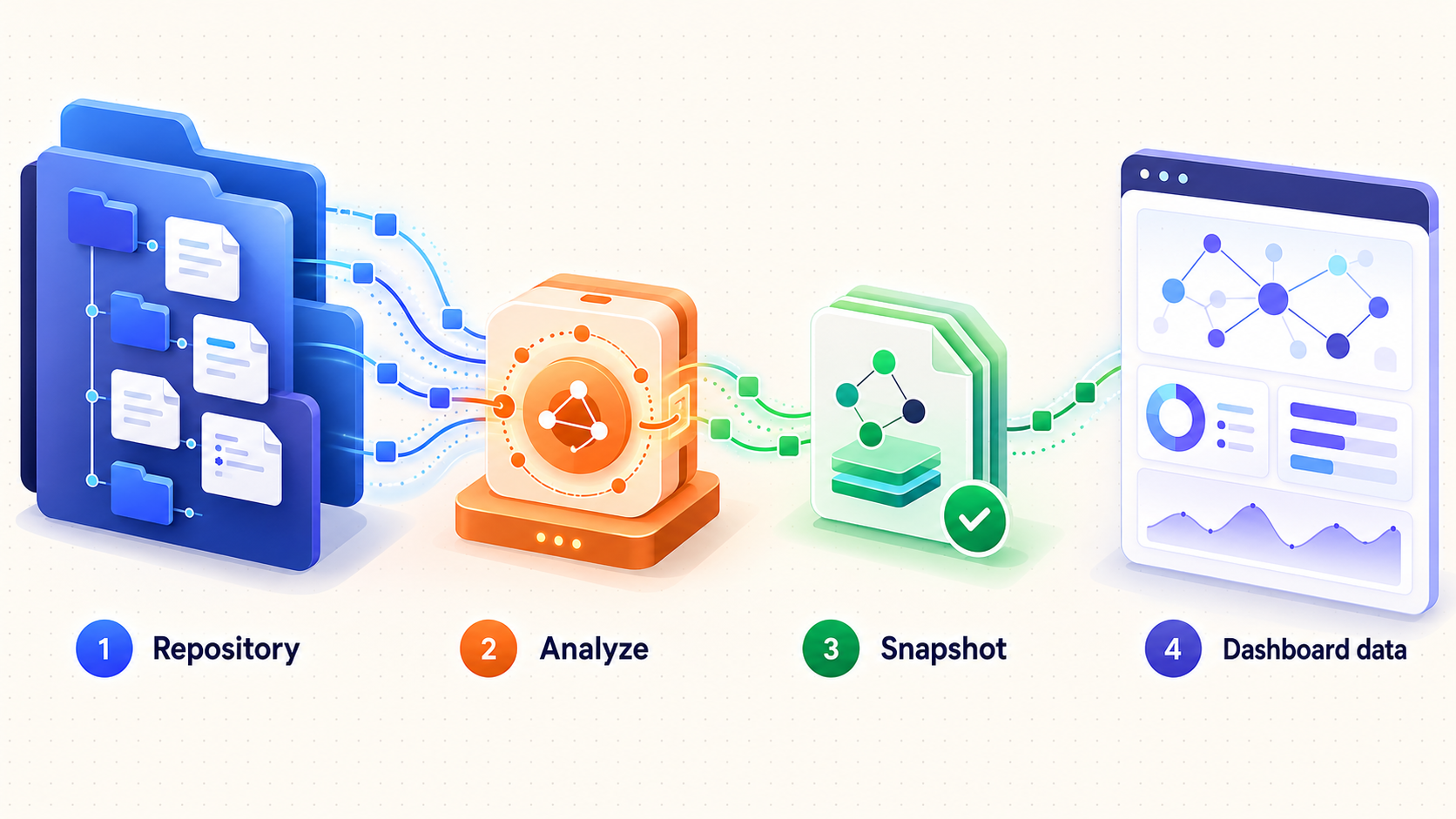
Start with a non-writing inspection. This separates repository detection and extraction problems from snapshot or dashboard problems. Open a terminal at the repository root, then run:
enola --explain .The dot means the current directory. Enola automatically detects supported content and prints an overview, extracted structure, and architectural findings. No configuration file is required for this first analysis, and this command does not write snapshot files.
Read the configuration message Enola prints to standard error before analysis. It reports whether it found a configuration file or is using built-in defaults. This matters because a configuration can control which extractors run, which paths are ignored, and where output is written. A valid but unintended configuration may analyze different content without producing a simple command failure.
Analyze a repository by explicit path
You can run the same read-only inspection without changing directories by supplying the repository path:
enola --explain /path/to/your/repositoryReplace the example path with a real checked-out repository. Do not copy it literally. If you do not have a suitable repository available, the project documents cloning its own source and analyzing that checkout:
git clone https://github.com/enola-labs/enola
enola --explain enola
Interpret the initial report
A fact is one piece of structure Enola recorded, such as a function, a call, or a route. A cyclic dependency indicates that modules depend on each other in a cycle. A layer violation describes a dependency that crosses a declared architectural layer boundary. Hotspot information highlights highly connected modules, including fan-in, fan-out, and potential blast radius.
Findings are repository-specific. Do not treat the example counts shown in Enola's documentation as expected values for another codebase. A smaller project may produce relatively few facts, while a multi-language monorepo may produce many. A clean report also does not prove that every possible language construct was extracted. It reports what the active extractors recognized under the resolved configuration.
Generate the saved graph
Once the read-only report succeeds, create the snapshot consumed by the dashboard. From the repository root, run:
enola --generate .
Enola writes the result beneath .enola/ in the repository. Because that directory contains generated analysis output, decide how it should be handled by version control according to your team's workflow. The supplied evidence establishes where Enola writes the snapshot, but it does not prescribe a universal commit or ignore policy for every repository.
A graph can reveal module names, routes, dependencies, database interactions, and relationships across a software system. Even though the dashboard is read-only and Enola performs this workflow locally, remote viewers may still learn important internal design details. Expose it only to intended users and only for as long as required.
Optional baseline and change comparison
The dashboard is not required to compare a change. Enola can record the current architecture, let you modify the repository, and then report structural differences. From the repository root, pin the baseline:
enola baseline pinMake a controlled code change, such as adding or removing an import, call, route, or dependency. Then compare the current graph with the baseline:
enola check
Keep extraction settings unchanged between the baseline and the check. With no --fail-on policy, new findings are reported but do not fail the command. A result with no delta is valid and means the change did not alter structure detected by the active extractors. A comment-only edit, for example, may produce no architectural difference.
Start and verify the local Enola dashboard
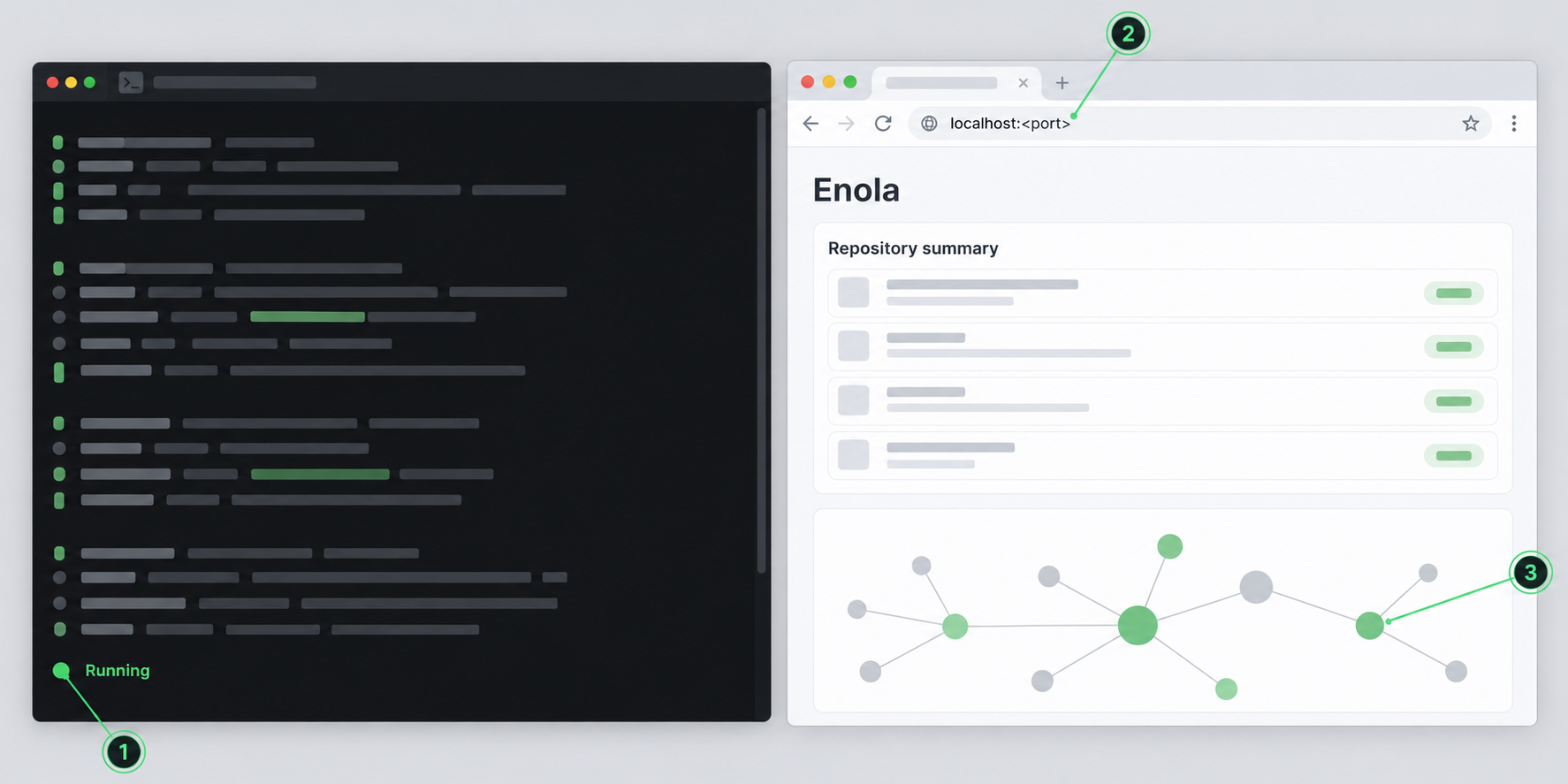
Run the dashboard from the repository whose latest snapshot you want to inspect. The documented command is:
enola dashboard --open
Enola starts a read-only dashboard on a loopback address and opens it in the local browser. Keep the terminal process running while using the dashboard. Stop the service with Ctrl-C.
The supplied official quickstart confirms that the dashboard runs on a loopback address, but it does not establish a fixed port, a bind-address flag, or a separate headless launch command. Read the actual URL from the browser or command output produced by your installed Enola version. That observed host and port are the values to test locally and later enter as the Localtonet target.
Local verification checklist
Verify all of the following before creating a public tunnel:
- The
enola dashboard --openprocess remains running without an immediate error. - A browser on the same machine can load the exact loopback URL selected by Enola.
- The page displays the expected repository snapshot rather than an empty or stale result.
- Refreshing the page works while the terminal process remains active.
- Stopping the command with
Ctrl-Cmakes the local dashboard unavailable.
If no browser opens automatically, do not infer an undocumented option. Inspect the terminal output and the official help exposed by the installed build:
enola dashboard --helpUse only options shown by that command for your installed version. If the output does not reveal a usable URL or a supported way to run without opening a browser, the available evidence is insufficient to prescribe a headless workflow. In that case, consult the dashboard documentation matching the installed release before proceeding.
Refresh the graph after source changes
The dashboard shows a saved snapshot rather than automatically replacing the graph whenever a source file changes. After meaningful source changes, stop the dashboard if necessary, regenerate the snapshot, and launch the dashboard again:
enola --generate .
enola dashboard --open
This explicit regeneration makes it easier to understand which repository state the dashboard represents. If the content looks stale, confirm that generation ran in the expected repository and that Enola resolved the intended configuration.
Expose the working dashboard with a Localtonet HTTP tunnel
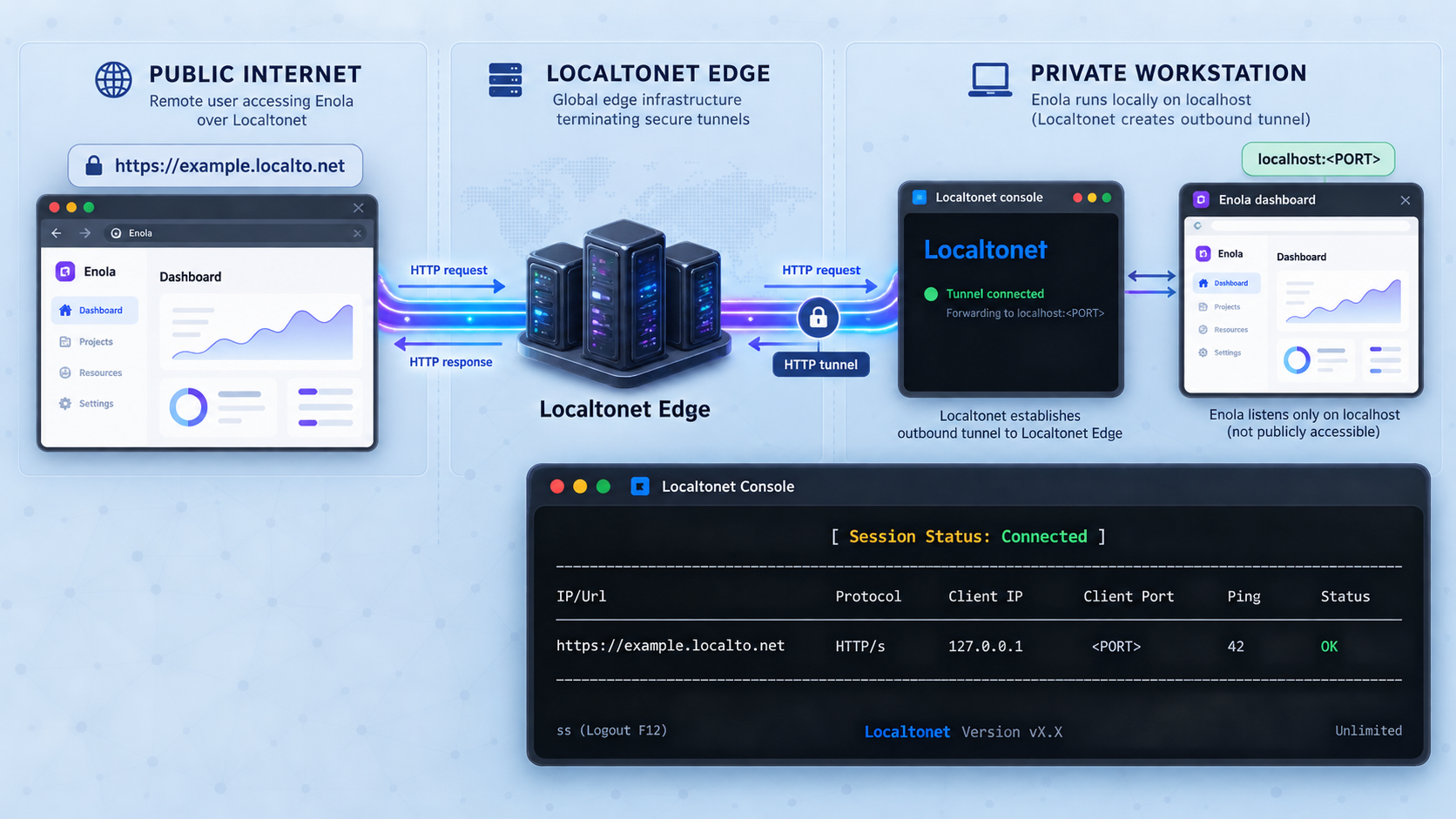
After the dashboard works locally, Localtonet can expose that HTTP service without inbound router port forwarding, firewall changes, VPN setup, or a public IP address. Our client establishes an outbound connection to a Localtonet relay server. The tunnel then provides a public URL while the selected client device remains connected and the tunnel is running.
The local target is the exact IP address and port observed during local verification. Because Enola documents a loopback listener, the Localtonet client should normally run on the same machine. Do not enter a sample port from another tutorial and do not substitute a LAN address unless the installed Enola version officially supports listening there and you have deliberately configured it.
Install and run the Localtonet client
Run our client on the device that can reach the Enola dashboard. For a loopback-only dashboard, this should be the same machine that runs Enola.
Authenticate or select the client device
Use the device-specific authentication token associated with the intended client. Keep the token private and never place it in source code, screenshots, shell history examples, or a published article.
Select an available relay server
Choose a currently available server or region from the Localtonet dashboard. Available server codes can vary, so obtain the value from the current product interface instead of hardcoding one from an old example.
Create an HTTP tunnel for the observed local endpoint
Create an HTTP tunnel and set its local IP address and port to the values reported by the running Enola dashboard. For HTTP tunnels, select the appropriate process type available to your account, such as a generated subdomain, supported custom subdomain, or custom domain. This guide does not provide custom-domain DNS records because those requirements must be checked against the current dashboard and documentation.
Start the tunnel
Creating a tunnel does not start it. Press the Start button and wait until the tunnel is running. The Enola process and Localtonet client must both remain active.
Test the assigned public URL
Open the public HTTPS address assigned to the HTTP tunnel and confirm that it displays the same dashboard tested locally. When access is no longer required, stop the tunnel or delete it.
For the current product interface and documented HTTP workflow, consult the Localtonet HTTP tunnel documentation. Use the documentation to confirm fields and options presented by the current dashboard rather than relying on screenshots from an older release.
| Layer | Responsibility | Must remain available |
|---|---|---|
| Enola snapshot | Contains the generated code graph shown by the dashboard. | The expected .enola/ output must exist in the repository. |
| Enola dashboard process | Serves the read-only local HTTP page on its selected loopback endpoint. | The enola dashboard --open process must remain running. |
| Localtonet client | Connects the local device outbound to our relay infrastructure. | The selected device must remain connected. |
| HTTP tunnel | Maps the public HTTPS address to the local Enola host and port. | The tunnel must be started, not merely created. |
Enola documents the dashboard as read-only, but the supplied evidence does not establish built-in dashboard authentication or authorization. Do not assume that the application will challenge remote visitors for credentials. Use the narrowest practical exposure period, share the URL only with intended users, avoid placing it in public tickets or logs, and stop the tunnel immediately after the remote session. Apply any access restrictions available in your current Localtonet configuration, but verify their availability rather than assuming every option is included in every plan.
Operate the dashboard and tunnel safely
Use a repeatable startup order
A consistent sequence makes failures easier to isolate. Generate or refresh the graph first, start the Enola dashboard second, verify the local URL third, run the Localtonet client fourth, and start the HTTP tunnel last. This ensures that each layer is healthy before the next one depends on it.
enola --generate .
enola dashboard --open
The second command remains in the foreground. If you close that terminal or interrupt the process, the dashboard stops and the public URL can no longer reach it. This behavior is expected and does not necessarily mean the tunnel configuration changed.
Use a deliberate shutdown order
When the remote session ends, stop the Localtonet tunnel first so new public requests can no longer enter. Then stop Enola with Ctrl-C. If the tunnel was created only for a short-lived task, delete it when appropriate. Stopping and deleting are different lifecycle actions: a stopped tunnel can remain configured, while deletion removes the configuration.
Protect the device token
A Localtonet authentication token identifies the client device that will run the tunnel. It is device-specific and should be treated as a secret. Do not embed it in repository files, commit it to version control, paste it into chat, or expose it in tutorial screenshots. If a token is accidentally disclosed, follow the current account controls to replace or revoke it rather than continuing to use a known secret.
Regenerate after repository changes
If the source tree changes, rerun enola --generate . before expecting the dashboard to reflect the new structure. Use the same extraction settings when comparing results over time. If a configuration file changes between runs, differences may reflect changed extraction scope rather than changed software architecture.
Keep third-party source from distorting the graph
Enola's bundled ignore patterns cover conventional dependency locations such as vendor/, node_modules/, and Pods/. A library copied into an unusual directory such as src/ may be treated as part of the application's architecture. Review the resolved configuration and reported vendored candidates if graph size, coupling, or layering results appear misleading.
Do not expose more than the dashboard requires
This workflow needs an HTTP tunnel for one local HTTP endpoint. It does not require raw TCP or UDP forwarding, a File Server tunnel, a proxy exit node, or VPN Manager. Selecting the tunnel family that matches the actual application keeps the configuration easier to understand and review.
Troubleshoot installation, analysis, dashboard, and tunnel problems
The shell reports that enola is not found
The installer writes the binary to ~/.local/bin. Add that directory to the current shell's PATH, then rerun the version check:
export PATH="$HOME/.local/bin:$PATH"
enola --version
If that works only in the current terminal, place the export in the startup file used by your shell. Avoid moving or renaming the binary until the basic installation works.
The installer is not appropriate for the operating system
The one-line shell installer is documented for macOS and Linux. For Windows AMD64, use an official release archive. PyPI and RubyGems are also documented distribution routes when their respective package environments are appropriate. Do not run commands from the unrelated Enola.dev Java project.
The report analyzes the wrong files
Read Enola's configuration message. It states whether a local mcp-arch.yaml was found or built-in defaults are in use. A configuration can change extractors, ignored paths, the repository default, and the output directory. Also confirm the current working directory and replace . with an explicit repository path if there is any ambiguity.
The dashboard is empty or shows stale information
Stop the dashboard, return to the intended repository root, and regenerate the graph:
enola --generate .
enola dashboard --open
Confirm that generation completed and that the expected .enola/ directory exists. If a custom configuration changes the output directory, follow the behavior reported by that configuration rather than assuming the default location.
The browser does not open
The documented command includes --open, but automatic browser launching can depend on the desktop environment. Inspect the command output and run enola dashboard --help to see the options supported by the installed version. The evidence supplied for this guide does not establish a headless command, so we cannot safely prescribe one.
The local dashboard works but the public URL does not
Work from the local service outward. Confirm that Enola is still running, reload the observed loopback URL locally, confirm the Localtonet client device is connected, verify that the HTTP tunnel targets the exact observed IP address and port, and confirm that the tunnel was started. A tunnel that exists in the dashboard but was not started is not active.
Also confirm that the Localtonet client runs on the same machine when Enola listens only on loopback. A loopback address refers to the device itself. A Localtonet client on another computer cannot normally reach a service bound only to the Enola machine's loopback interface.
The public URL returns an error after previously working
Check the two independent lifecycles. The Enola dashboard process may have stopped, or the Localtonet client or tunnel may have disconnected. The tunnel is available only while the selected client is connected and the tunnel is running. Restart the failed layer, verify the local URL again, and then retest the public address.
The dashboard starts on a different port
Update the HTTP tunnel's local target to the host and port actually reported by the current Enola process. Do not assume that a value observed during a previous run will always be reused. Test the new endpoint locally before changing the tunnel.
Enola cannot update itself
The binary's installation directory may not be writable by the current user. Use the documented installer again or follow your organization's approved elevated-permission process. After replacement, verify the version and restart any long-running Enola process.
Frequently asked questions
Does Enola upload my repository to run the dashboard?
The Enola Labs workflow documented here runs locally, parses local source code, and states that nothing is uploaded. It does not require an AI model, embeddings, an account, or a language server for this analysis. Adding a Localtonet tunnel does make the resulting HTTP dashboard reachable through a public URL, so the graph should still be treated as potentially sensitive.
What is the difference between enola --explain and enola --generate?
enola --explain <repo> reads a repository and prints a report without writing snapshot files. enola --generate <repo> builds the graph and saves a snapshot, by default beneath .enola/. The dashboard uses the saved graph, so generation is required for the dashboard workflow.
What port does the Enola dashboard use?
The supplied official quickstart does not establish a fixed port. It states that the dashboard runs on a loopback address. Start enola dashboard --open and use the exact host and port reported by the installed version or opened in the browser. Do not guess the value.
Can the Localtonet client run on a different device from Enola?
A Localtonet client can forward to a service reachable from its device, but Enola's documented dashboard runs on a loopback address. A loopback-only service is normally reachable only on the same computer. Because the supplied Enola evidence does not establish a bind-address option, the reliable documented arrangement is to run our client on the Enola machine.
Is the Enola dashboard writable?
The official quickstart describes the dashboard as read-only. That reduces the risk of remote changes through the web interface, but it does not make the information non-sensitive. The dashboard can still reveal internal architecture, routes, dependencies, and module relationships.
Does creating a Localtonet tunnel make it active immediately?
No. Creating the tunnel saves its configuration, but it must also be started. The public endpoint remains available only while the selected client device is connected, the tunnel is running, and the Enola dashboard process is serving the configured local endpoint.
Does Enola require a configuration file?
No. Enola includes built-in defaults and can inspect or generate a graph without a configuration file. An optional mcp-arch.yaml can override defaults such as extraction scope, ignored paths, or output settings. Enola reports the resolved configuration before running, so review that message when results are unexpected.
Should I use an HTTP, TCP, or VPN tunnel for the dashboard?
Use an HTTP tunnel for the Enola web dashboard. It maps the local HTTP service to a public HTTPS address. Raw TCP forwarding and VPN Manager solve different networking problems and are not required for this documented dashboard workflow.
Access your verified Enola dashboard with Localtonet
Install Enola, generate the repository graph, and confirm the dashboard on its actual loopback endpoint first. Then run our client on the same device, create an HTTP tunnel for the observed host and port, and keep the tunnel active only for the remote access period you need.
Get Started Free →

