

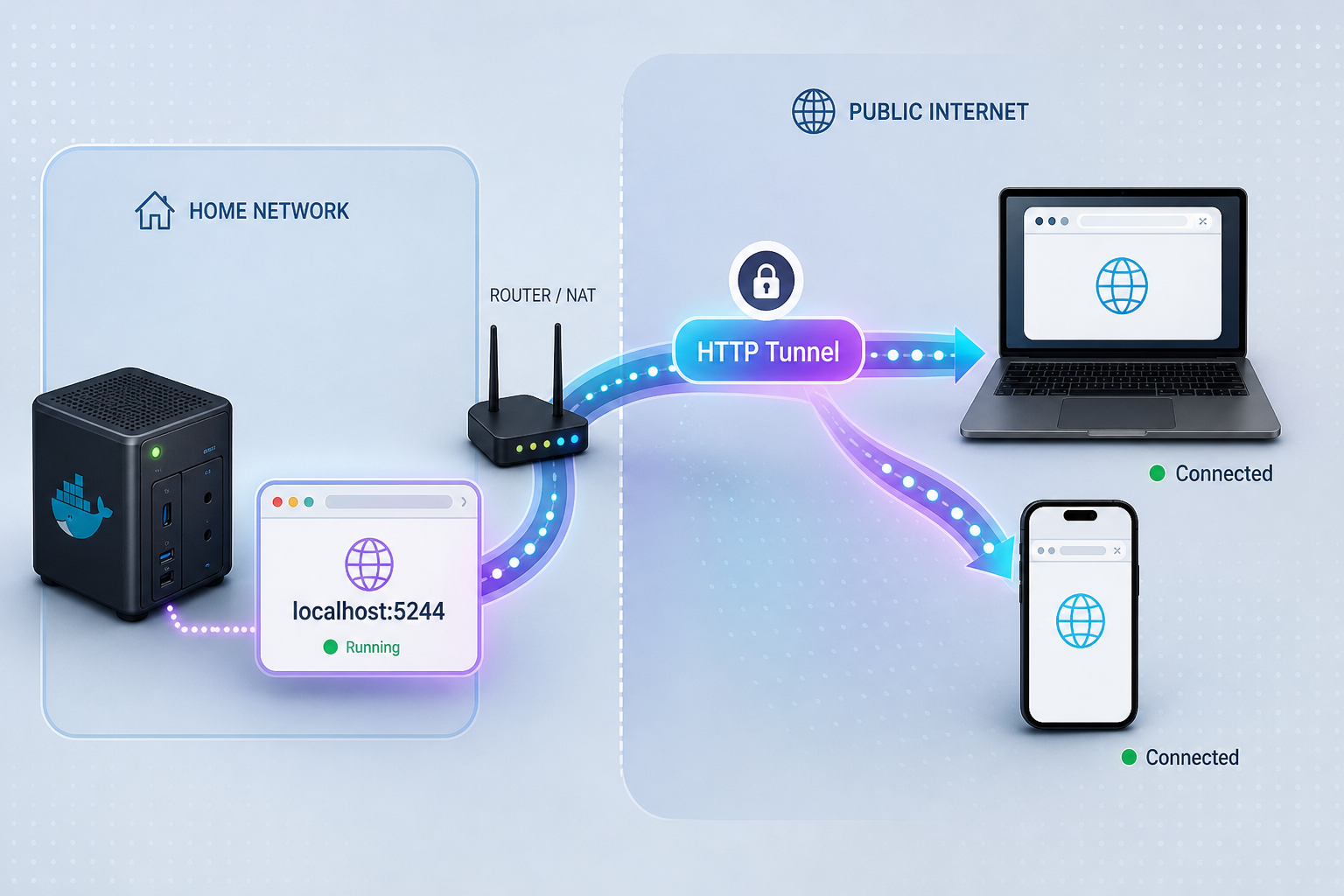
Run a self-hosted file listing service in one container, then reach it from anywhere over HTTPS
OpenAList is a community-driven fork of Alist (based on v3.45.0) that provides a web-based file listing and management layer over local and remote storage. This guide installs it with Docker, shows how to find or set the admin password, verifies the service on port 5244 and covers routine operations and troubleshooting. Once the service works locally, we add Localtonet as a separate step: an HTTP tunnel that publishes the web UI at a public HTTPS address without router port forwarding. We also explain what the available evidence does and does not establish, so you do not have to guess about ports and defaults.
📋 What's in this guide
Why run OpenAList, and why add a tunnel?
Many people end up with files scattered across a local disk, a NAS, and a few cloud drives. A file listing application gives all of that a single web front end, with browsing, previews and permissions in one place. OpenAList is one such application. Its project documentation describes support for multiple storage providers, including local storage, Aliyundrive, OneDrive and Google Drive, WebDAV access, light and dark modes, password protection for specific paths, and file preview for video, audio, office documents, PDF, code and images. It also lists batch download, single sign-on, offline download of torrent content to a chosen directory, a text editor, and a Crypt feature that lets you store encrypted data on a remote provider so the provider only sees the encrypted container.
The project is licensed under AGPL-3.0, and the latest release we reviewed is v3.45.31. That release's notes describe a security-related rebuild with Go 1.27.3 to distrust compromised eMudhra intermediate certificates. If you plan to modify the code and offer the result to others over a network, read the AGPL-3.0 text carefully, because that license has obligations around providing source for network use. We are not lawyers, and this is a general pointer rather than legal advice.
Running it at home or on a small server solves the "one place for my files" problem, but it creates a second one: the web UI is listening on a private address. To use it from a phone on mobile data, from an office, or to share a link with someone, you either open an inbound port on your router, set up a VPN, or use a tunnel. With Localtonet, the client on your machine makes an outbound connection to one of our relay servers, and the HTTP tunnel gives you a public HTTPS address that forwards to your local service. There is no inbound port forwarding, no firewall change and no public IP required. The tunnel only works while the client device is connected and the tunnel is running.
This guide keeps those two jobs separate on purpose. First we get OpenAList installed and verified locally, because a tunnel in front of a broken service only gives you a broken public URL. Then we publish it.
OpenAList is not OpenList: avoid mixing up the docs
The naming in this ecosystem is confusing, and it affects which commands you can safely copy. Alist is an older open-source file listing project. Community forks followed. The one in this guide is OpenAList, maintained by AlliotTech, described as a fork of Alist based on v3.45.0. A different project called OpenList, maintained by the OpenListTeam, has its own documentation, its own Docker image name (openlistteam/openlist), its own data path inside the container (/opt/openlist/data), its own admin password variable (OPENLIST_ADMIN_PASSWORD) and its own binary name.
This matters because search results often show OpenList instructions when you search for the Alist family. Some of those instructions, such as the container user changes after OpenList v4.1.0, the image suffixes like -aio, -ffmpeg and -lite, or the openlist admin random command, belong to OpenList. We have not confirmed that they apply to the OpenAList image or binary, so this guide does not use them. Where OpenAList details come from the project's README, we say so. Where the evidence is silent, we say that too.
For OpenAList, the README's Docker image is alliot/alist:latest with data stored at /opt/alist/data inside the container. Do not substitute openlistteam/openlist or /opt/openlist/data from other documentation, and do not use the OPENLIST_ADMIN_PASSWORD variable. They belong to a different project.
Prerequisites
For the Docker path you need very little. Here is what to have in place before you start:
- A Linux, macOS or Windows machine that can run Docker, with Docker Engine (or Docker Desktop) installed and the daemon running. Check with
docker version. - Permission to run Docker commands, either as root, through
sudo, or as a member of the docker group. - TCP port 5244 free on the host. The README maps host port 5244 to container port 5244 and says the web UI is available at
http://localhost:5244after startup. - A directory on the host to hold persistent data. Without a mounted volume, your configuration and database disappear when the container is removed.
- For the remote access step, a free Localtonet account and the Localtonet client installed on the machine that can reach port 5244.
Binary installs need the release archive from GitHub Releases for your operating system and architecture. Source builds additionally need Git, Go 1.27.1 or later, and a C compiler, because SQLite support uses CGO. We cover those paths briefly later, because the Docker route is the one the README documents with concrete flags.
Choosing the install method
| Method | Best for | What the README establishes |
|---|---|---|
| Docker (docker run or Compose) | Most home servers and VPS hosts; easy updates and clean removal | Image alliot/alist:latest, port mapping 5244:5244, data volume at /opt/alist/data, a sample docker-compose.yml is mentioned |
| Prebuilt binary | Hosts without Docker, or when you want a plain process | Download from GitHub Releases and start with ./alist server |
| Build from source | Contributors and people who want to audit or patch the code | Requires Git, Go 1.27.1 or later, and a C compiler for SQLite/CGO |
Install OpenAList with Docker
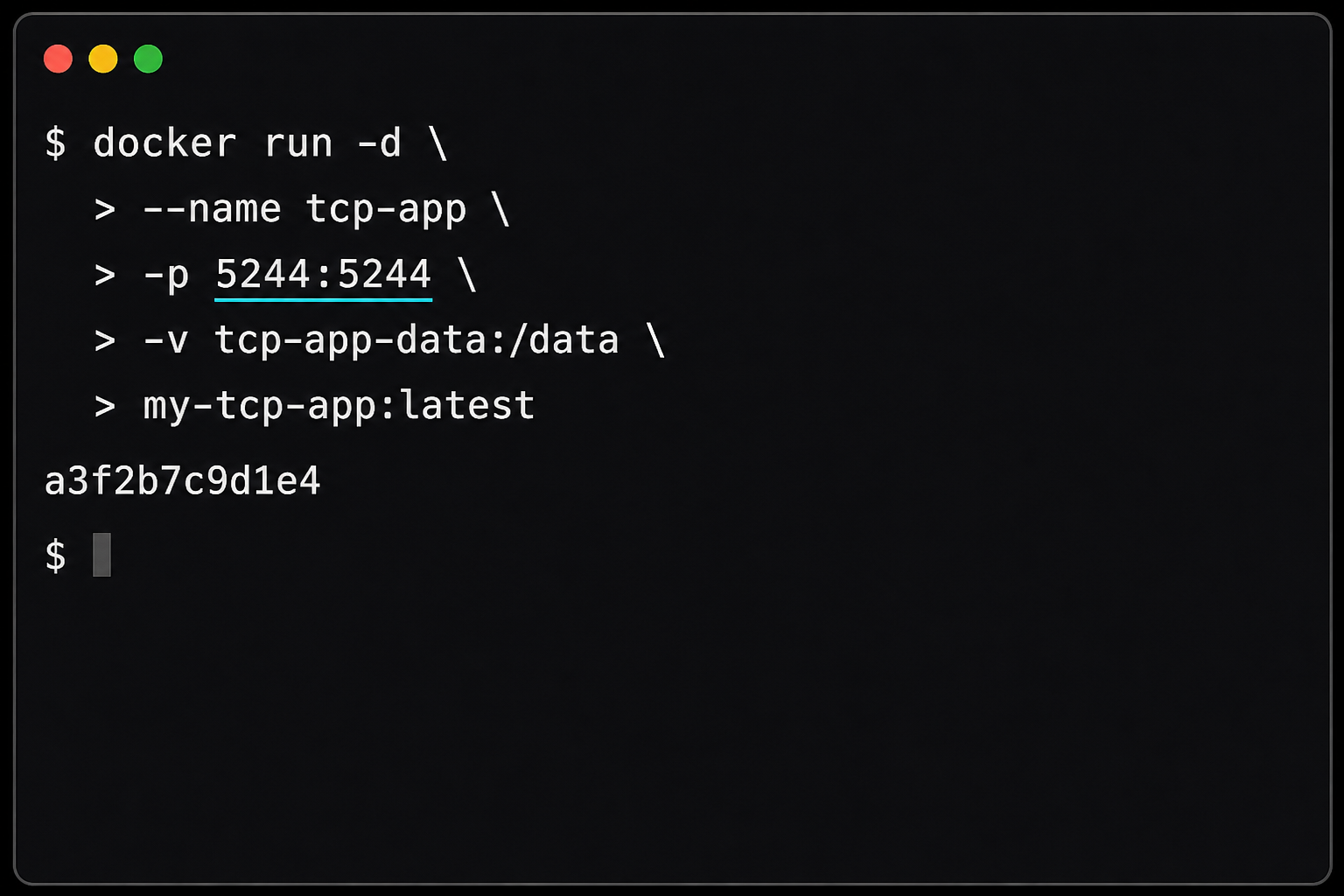
Start by creating a host directory for the data. We use /opt/openalist/data as an example. The README specifies the path inside the container (/opt/alist/data), while the host path is your choice, so pick any location with enough space and sensible permissions.
sudo mkdir -p /opt/openalist/data
Then start the container. The image, the port mapping and the container-side data path come from the README. The flags -d, --restart=unless-stopped and --name are standard Docker options that we added for convenience, not requirements stated by the project:
docker run -d \
  --name openalist \
  --restart=unless-stopped \
  -p 5244:5244 \
  -v /opt/openalist/data:/opt/alist/data \
  alliot/alist:latest
Docker pulls the image on first use, creates the container and starts it in the background. The first start generates a random admin password, which we retrieve in the next section. If you prefer to keep the service off the network entirely until the tunnel is running, you can bind the published port to the loopback interface only by changing the mapping to -p 127.0.0.1:5244:5244. That is a general Docker feature rather than an OpenAList setting. With that mapping, the web UI is reachable only from the host itself, which is exactly what a Localtonet client running on the same host needs.
The same setup with Docker Compose
The README mentions a sample docker-compose.yml, but the exact file contents were not part of the evidence we could extract, so we do not reproduce it. Instead, here is a Compose file that expresses the same settings as the command above. Treat it as our translation, and compare it with the sample in the project README if you want to follow the maintainers' version exactly.
services:
  openalist:
    image: alliot/alist:latest
    container_name: openalist
    ports:
      - "5244:5244"
    volumes:
      - ./data:/opt/alist/data
    restart: unless-stopped
Save it as docker-compose.yml in a directory such as /opt/openalist, and run these commands from that directory:
docker compose pull
docker compose up -d
Compose creates a data directory beside the file the first time it runs, and your OpenAList database and configuration live there. Keep that directory in your backups.
latest follows new releases, which is convenient but means a pull can change the version you run. If you prefer to control upgrades, pin an explicit version tag. We have not verified the exact tag naming scheme for the alliot/alist image, so check the tag list on the registry page before pinning one. The latest GitHub release we reviewed is v3.45.31.
Binary and source installs
If you cannot or do not want to use Docker, the README documents two other routes. We keep this section short, because the available evidence does not include the full command sequences for them, and we do not want to invent filenames or flags.
Prebuilt binary
Releases are published on the project's GitHub Releases page. The v3.45.31 release lists 22 assets, so pick the one that matches your operating system and CPU architecture. We cannot tell you the exact asset names from the evidence we have, so read the names on the release page. After extracting the archive, the README says to start the server with:
./alist serverThe binary needs a place to write its data directory and must be able to bind port 5244. For anything beyond a quick test, run it under a process supervisor such as systemd so it restarts after reboots. The README evidence we have does not include a service unit, so you would write that yourself using your init system's documentation. The Docker route gives you restart handling with a single flag, which is one reason we lead with it.
Build from source
Building requires Git, Go 1.27.1 or later, and a C compiler, because SQLite is used through CGO. If the C compiler is missing, the build will not produce a working SQLite-enabled binary. The exact build commands and frontend assets handling were not in the evidence we could extract, so follow the README's build section for those. Source builds are mainly worthwhile if you want to audit the code, test a patch, or run on an architecture that has no prebuilt asset.
Find or set the admin password
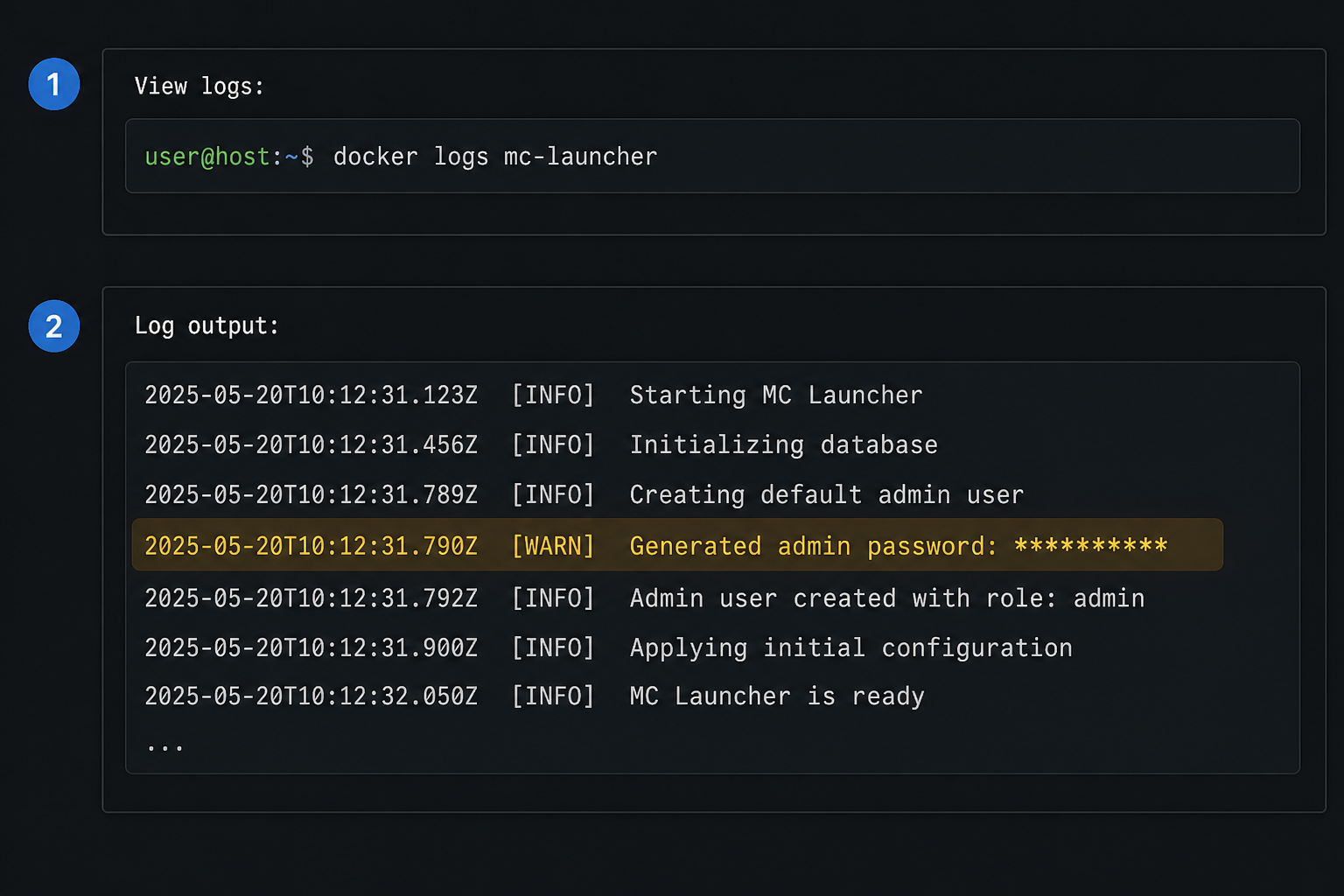
The README describes two ways to get an initial admin password. By default it is generated randomly and appears in the container logs. Alternatively, you can set it yourself with the ALIST_ADMIN_PASSWORD environment variable.
Read the generated password from the logs
docker logs openalistScroll through the output on first start and look for the line that reports the creation of the admin user and its initial password. We do not quote the exact wording because we have only seen the wording of the related OpenList project, not confirmed output from this image. Search for "password" if the log is long:
docker logs openalist 2>&1 | grep -i password
The username is normally admin in this family of projects, but the OpenAList evidence we have does not state it explicitly. If the login rejects it, check the log line, which should name the account.
Set the password with an environment variable
To choose the password up front, add the variable when you create the container. Replace the placeholder with a strong value of your own, and do not reuse a password from another service:
docker run -d \
  --name openalist \
  --restart=unless-stopped \
  -p 5244:5244 \
  -v /opt/openalist/data:/opt/alist/data \
  -e ALIST_ADMIN_PASSWORD='choose-a-long-unique-password' \
  alliot/alist:latest
In Compose, add the same value under an environment: key of the service. Be aware that a password written in a Compose file or shell history is stored in plain text on disk, so keep that file private. A plain environment variable is also visible to anyone who can run docker inspect on the host.
The README evidence does not tell us how ALIST_ADMIN_PASSWORD behaves when a database already exists, and it does not document an admin reset command for OpenAList. Related projects offer commands for that, but we will not assume those commands exist here. If you lose access, check the project's documentation for the version you run. As a practical fallback on a brand-new install with no data you care about, removing the data directory and starting again recreates the initial admin account, but that wipes your configuration, so do it only on a fresh setup.
Whichever route you use, sign in once, then change the password in the admin interface to something only you know. The generated password has been printed into a log file, and logs tend to get copied around.
Verify the installation locally
Before you involve any tunnel, confirm the service from the host itself. Work through these checks in order, because each one narrows down where a problem lives.
Confirm the container is running
Run docker ps. You should see a container named openalist with a status beginning "Up" and a PORTS column showing 5244 mapped to 5244. If the container is missing, run docker ps -a and then docker logs openalist to see why it exited.
Test the port from the command line
Run curl -I http://localhost:5244. Any HTTP response line, such as a 200 or a redirect, means the web server is answering. A "connection refused" result means nothing is listening on that port yet.
Open the web UI in a browser
Visit http://localhost:5244 on the host, or the host's LAN IP address with port 5244 from another device on the same network (if your port mapping is not limited to the loopback interface). The README states that this is where the web UI appears after startup.
Sign in as the administrator
Use the password from the logs or the one you set through ALIST_ADMIN_PASSWORD. After you are in, change the password and review the admin settings before you add any storage.
Add one storage and browse it
Add a single local storage entry that points to a directory visible inside the container, then browse it in the UI. If you plan to list a host directory, you must mount it into the container with an additional -v option, because the container cannot see arbitrary host paths. The exact fields of the storage form depend on the driver and version, so follow the labels in the UI.
Only continue once step 5 works. A local storage entry that lists and previews a test file proves that the container, the volume mapping and the web application are healthy together.
Daily operations: logs, restarts, updates, backups
A file listing service is the kind of tool that quietly runs for months. These routine commands keep it that way. They use standard Docker behavior, not OpenAList-specific features.
Logs, stop and start
docker logs -f openalist
docker stop openalist
docker start openalist
docker restart openalist
With --restart=unless-stopped (or the equivalent Compose setting), Docker starts the container again after a host reboot unless you stopped it manually.
Updating
Because your data lives in the mounted directory, replacing the container does not remove your configuration. For a docker run deployment, pull the new image, remove the old container and start a new one with the same flags:
docker pull alliot/alist:latest
docker stop openalist
docker rm openalist
# then repeat your original docker run command
For Compose, run docker compose pull followed by docker compose up -d in the project directory. Back up the data directory before upgrades, and read the release notes. We could not see any migration notes in the release we reviewed, which only mentioned the security rebuild, but future releases may differ.
Backups
Copy the whole host data directory (for example /opt/openalist/data) to another disk or machine. For the most consistent copy, stop the container first, because the application uses a database file. Test a restore at least once by starting a second container against a copy of the backup on a different port.
Time zone and file permissions
Some container images read a TZ variable for the time zone and a UMASK variable for file creation permissions. The related OpenList documentation lists those, but we have not confirmed that the alliot/alist image uses them, so we do not include them in the commands above. If you see permission errors on a mounted directory, the cause is usually that the user inside the container cannot write to the host directory. Docker has a general --user UID:GID option for running a container as a particular user, but we have not verified how this image behaves under it, so test it on a non-critical directory first.
Reach OpenAList remotely with a Localtonet HTTP tunnel
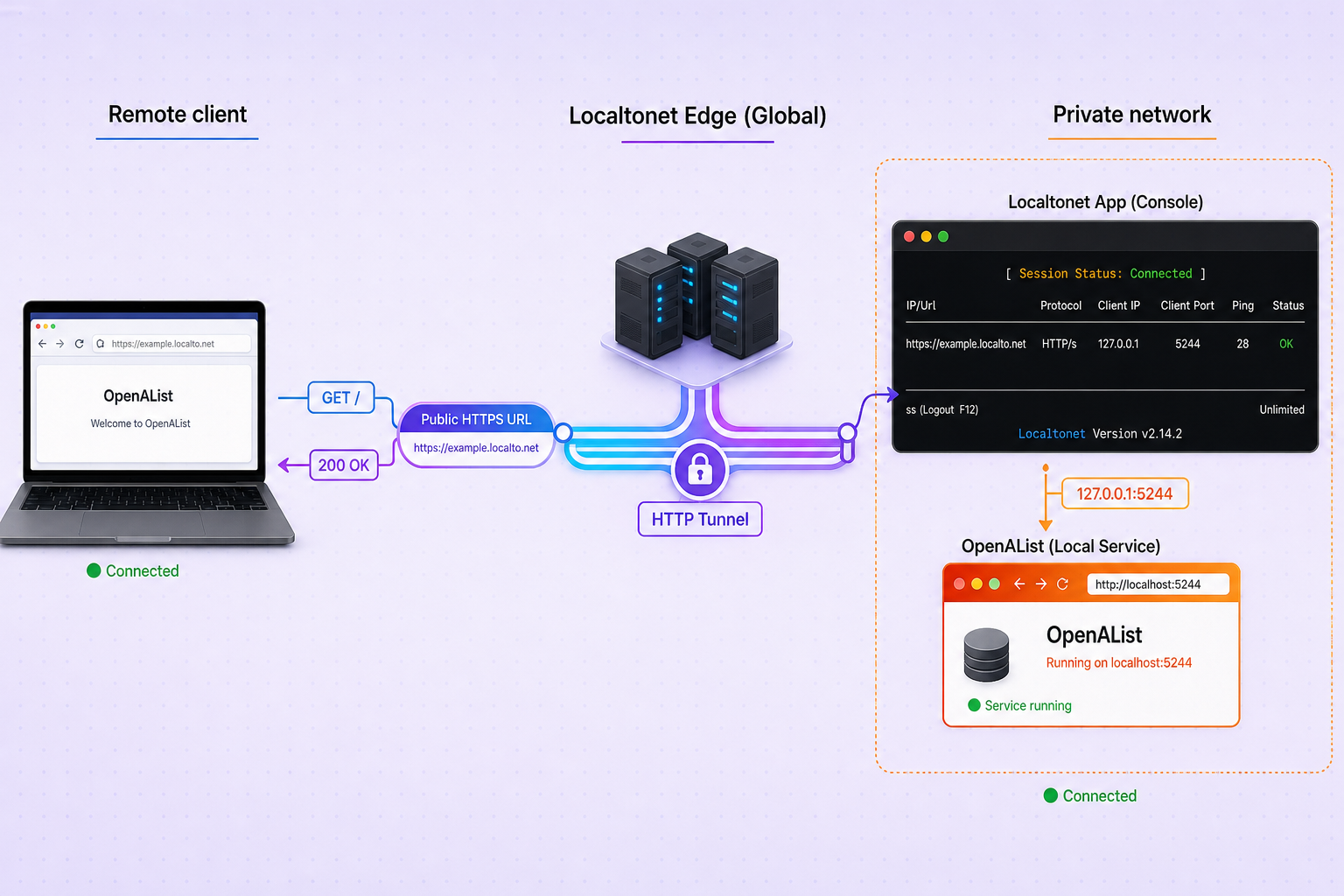
Everything up to this point is the OpenAList installation. The tunnel is a separate layer that we add on top, and the project README does not cover it. We describe the Localtonet side using our documented workflow for HTTP tunnels. For the authoritative field list in the current dashboard, see the Localtonet HTTP tunnel documentation, since labels and options can change over time.
Configure the tunnel
The sequence below follows our general Localtonet workflow. We do not list individual dashboard field names beyond what our documentation establishes, because the exact UI can vary by client version. Use the HTTP tunnel documentation for the current screen layout.
Install the Localtonet client on the OpenAList host
Run the client on the machine that can reach port 5244. If OpenAList runs in Docker with -p 5244:5244, the Docker host is the right place. Installation instructions for each operating system are in the Localtonet documentation. Create a free account first through the registration page if you do not have one.
Authenticate the device with its token
The auth token identifies the device that will run the tunnel. Copy it from your dashboard and use it only on that device. Never paste it into a public issue, a screenshot or a shared Compose file.
Select a relay server
Pick one of the servers offered in the dashboard. Available values depend on the current product, so choose from what the dashboard shows rather than relying on a fixed list.
Create an HTTP tunnel to port 5244
Choose the HTTP tunnel type, select the Process Type (Random Sub Domain, Custom Sub Domain or Custom Domain) and set the local target to the OpenAList service: the IP address of the host (for example 127.0.0.1) and port 5244. For a custom domain, check the current Localtonet documentation for the DNS requirements before you change any DNS records.
Start the tunnel
Press Start. A newly created tunnel is not running until you do. Once it is running, the dashboard shows the public address assigned to it.
Open the public HTTPS address and sign in
Visit the assigned address from a device outside your network, for example a phone on mobile data. You should see the same OpenAList login page you saw on localhost:5244. When you no longer need remote access, stop or delete the tunnel.
The local target must be reachable from the machine running the Localtonet client. If the client and the Docker container run on the same host and you published port 5244, then 127.0.0.1 and 5244 work. If you run the client on a different machine than the Docker host, use the Docker host's LAN IP address instead, and make sure the published port is not restricted to the loopback interface.
What the HTTP tunnel covers
An HTTP tunnel forwards web traffic, so it covers the browser-based interface that listens on 5244. The README also mentions WebDAV, FTP, SFTP and S3-compatible access, but the evidence we have gives no separate port numbers for any of them, so we will not assume any. WebDAV is built on HTTP as a general networking fact, which suggests it may be reachable through the same web endpoint, but we have not confirmed the exact WebDAV path or setting in OpenAList. Check the in-app settings or the project documentation for the version you run. FTP and SFTP use their own protocols, so they would need a different tunnel type and a port you have confirmed from your own configuration, not from this article.
| Access method | Evidence status | What to do |
|---|---|---|
| Web UI | Documented: http://localhost:5244 after startup | Point a Localtonet HTTP tunnel at port 5244 |
| WebDAV | Mentioned as supported; endpoint path and port not established in our evidence | Confirm the path in the application or its docs before relying on it through a tunnel |
| FTP / SFTP | Mentioned as supported; no ports given | Do not guess ports; confirm them in your own settings, and use a raw TCP tunnel only if you need them |
| S3-compatible access | Mentioned as supported; no ports or paths given | Treat as unverified until you confirm how it is exposed in your version |
Secure the public exposure
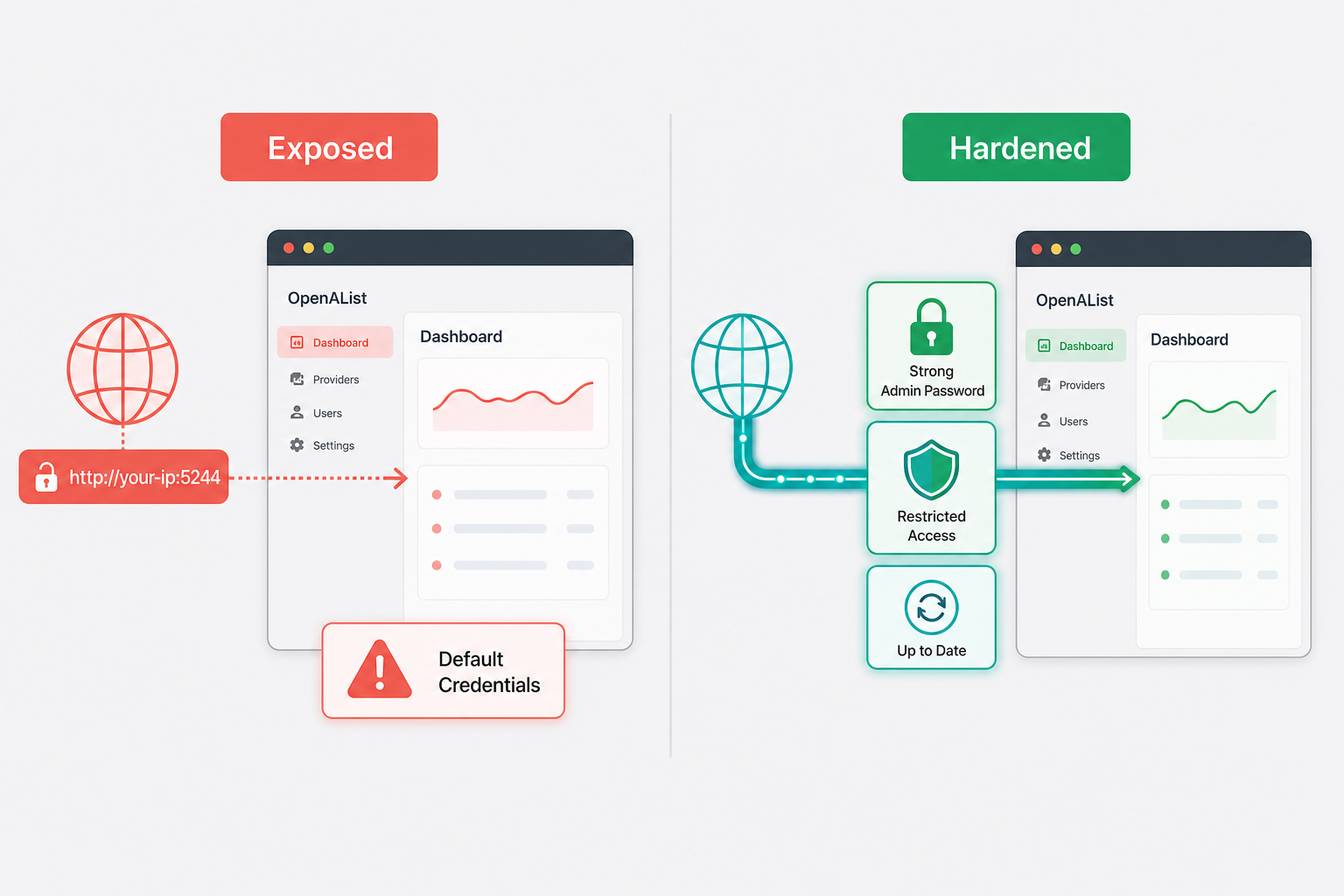
A tunnel makes your service reachable from the internet. It does not change who is allowed to use it, and it does not bypass your application's authentication. The safety of the public address depends mostly on how well OpenAList itself is configured. Treat this checklist as mandatory before you share the URL.
- Change the admin password immediately, and use a long unique value. The initial password was printed to logs or set in an environment variable, so assume it has leaked into more places than you want.
- Review guest and anonymous access. Check the admin settings for whether visitors can browse without signing in, and whether they can upload, delete, rename or move files. The project lists web upload with visitor access as an option, which is useful in some setups and dangerous in others.
- Use protected routes. The project documents password protection for specific paths. Apply it to any directory that should not be public.
- Use least privilege for storage. Mount into the container only the host directories you want listed, and avoid mounting your home directory or the filesystem root. Where possible, use read-only mounts for content that OpenAList only needs to display.
- Mind the cloud credentials. If you connect cloud storage accounts, the application holds access to them. A compromised admin account becomes a path into those accounts.
- Keep the software current. The latest release we reviewed was a security-driven rebuild. Subscribe to the repository's releases and update regularly.
- Stop the tunnel when you do not need it. A stopped tunnel is a closed door. Delete tunnels you no longer use.
- Keep the token private. Anyone with your Localtonet auth token could run tunnels as your device. Never place it in screenshots, repositories or chat messages.
Once the web UI has a public address, expect automated login attempts over time. Strong passwords are the first defense. We cannot confirm from the evidence whether OpenAList has built-in login rate limiting or two-factor authentication, so verify what your version offers in its settings and do not assume it is there.
Does a random subdomain protect the service?
A random subdomain is hard to guess, but an unguessable address is not an access control. Addresses show up in browser history, chat messages and logs. Rely on the application's authentication, and treat the address as public once you have shared it.
Troubleshooting
The container exits right after starting
Run docker logs openalist. Typical causes are a port conflict (something else already uses 5244, in which case Docker reports the error when starting), a data directory that the process cannot write to, or a typo in the image name. If port 5244 is taken, change only the host side of the mapping, for example -p 8080:5244, and then use 8080 locally and as the tunnel target.
I cannot find the admin password
The password is printed on first start, so run docker logs openalist and search for "password". If you removed and recreated the container with the same data volume, the account already exists and no new password is printed. If your logs have rotated, you may not be able to retrieve it. See the note on resets in the password section, and check the project documentation for your version.
The page loads on localhost but not from another device on my LAN
Check whether you bound the port to 127.0.0.1 only. That mapping blocks other machines by design. Also check the host firewall for port 5244.
My data disappeared after I recreated the container
This happens when the volume was not mounted, or when you mounted a different host path the second time. Inspect the mounts with docker inspect openalist and confirm that a host directory maps to /opt/alist/data. Always use the same host path in every run.
Permission denied on a mounted directory
The user inside the container cannot read or write the host directory. Check ownership and mode on the host. Running the container with --user UID:GID matching the directory owner is a general Docker option, but we have not confirmed this image's behavior with it, so test it on a non-critical path first.
The tunnel is created but the public address shows an error
- Confirm the tunnel was actually started, not only created.
- Confirm the Localtonet client is still connected on the device.
- Confirm the local target matches the real address and port. Test
curl -I http://127.0.0.1:5244on the same machine as the client. - If the client runs on a different machine from Docker, make sure that machine can reach the Docker host's IP and port.
The UI loads remotely, but links or assets point to the wrong address
Applications that build absolute links sometimes need to know their public address. We have not confirmed which setting, if any, OpenAList uses for that, so look through the site-related options in the admin settings if links point to localhost. Report the behavior to the project if you believe it is a bug.
Large file uploads or downloads fail through the tunnel
Test the same transfer directly on the LAN first. If it works locally and fails remotely, the limit may sit in a browser timeout, your upload bandwidth or an intermediate layer. We do not publish bandwidth or size limits for tunnels here, because such details can vary by plan, so check the current Localtonet documentation and your plan before you plan large transfers.
When another Localtonet feature is a better fit
OpenAList is a full application with storage drivers, previews and user management. If your only goal is to publish a folder of files, a simpler option exists in our own product. Localtonet File Server publishes a local folder path directly, with three sub-types: Default (a browser-based file manager), SFTP (for SFTP clients, automation and CI/CD) and WebDAV (to mount the folder as a network drive). You can read more in our File Server tunnel guide.
| Goal | Good fit | Why |
|---|---|---|
| One front end over local storage plus several cloud drives | OpenAList behind an HTTP tunnel | It aggregates multiple storage providers and adds previews and per-path protection |
| Share a single folder quickly with a built-in file manager | Localtonet File Server (Default) | No separate application to install; you point it at a folder path and press Start |
| Mount a folder as a network drive on Windows or macOS | Localtonet File Server (WebDAV) | The WebDAV sub-type is designed for native OS network drive mounting |
| Private access for yourself only | Localtonet VPN Manager | It is our actual private mesh VPN feature; standard tunnels are not a VPN |
These are not mutually exclusive. Many people run an application like OpenAList for browsing and previews, and use other tools for different jobs.
Frequently asked questions
What port does OpenAList use, and what is the local URL?
The README maps port 5244 and states that the web UI is available at http://localhost:5244 after startup. That port is the target for a Localtonet HTTP tunnel. The README evidence does not give separate ports for WebDAV, FTP, SFTP or S3-compatible access, so do not assume any.
Where do I find the OpenAList admin password in Docker?
By default the password is generated randomly and shown in the container logs, so run docker logs openalist and look for the line about the initial password. You can instead set it yourself with the ALIST_ADMIN_PASSWORD environment variable. Change it after your first sign-in either way.
Is OpenAList the same as OpenList or Alist?
No. OpenAList is a community-driven fork of Alist based on v3.45.0, maintained by AlliotTech. OpenList is a separate project with its own image (openlistteam/openlist), data path and environment variables. Use instructions written for OpenAList, and be careful when copying commands from OpenList documentation.
Do I need to open a router port to reach OpenAList remotely?
Not with Localtonet. The client on your device makes an outbound connection to a relay server, and the HTTP tunnel gives you a public HTTPS address that forwards to port 5244. No inbound port forwarding, firewall change or public IP is required. The tunnel works only while the client is connected and the tunnel is started.
Is exposing OpenAList through a tunnel safe?
It can be, if you treat it like any internet-facing application. A tunnel does not replace authentication or authorization. Set a strong admin password, review guest permissions, protect sensitive paths, mount only the directories you need, keep the software updated and stop the tunnel when you do not need it.
Can I install OpenAList without Docker?
Yes. The README documents prebuilt binaries from GitHub Releases, started with ./alist server, and a source build that needs Git, Go 1.27.1 or later, and a C compiler for SQLite through CGO. You then create the Localtonet HTTP tunnel against the same port 5244 in the same way.
Start with Localtonet
Get OpenAList running and verified on port 5244, then create an HTTP tunnel with Localtonet to reach its web UI over HTTPS from anywhere. Start the tunnel when you need access and stop it when you are done.
Get Started Free →

